Last updated: July 2026 · Applies to: all MWF apps built on Atlassian Connect
Action required before September 2026
Atlassian is ending support for the Connect platform in Q4 2026. After this date, Connect-based apps will no longer receive security updates and may stop functioning. Migrating to the Forge version of your app takes less than 5 minutes.
On this page
Why migrate? · What changes for you · How to update (step-by-step) · FAQ
Why is this happening?
Atlassian is unifying its app ecosystem on a single, modern platform called Forge. Unlike Connect, which required apps to run on external servers outside Atlassian's infrastructure, Forge apps run natively inside Atlassian's cloud. This shift delivers stronger security guarantees, better performance, and first-class compliance features with no extra effort on your part.
Connect will reach end of support in Q4 2026. We have migrated all of our apps to Forge so your teams can continue to work without disruption.
Benefits of Forge
|
Benefit |
What it means for you |
|---|---|
|
🔒 Stronger security |
Forge runs in an isolated, sandboxed environment with built-in authentication, egress controls, and automatic vulnerability patching. Forge has completed ISO 27001 and SOC 2 evaluations. |
|
🏠 Native Atlassian hosting |
Apps run entirely inside Atlassian's infrastructure. No third-party servers, no external requests for your data. Eligible apps earn the "Runs on Atlassian" badge. |
|
🌏 Data residency |
Forge respects your Atlassian data residency settings automatically. App data is pinned to your chosen region alongside the rest of your Atlassian data. |
|
⚡ Better performance |
Forge invocations execute from the same region as your Atlassian instance, reducing latency and improving reliability compared to externally hosted Connect apps. |
|
🗺️ Atlassian's long-term roadmap |
New Atlassian platform features, including AI capabilities and deeper integrations, are being built for Forge first. Connect will not receive new capabilities. |
|
🚫 No external infrastructure |
Forge removes the dependency on third-party hosting entirely, simplifying your security audits and vendor reviews. |
What changes for you
Your data and configuration carry over automatically
All existing data, settings, and configurations are preserved during the migration. You do not need to reconfigure the app or re-enter any settings after updating.
|
Area |
Before (Connect) |
After (Forge) |
|---|---|---|
|
App data & settings |
Stored on external servers |
Migrated automatically; no action needed |
|
Configuration |
Configured in Connect app |
Carries over as-is; no reconfiguration needed |
|
User interface |
Connect UI |
Same experience; Forge UI is functionally equivalent |
|
Permissions |
Connect OAuth scopes |
Forge scopes; may prompt for re-approval if elevated permissions are required (app-dependent) |
|
On-premises / Data Center |
Supported via Connect |
Forge is a cloud-only platform. Data Center customers should remain on the current version and contact support for guidance. |
|
Downtime during update |
N/A |
None expected. The app switches from Connect to Forge in the background. |
App-specific limitations
Certain advanced configurations may behave slightly differently on Forge. Where known differences exist, they are documented in each app's individual release notes. Check your app's Confluence space for app-specific notes.
How to update: step-by-step
The migration is triggered by a standard app update in your Atlassian admin panel. For most apps this takes under 5 minutes and requires no downtime.
-
Open Manage apps
Log in to your Jira or Confluence instance Administration Connected apps section.
For Jira, go to Settings > Marketplace apps > Manage apps > Take me there
For Confluence go to Settings > Manage apps > Take me there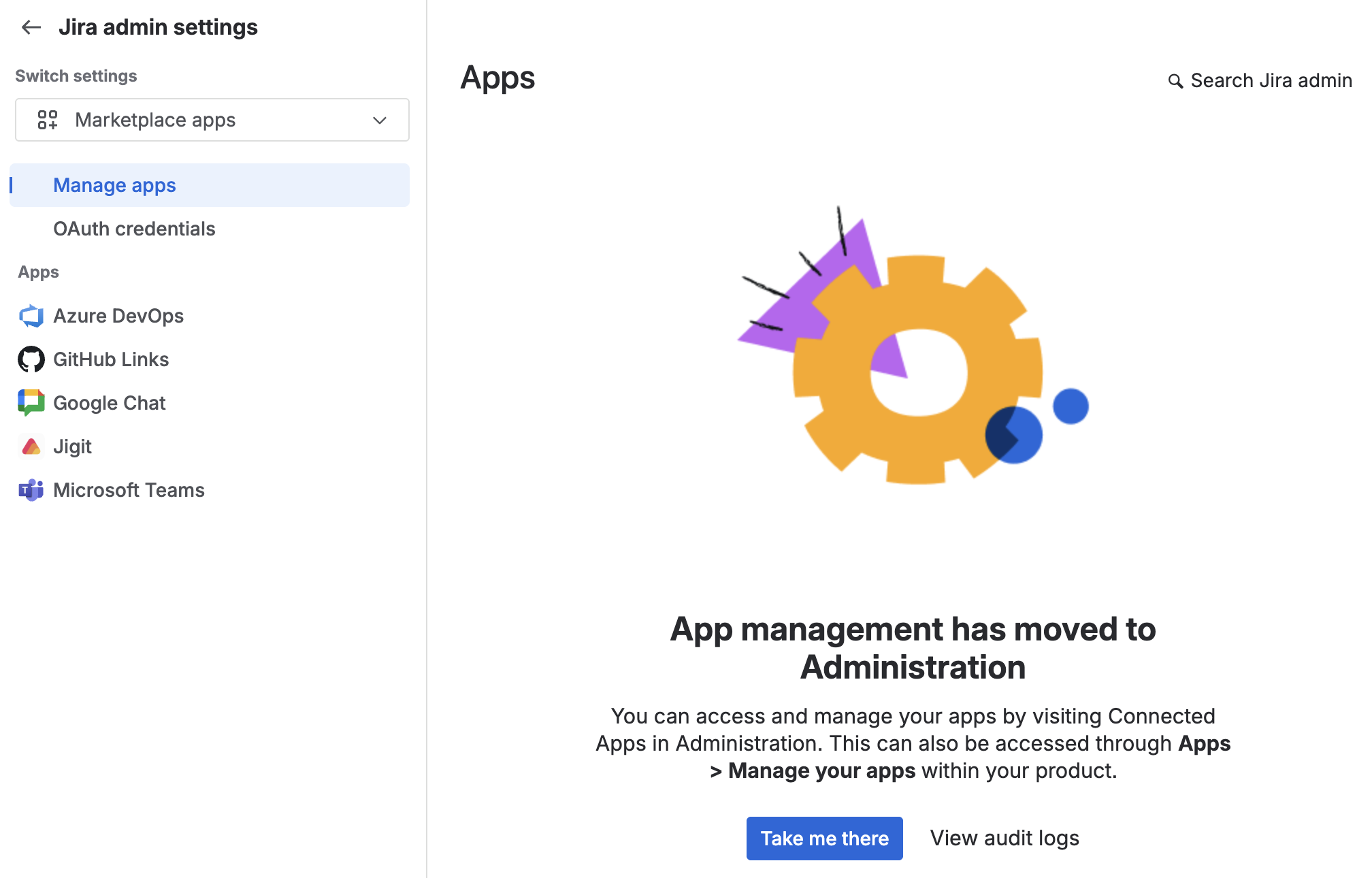
-
Find the app and check for an update
In the app list, locate the app you want to migrate. If a Forge version is available, you will see an Update button next to the app name.
-
Click Update
Click the Update button. Atlassian will uninstall the Connect version and install the Forge version in its place.-
The process typically completes within 30 to 60 seconds.
-
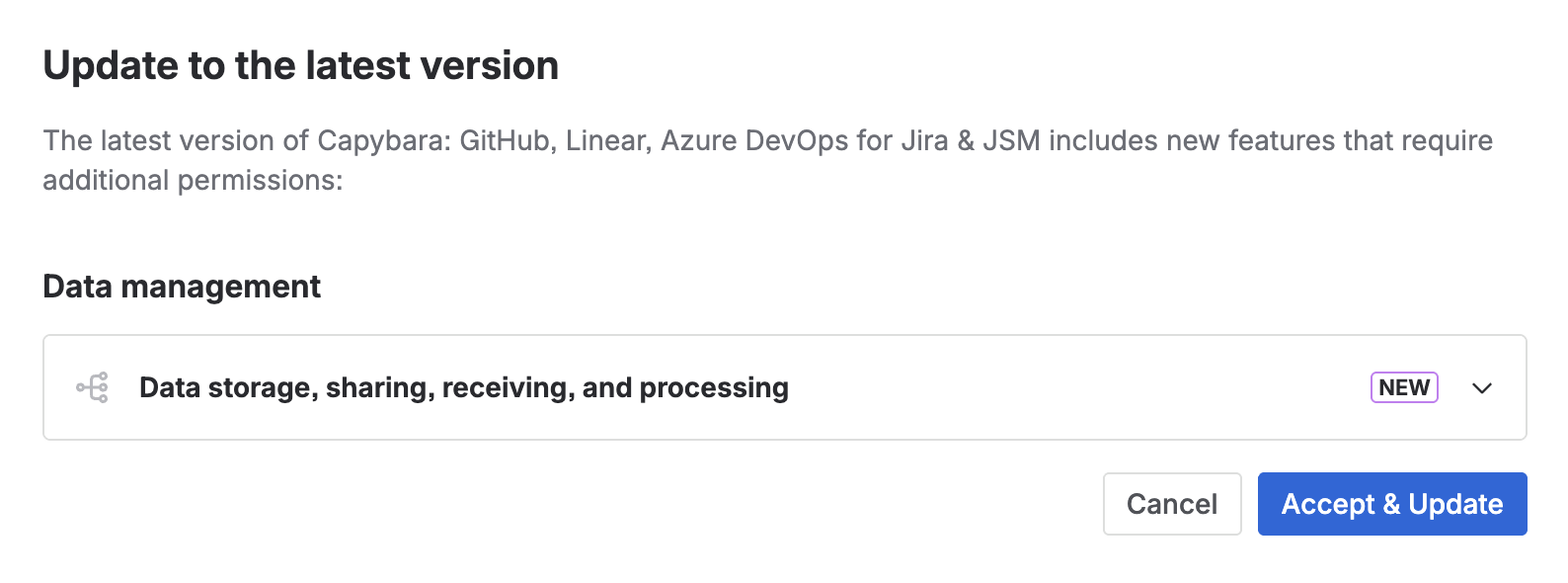
You may be asked to review and accept updated permission scopes before confirming.
-
No data is lost during this process.
-
Automatic updates (some apps)
For apps where the Forge version does not request elevated permissions compared to the Connect version, Atlassian may roll out the update automatically, with no admin action required. You'll receive a notification from Atlassian when this happens.