

Access the application
Once you have installed the Groups Manager application, you can access it by clicking the dedicated tab. The application will then display all the groups on the board.
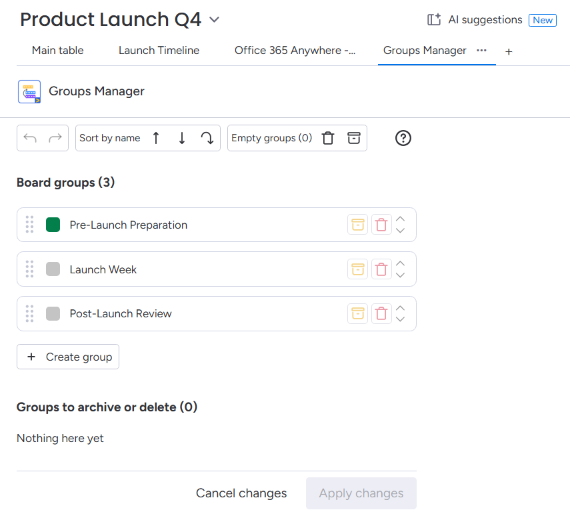
Create new group
Click on the Create group button
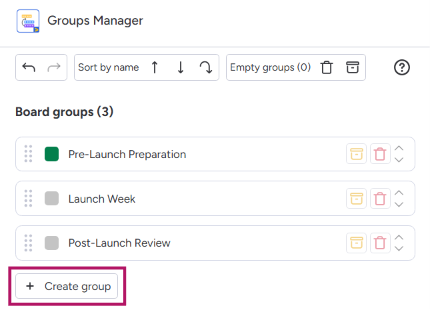
You can also click between two groups:
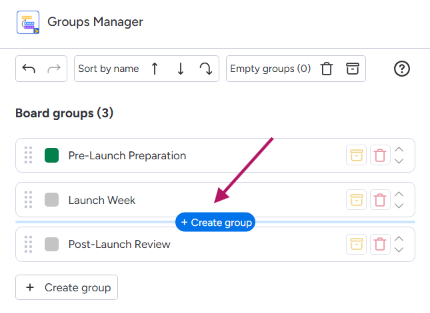
Rename group
Click the group name to edit it. Press Enter when you’re done, or click outside the input.
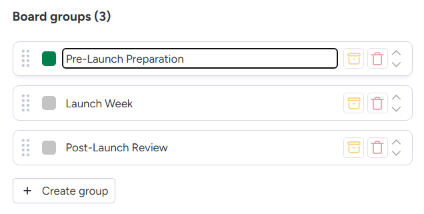
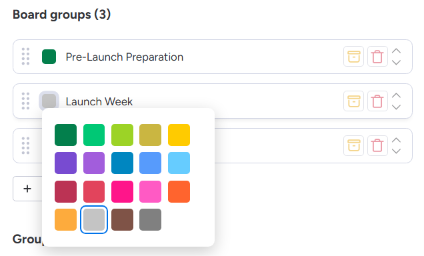
Change group colour
Click on the colour icon to open the colour palette.
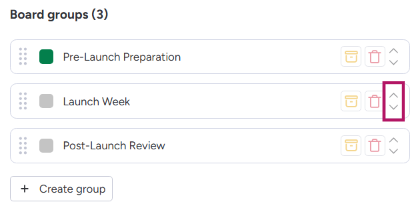
Reorder groups
Groups can be reordered using the up/down arrows at the end of each group
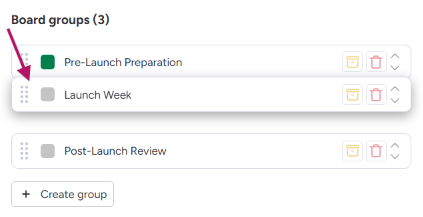
You can also drag and drop the group by clicking the draggable icon at the start of the group
Sort groups
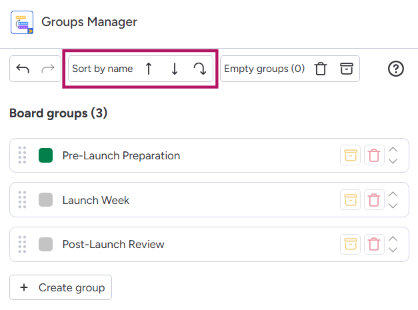
Click on the Sort by name buttons in the toolbar. You can either:
-
Sort by name ascending
-
Sort by name descending
-
Revert to the initial board order
Archive group
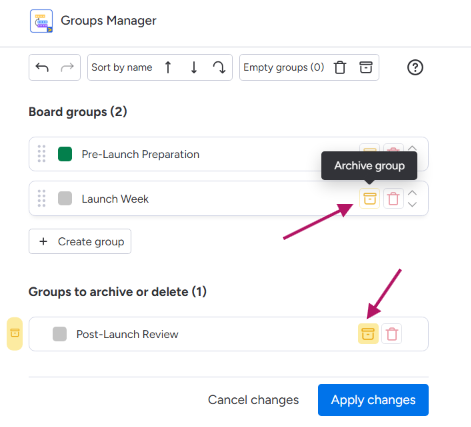
You can archive a group by using the Archive button. The group is not directly archived but moved to the bottom of the Groups to archive or delete area. Click the same button to undo this action.
Delete group
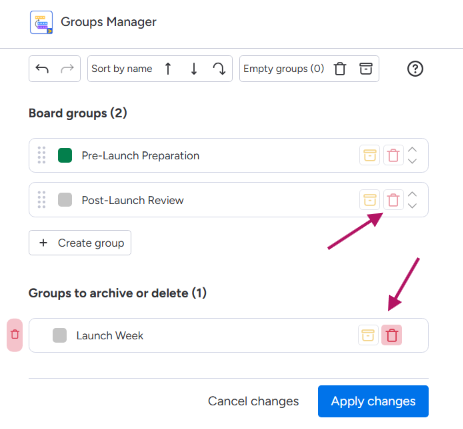
You can delete a group by using the Delete button. The group isn't deleted directly; it’s moved to the bottom Groups to archive or delete area. Click on the same button to undo this action.
Empty groups
If a group has no items, it gets an Empty label.
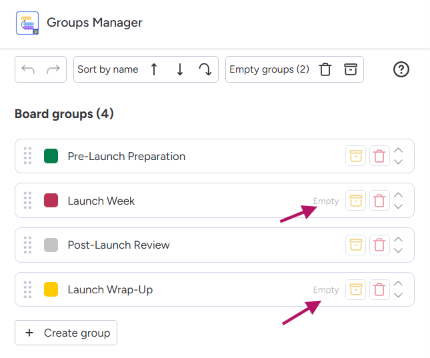
You can perform bulk operations on these empty groups.
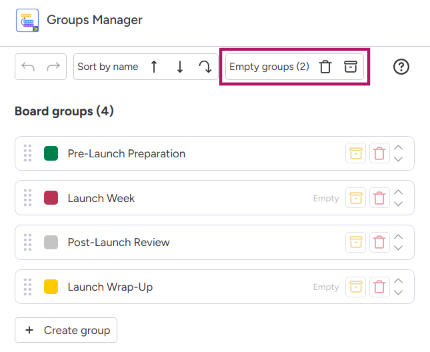
Bulk archive empty groups
You can click on the empty groups' Archive button to archive and move the empty group to the bottom Groups to archive or delete area. Empty groups already in this area will not be affected by this action.
Bulk delete empty groups
You can click on the empty groups' Delete button to delete and move the empty group to the bottom Groups to archive or delete area. Empty groups already in this area will not be affected by this action.
Revert changes
You can revert your changes at different levels
You can't revert any changes after clicking the Apply changes button.
Revert creation of a group
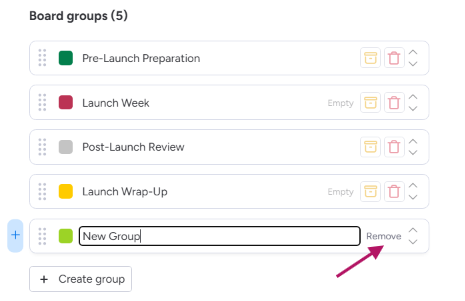
After creating a group, a + icon appears next to the group. You can revert the creation by clicking on the group Remove button.
Revert editing of a group
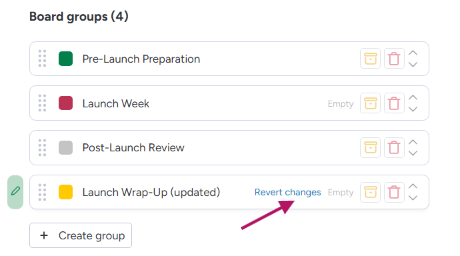
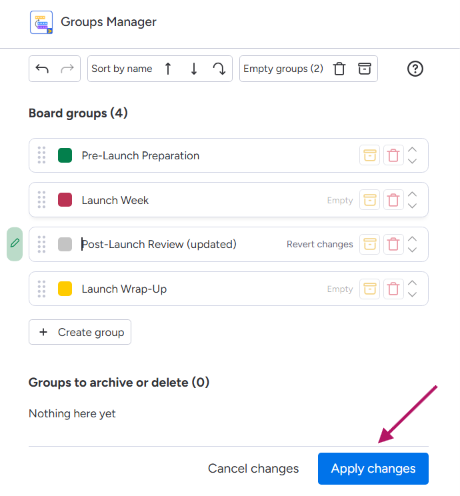
After editing a group's name or colour, a pen icon appears in front of the group. You can revert these changes by clicking on the group Revert changes button.
Revert previous actions
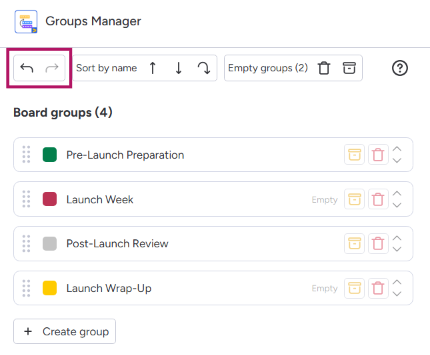
You can cancel your latest changes by clicking the Undo button. Also, you can redo this action by clicking on the Redo button.
Revert all changes
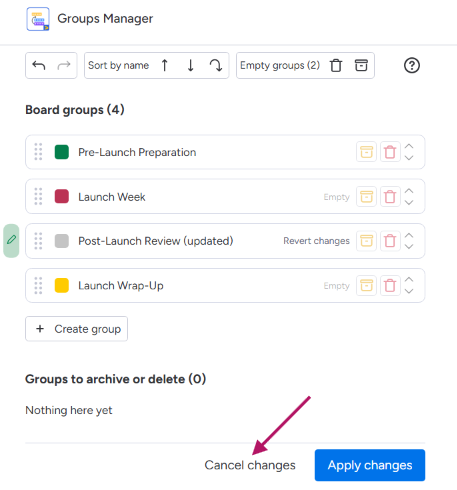
You can revert all changes by clicking on the bottom Cancel changes button. This will show groups as they are currently on your board.
Apply changes
Once you’ve made all your changes, click Apply changes to confirm. A progress window will appear.
Don’t close the app while it’s processing, or only some of your changes will be applied.
If you have many groups, applying your change can take time. Also, http://monday.com apply limitations to the API used by this app. If we detect we are near a limit, the app will pause for 1 minute to avoid reaching it.
Updated: