
How to Link Source File Segments in Jira
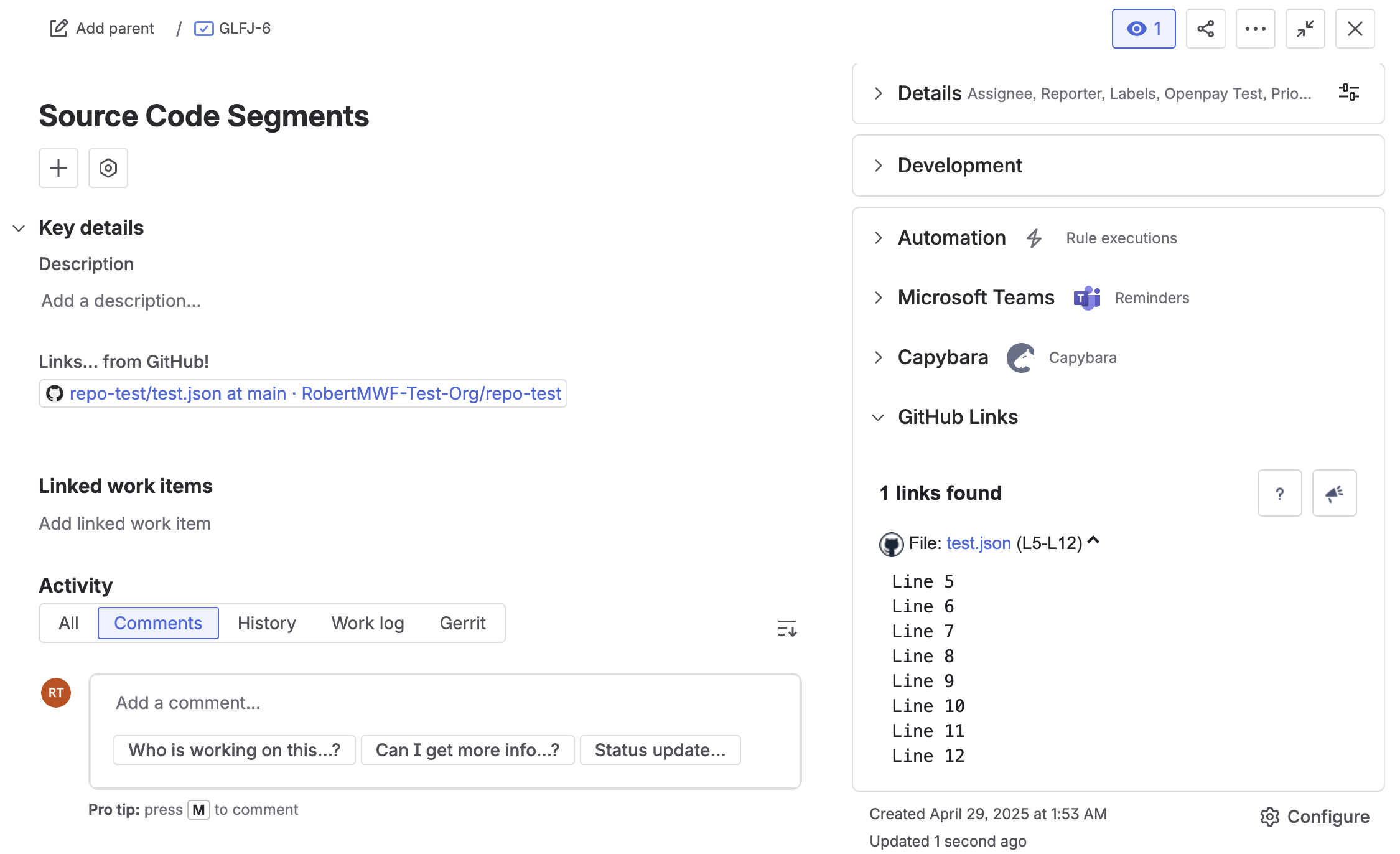
You can display specific sections of a file from GitHub directly within Jira by linking to line ranges in the file.
How it works
When adding a GitHub file URL to the GitHub Links panel in Jira, you can include a line range at the end of the URL. The panel will then display only that selected portion of the file.
You can paste the link into:
The issue description
A comment
A supported custom field
The selected file segment will then be displayed in the GitHub Links panel within the Jira issue.
Option 1: Manually specify line ranges
Copy the URL of your file from GitHub
Add the line range to the end of the URL using the following format:
CODE#L5-L12Paste the full URL into a relevant section of your Jira issue
Example:
https://github.com/your-repo/path/to/file.json#L5-L12The panel will display only lines 5 to 12 and include a label showing the selected range (L5–L12).
Option 2: Copy a highlighted section from GitHub
Open the file in GitHub
Click on the starting line number
Hold Shift and click the ending line number
Copy the URL from your browser
GitHub will automatically include the correct line range in the URL. You can then paste this directly into Jira.
Result
Only the selected lines are displayed in the GitHub Links panel
A label shows the line range (for example, L5–L12)
This helps focus on relevant code without displaying the entire file
Tips
Ensure the repository is accessible to the app
Use line ranges to highlight only the most relevant code
Keep segments concise for better readability
Updated: