

When you receive an email with a supported model file attached (or embedded in the email body), you can use Model Viewer for Outlook to process and display the model without ever leaving Outlook.
First Time Setup
Installation
The App can be installed from the Microsoft Marketplace here: https://marketplace.microsoft.com/en-us/product/saas/wa200009632?tab=overview
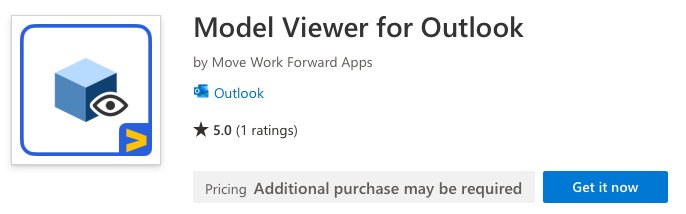
You can choose to install the app for yourself, for another user, or for your entire organization.
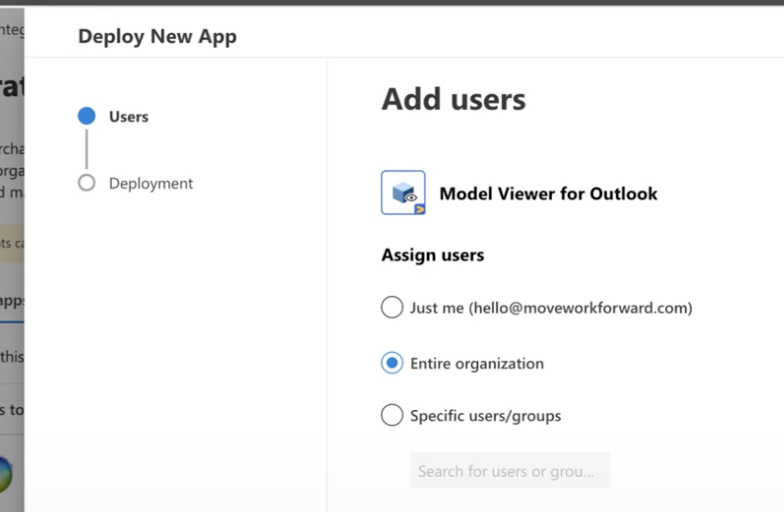
Granting Consent
If the app is not installed or deployed through the Microsoft Admin Center, each user will need to grant consent individually.
The app requires two separate consents:
SSO/Login Consent
The first is SSO/Login Consent, which allows the system to identify the user accessing the app. If possible, we recommend granting this consent on behalf of the entire organization.
-
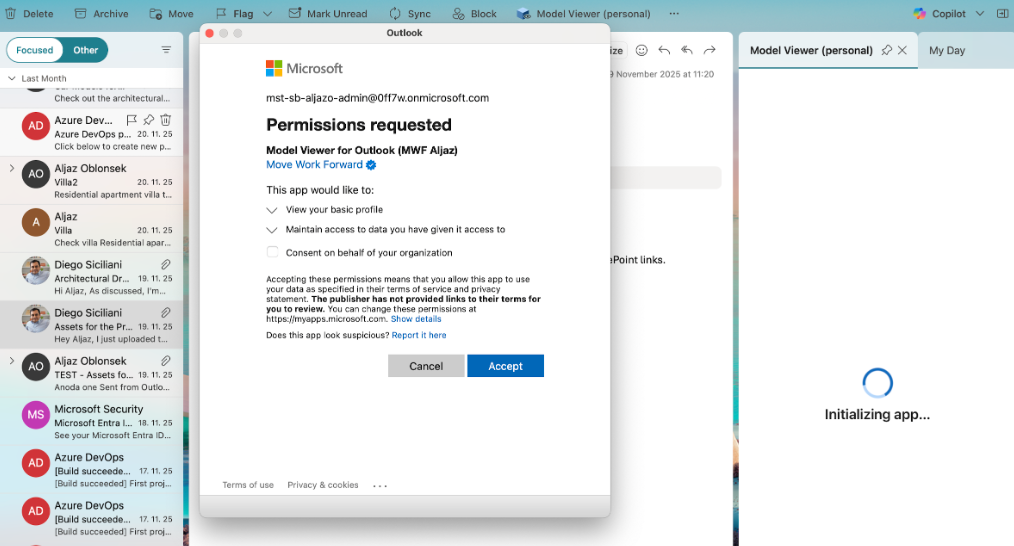
Individual user consent: When you first open the app, click Accept on the permissions pop-up.
-
Organization consent: Check the “Consent on behalf of your organization” box on the permissions pop-up, then click Accept.
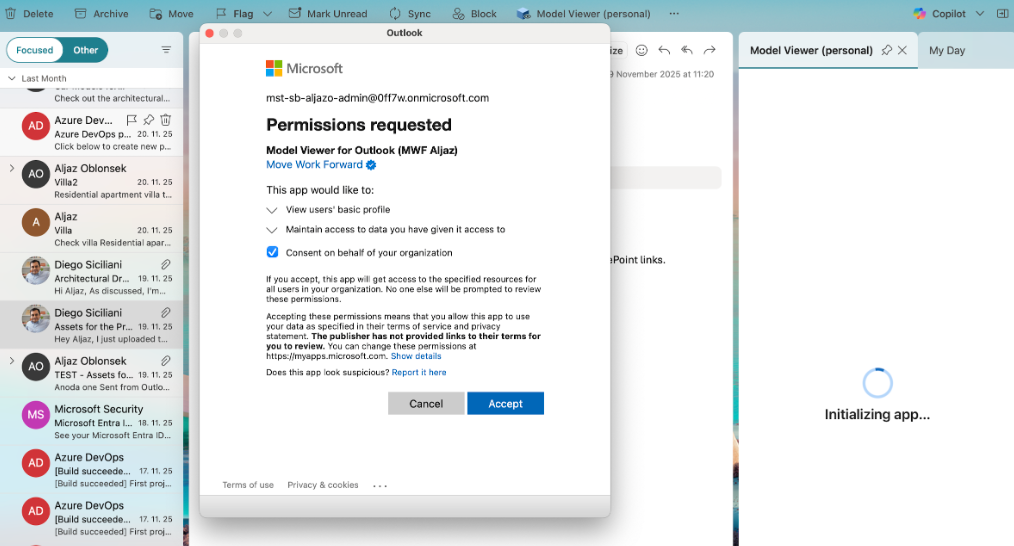
These permissions are automatically managed by Microsoft.
App/Graph Consent
After completing the initial SSO consent, the “Grant Consent to App” screen will be present.
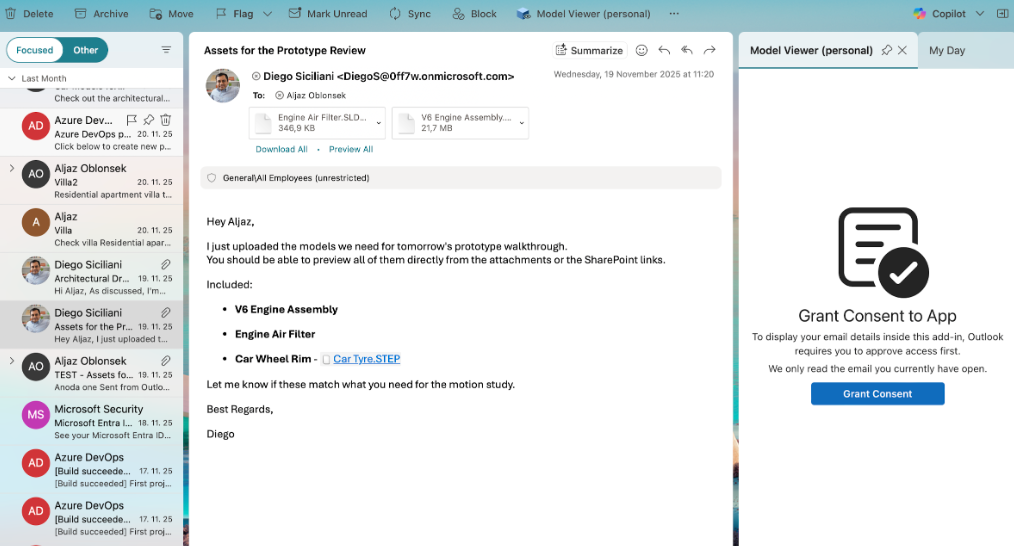
This consent is required for the app to call the Microsoft Graph API, specifically:
-
Mail.Read – Read email details and extract attachments.
(Future functionality will allow reading entire email chains.) -
User.Read – Retrieve information about the signed-in user and verify whether the user has an active, assigned subscription.
Depending on the tenant configuration for Enterprise (External) Applications, this step may require admin approval.
-
Individual user consent: Click Grant Consent, then click Accept on the permissions pop-up.
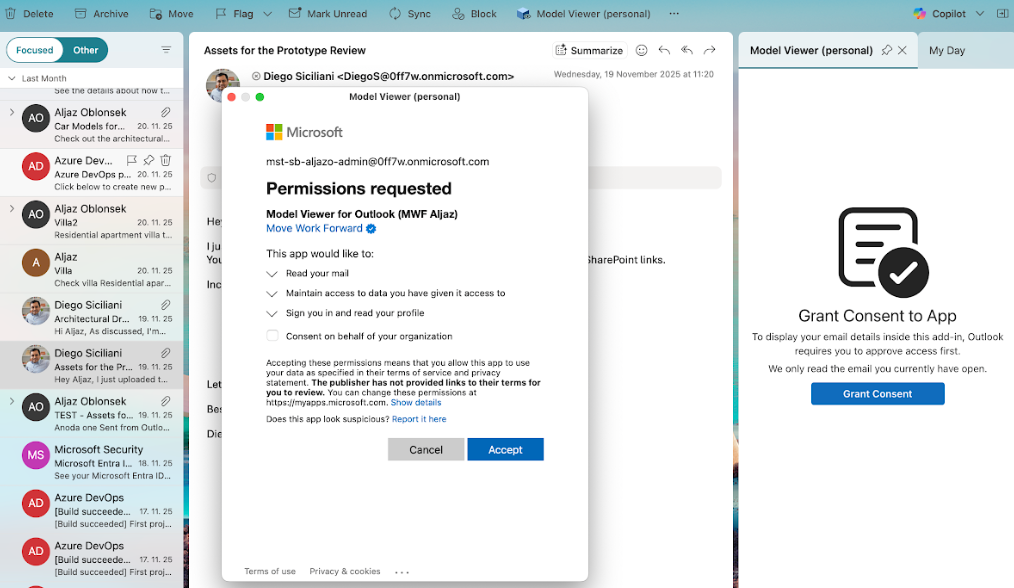
-
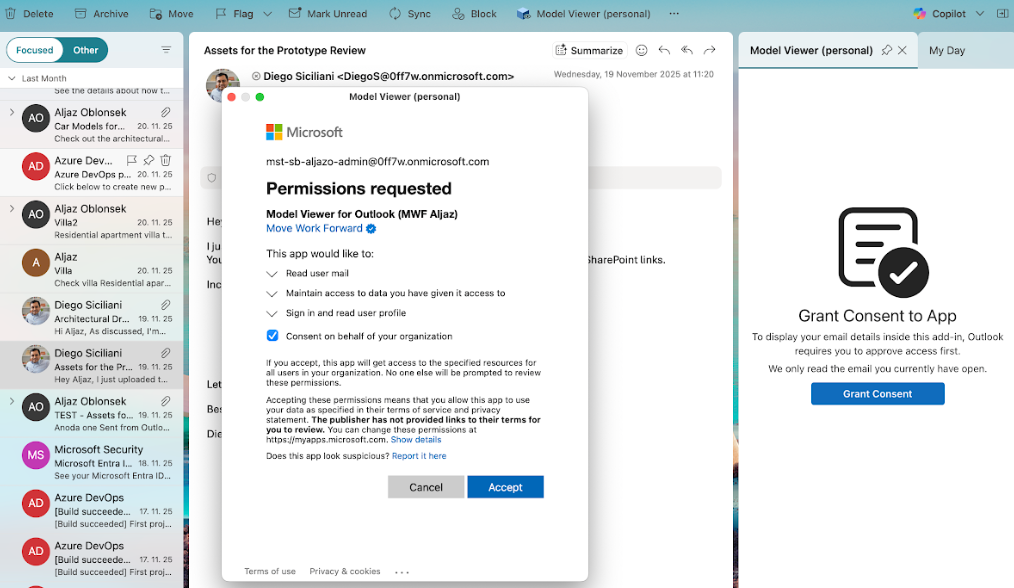
Organization consent: Click Grant Consent, check “Consent on behalf of your organization” box on the permissions pop-up, then click Accept.
If consent is granted successfully, the following “Thank you” confirmation screen will show.
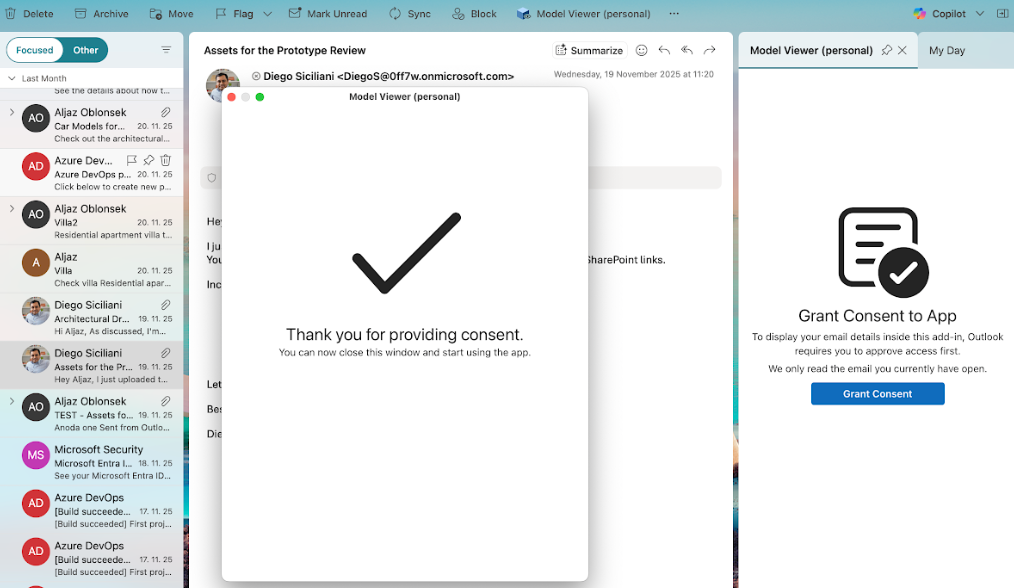
We recommend waiting approximately 5 seconds before closing the window to ensure the changes fully propagate.
Get Started
Once the required permissions have been granted, the Get Started screen will appear, providing a brief introduction to the app.
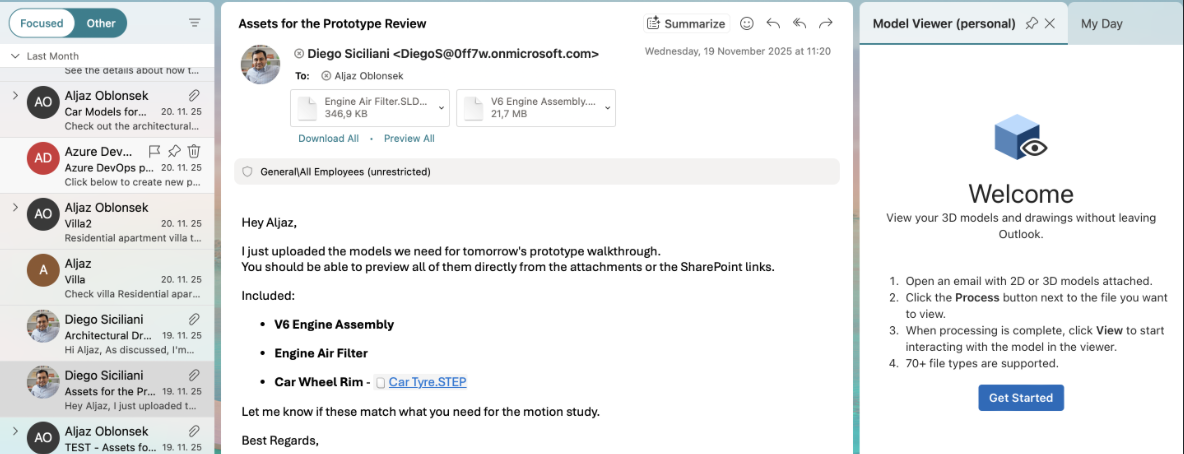
How to view models in Outlook
You can find the list of supported file types for model uploads here.
-
Open the Email
Go to the email containing the relevant model files. These may appear as attachments or embedded within the email body. -
Launch Model Viewer
Select Model Viewer from the Outlook toolbar.
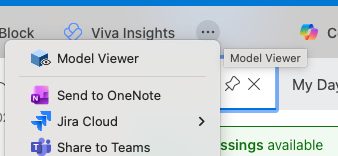
If you don’t see it:-
Click the three dots (…)
-
Select Model Viewer from the drop-down menu.
-
-
Process the Model
A Model Viewer panel will appear on the right, listing each detected model file.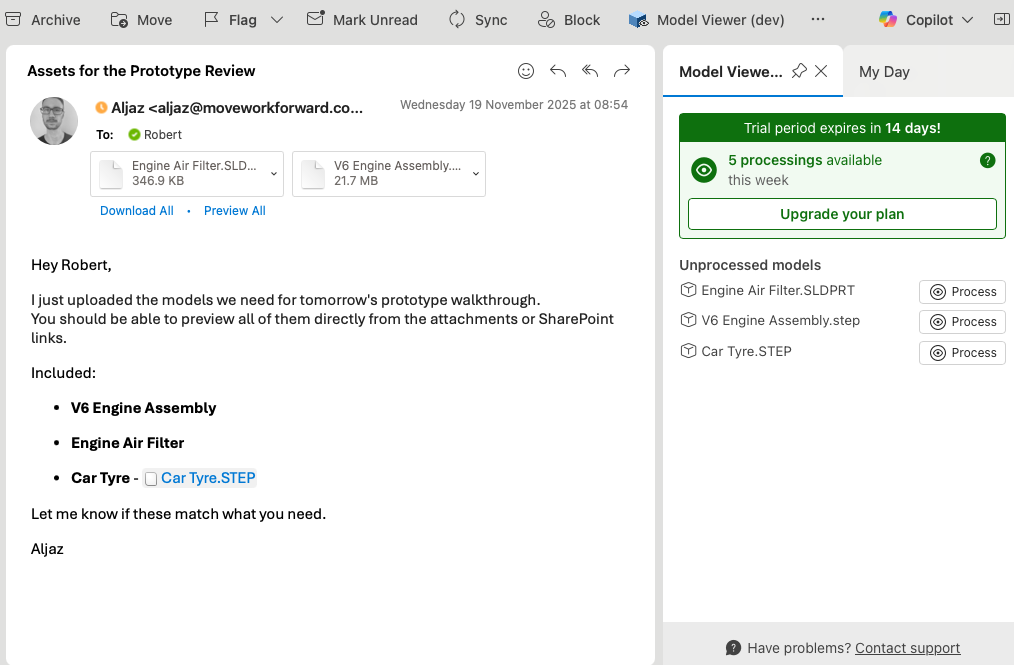
Click Process next to the model you would like to view.

-
Open the Model
Once processing is complete, a View button will appear.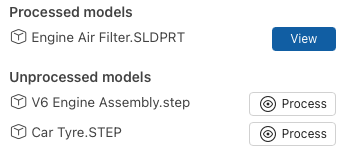
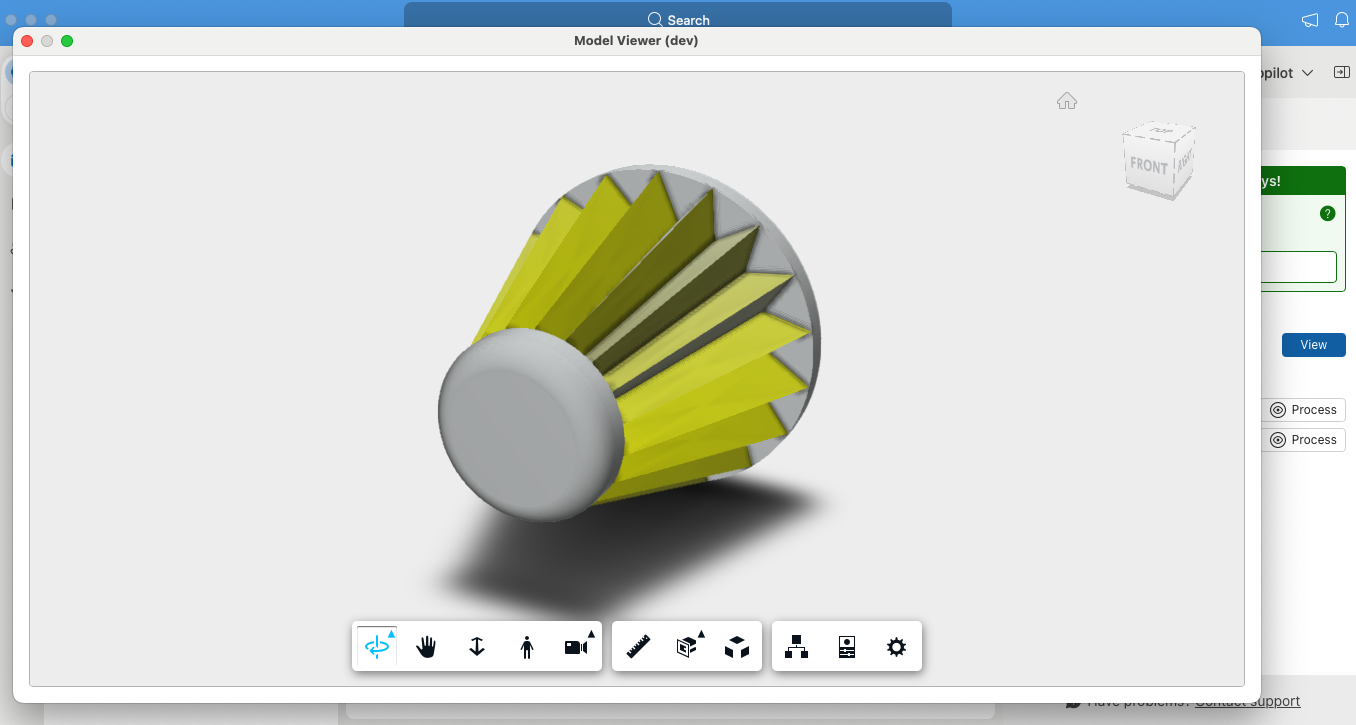
Click View and a window will pop up displaying your model.
-
Explore the Model
Use the toolbar at the bottom of the viewer for navigation, inspection, and review options.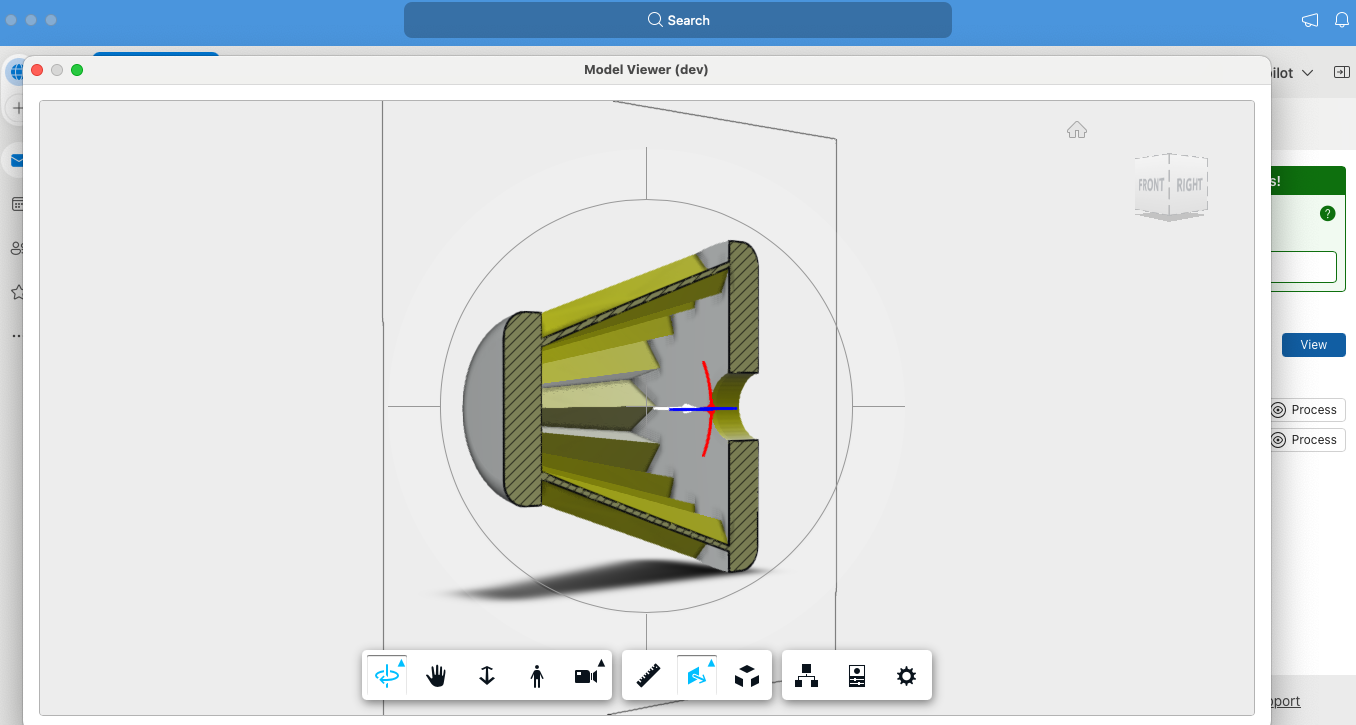
-
Close the Model Viewer for Outlook
When you’re done, simply close the window.
To access a previously processed model, just return to the email, open Model Viewer and click View, there is no need to reprocess the file!
When viewing an email thread, Model Viewer will only show the files associated with the specific email you have selected, not the entire thread.
Viewing Models in Outlook (Web Browser)
When using Outlook in a web browser, the workflow for viewing models is very similar to the desktop experience.
-
Open the Email
Navigate to the email containing the model files. -
Launch Model Viewer
Click the Model Viewer icon to open the Model Viewer panel.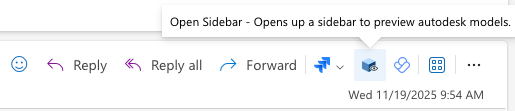
-
Process the Model
In the panel, click Process next to the model you want to view.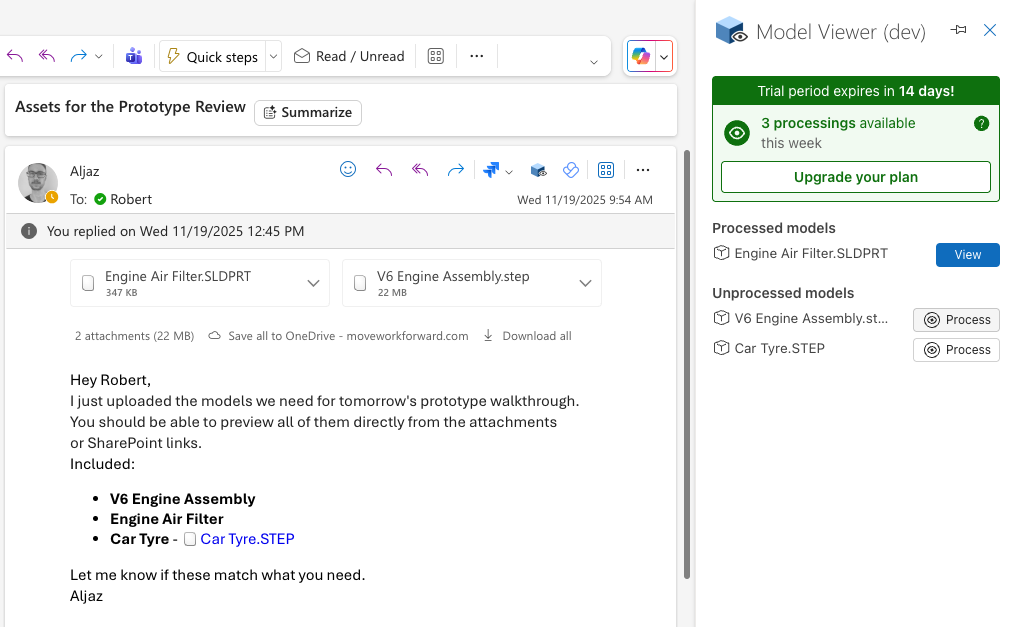
-
Open the Model
Once processing is complete, click View to open the model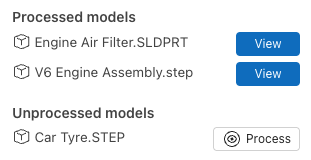
A new window will appear displaying the model.
-
Explore the Model
Use the tool bar at the bottom of the viewer to navigate, inspect and review the model.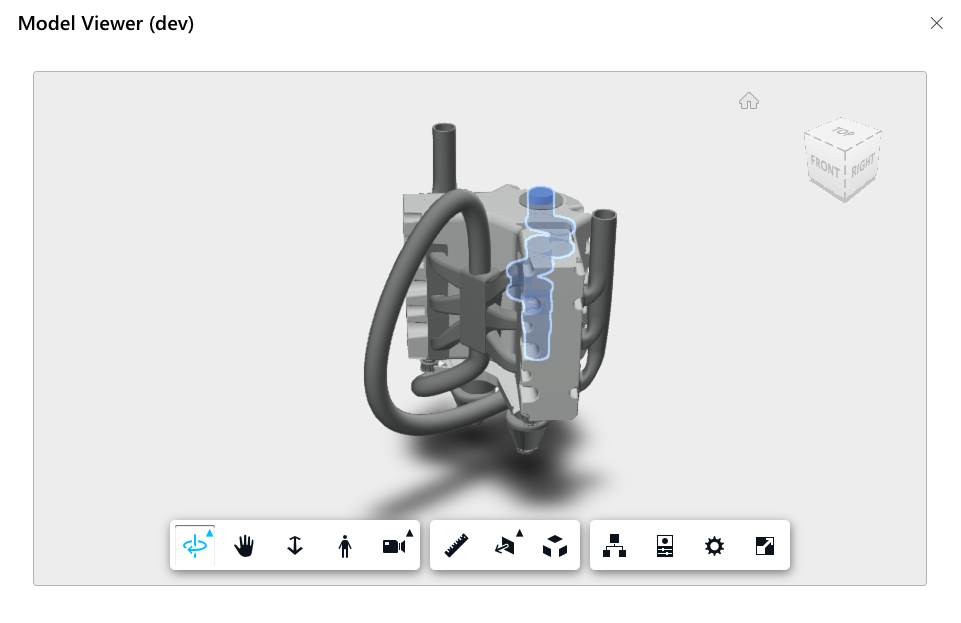
-
Close the Viewer
When finished, simply close the model window.
Supported File Types
Model Viewer for Outlook supports file types that can be converted into an SVF derivative format. A list of supported formats can be found here.
If you’re unsure whether your file is supported, feel free to contact us at support@moveworkforward.com and we’ll be happy to verify it for you.
Related CAD Products
-
CAD Model Viewer for Confluence — Embed interactive CAD models in Confluence pages
-
CAD Model Viewer for Jira — View CAD models directly in Jira issues
-
View all products on moveworkforward.com
Updated: