

Embed your Microsoft PowerPoint 365 anywhere in http://monday.com
Overview
The Office 365 Anywhere Integration for http://monday.com is a tool that allows users to embed Office PowerPoints directly into their http://monday.com Boards, Items, Dashboards or Workdocs. This integration streamlines collaboration, eliminates manual data entry, and allows users to customize the integration to their specific needs.
Accessing the Application
To use Office 365 PowerPoint, follow these steps:
On PowerPoint 365 side
For read-only presentation
-
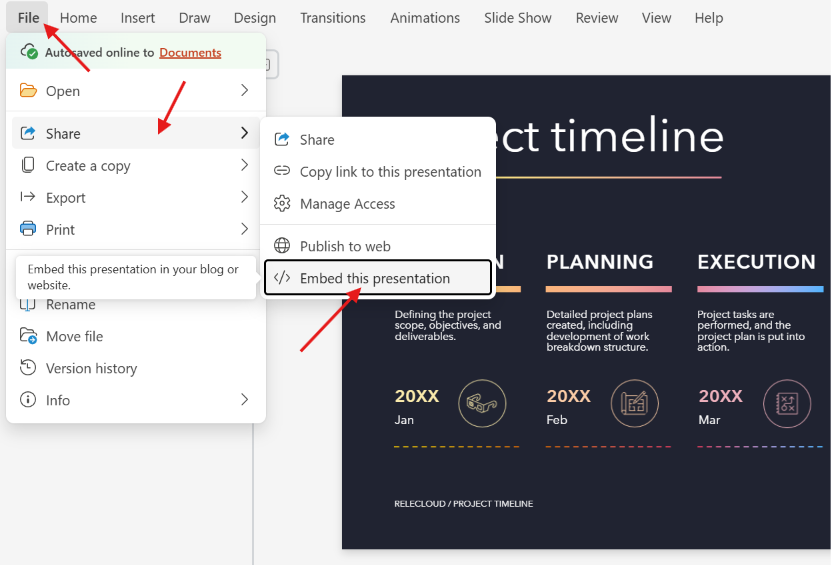
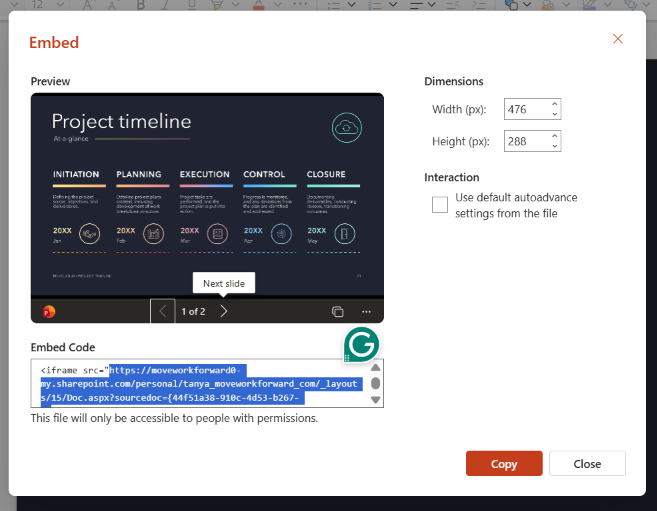
Open PowerPoint. In the top menu, click File, then Share, and select Embed this presentation.
-
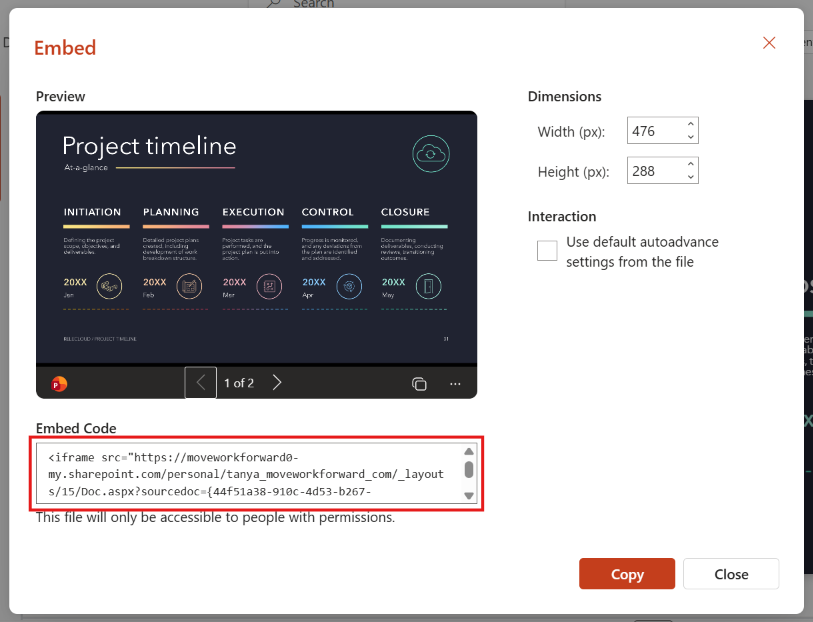
Copy the generated Embed code
On http://monday.com side
-
Navigate to your http://monday.com board view
-
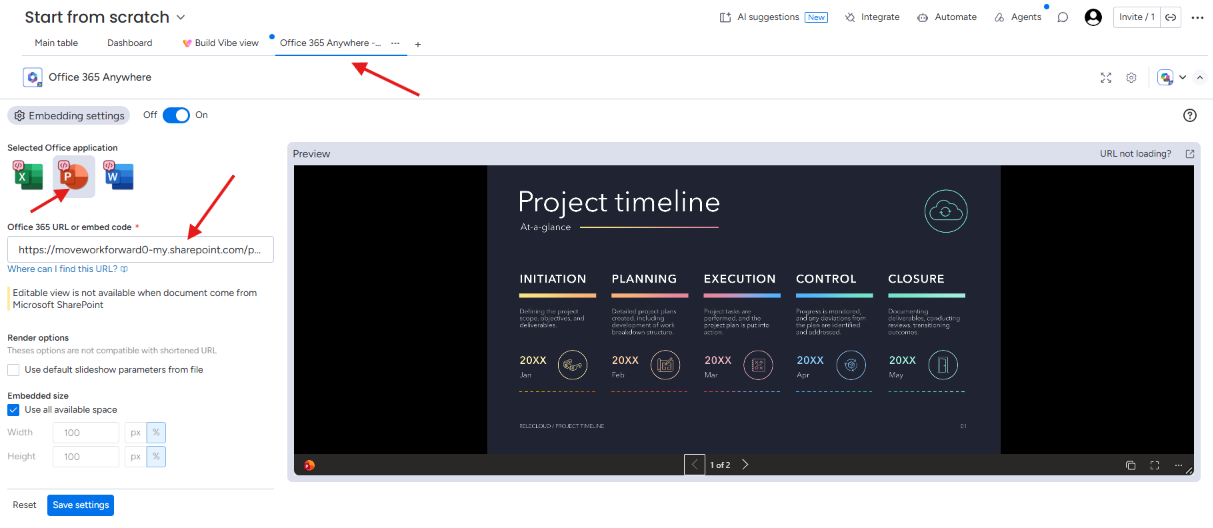
Open the application by clicking on the Office 365 Anywhere tab. The application settings page will appear.
-
Select PowerPoint by clicking on the PowerPoint logo.
-
Paste the link you copied from PowerPoint Embed code in the dedicated space.
The authorised URLs are following:
-
*.office.net
-
*.office.com
-
*.office365.com
-
*.sharepoint.com
-
*.sharepointonline.com
-
1drv.ms
-
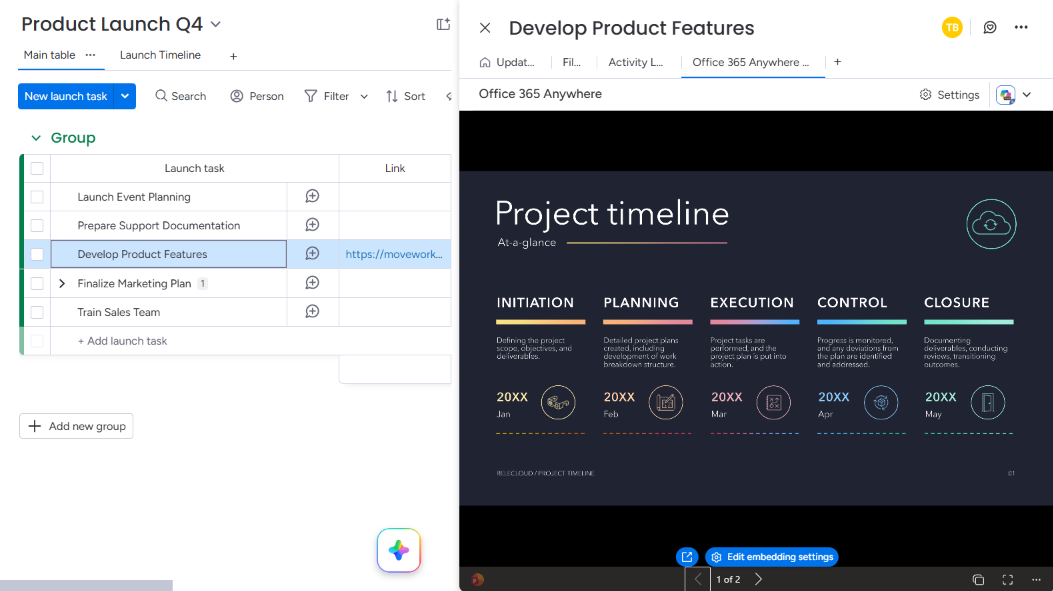
If you see a preview in the right panel, it means it’s all good.
Settings
You have several settings in the app.
-
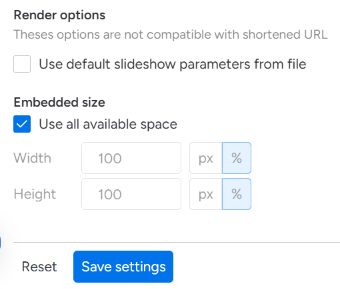
Embedded size: select how much space you want the PowerPoint presentation to use.
Once you have set up Embedded size, just click the Save settings button to access the PowerPoint embedded in http://monday.com
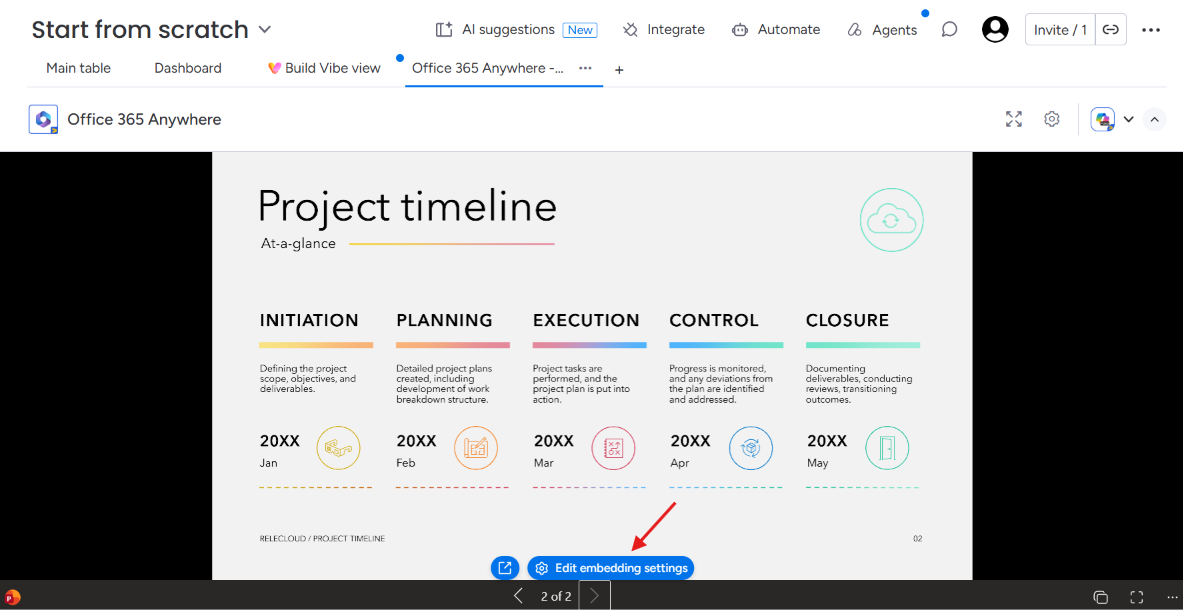
You can go to the settings page by clicking the Edit embedding settings button.
Item view Features and Settings
Office 365 Anywhere has additional features and settings for the Item views.
-
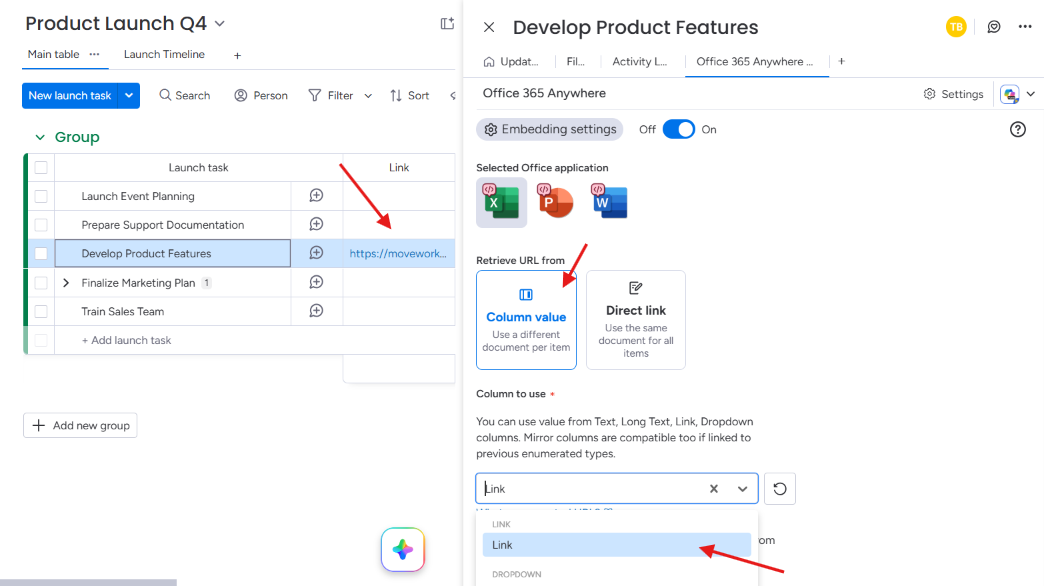
You can retrieve a PowerPoint URL from a column value.
-
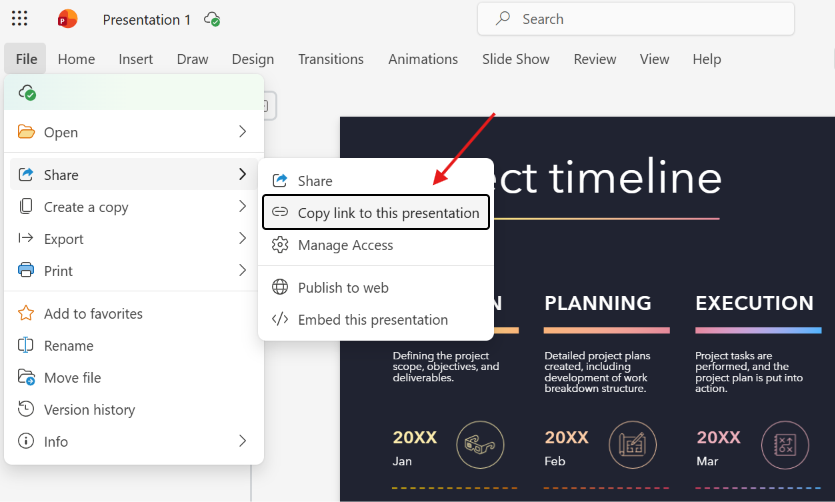
On PowerPoint side, in the top menu, click File, then Share, and select Copy link to this presentation. Copy generated link

-
Or you can copy the link from the generated Embed code
-
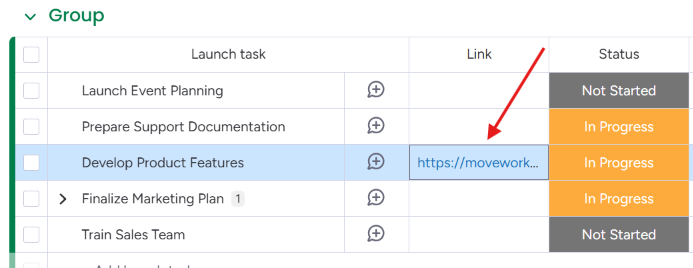
In your board, add a Link column and paste the PowerPoint link
-
Open the item, add the Office 365 Anywhere app, and select the column.
-
Or, if you want all the items to have the same PowerPoint, select Direct link and add the link to the form.
Updated: