

Using Secret Santa - Board view
Secret Santa for http://monday.com is the easiest tool to organize smooth secret santa events.
danger
To use Secret Santa on your own board, you need to have two People Column, it’s mandatory for using the application
Accessing the Application
To use Secret Santa, follow these steps:
-
Navigate to your http://monday.com Workspace and open the Secret Santa Board
-
Open the application by clicking on the Secret Santa tab. The application settings page will appear.
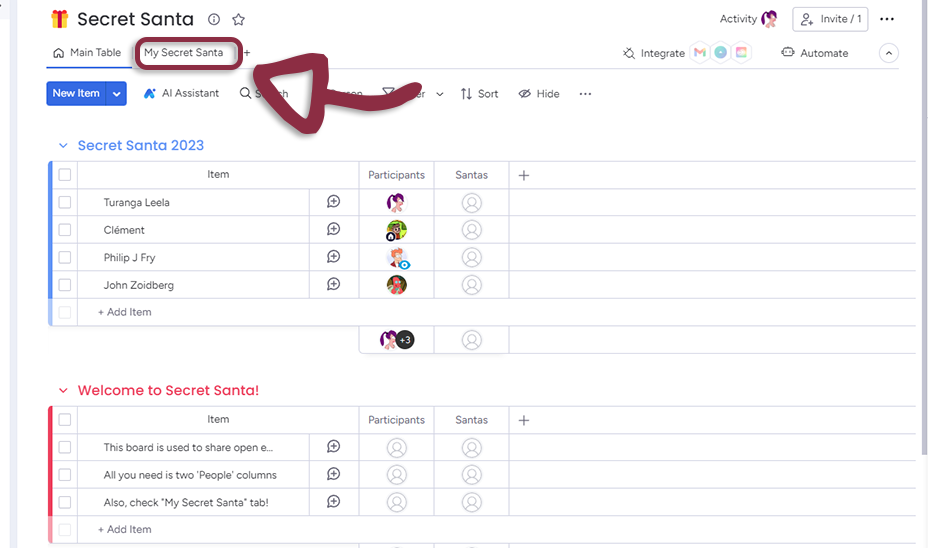
Before using Secret Santa
Before using Secret Santa, you need to associate the application with your board.
Go the the Settings tab by clicking on the Settings in the administration panel.
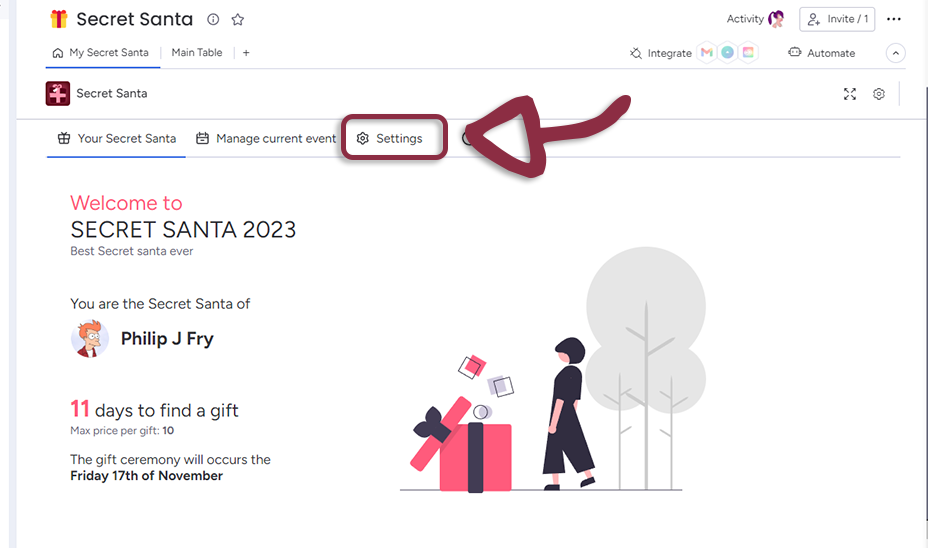
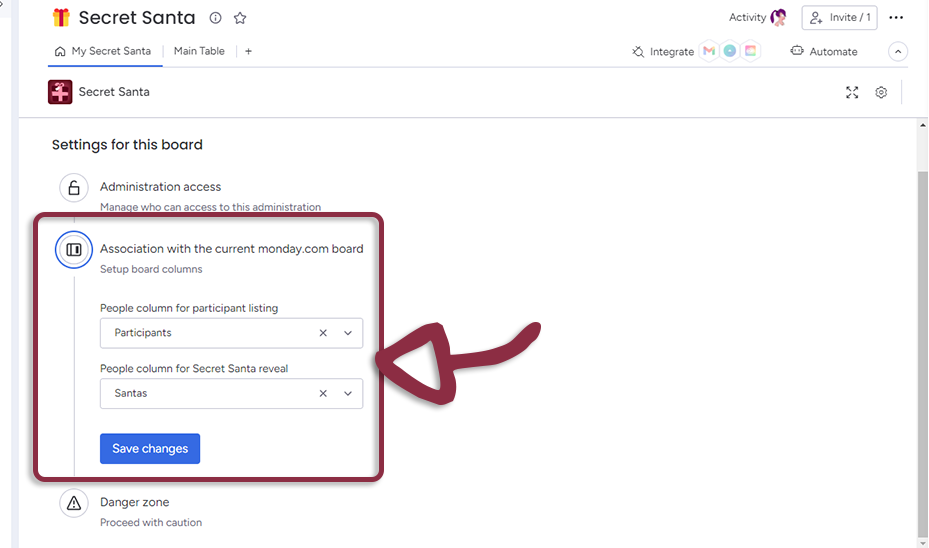
Click on Association with the current http://monday.com board menu
-
People column for participant listing: Select column from the board where every participant will be listed
-
People column for Secret Santa reveal: Select column from the board where all the Santas will be revealed at the end of the event
Time to create the first event!
Click on the Create a new event button
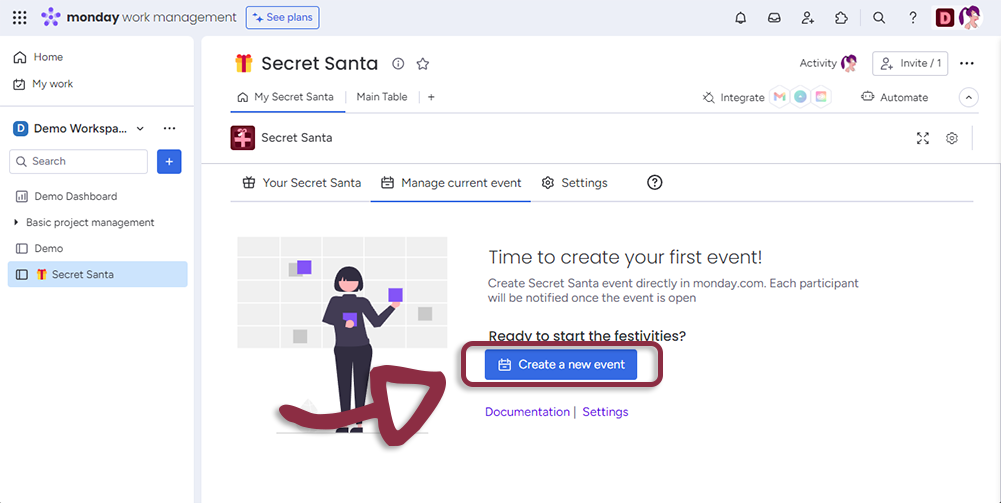
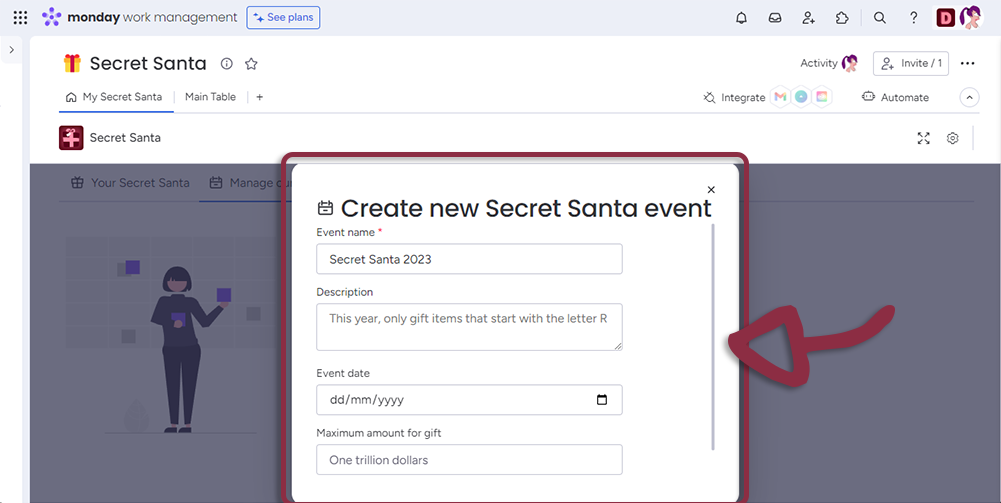
Now you need to fill the first information about the upcomming event :
-
The Name of the event
-
An optional description of the event
-
When the Secret Santa ceremony will occur
-
A maximum amount of gift price
When done, click on the Save event details
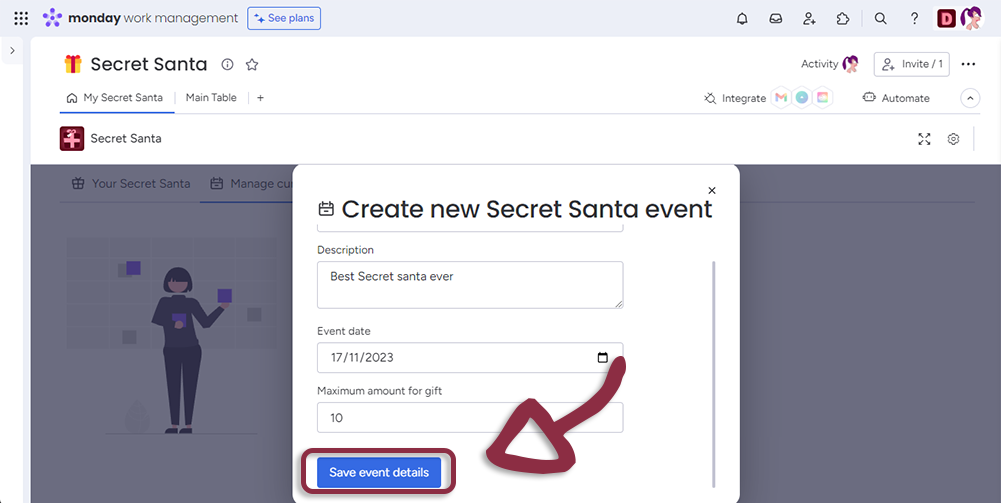
Now just just created a Secret Santa event. The event isn't started yet but you will have to manage current event and add participant.
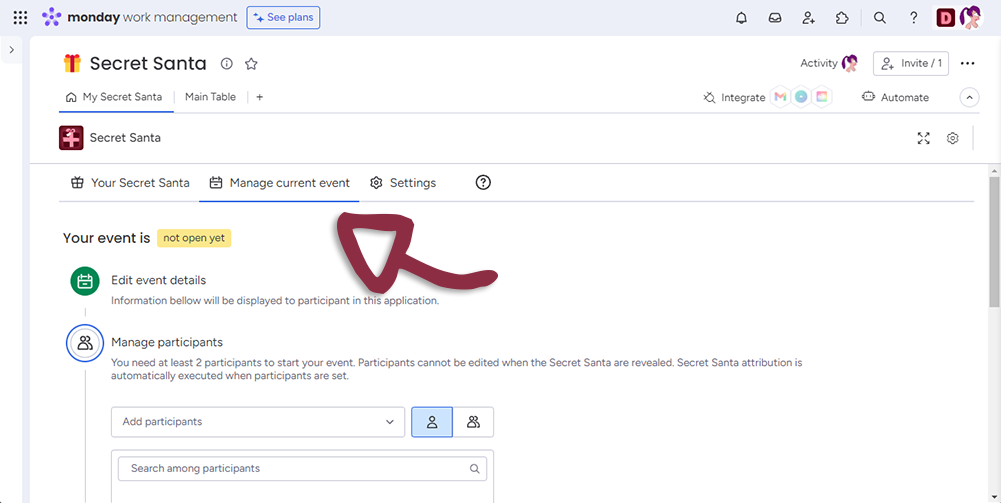
In the Manage Participants part of the settings, select who will be invited to the event. You can add by group or by person.
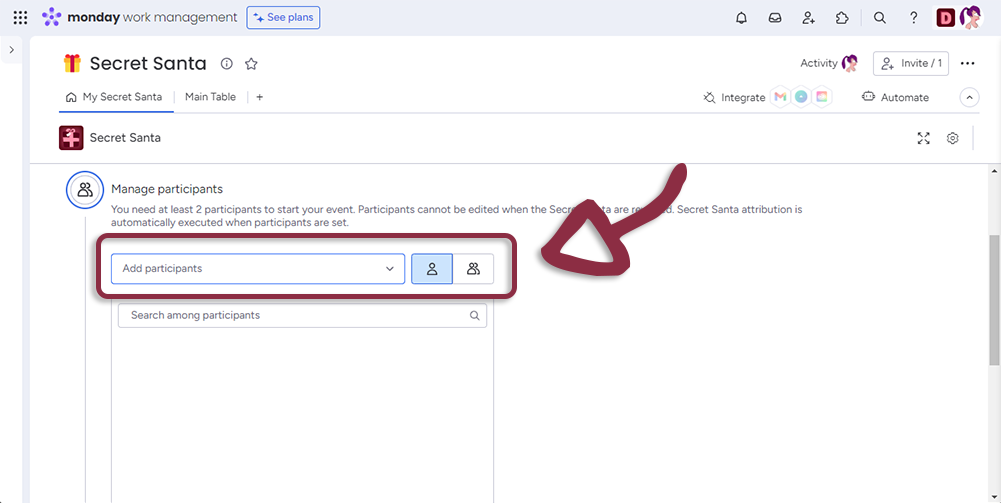
Once selected and saved, the Manage participants icon will turn to green.
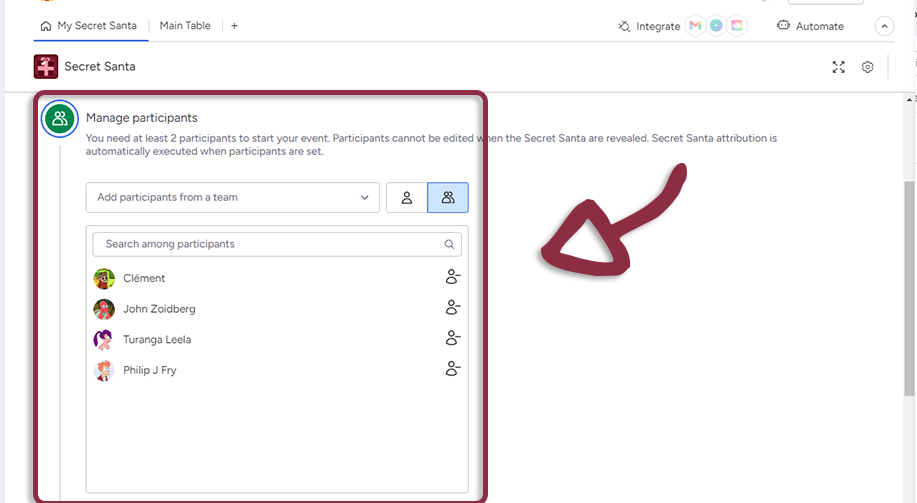
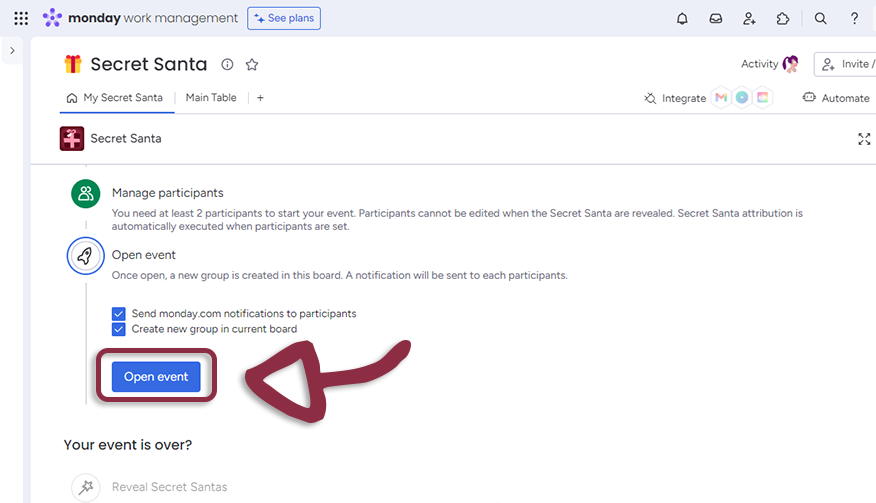
You are now ready to start the event. Click on the Opent eventtab.
Select :
-
if you want to send notification to invited persons
-
If you want to create a new group in current board (in case you want to re-use the secret santa board, for first, no need for first use)
When ready, click the Open event button
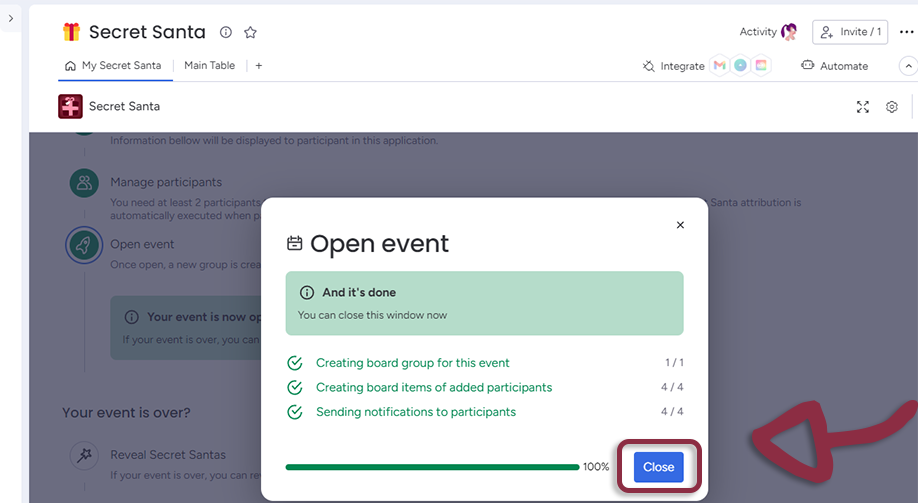
Secret Santa will set-up the event. When done, click the Close button
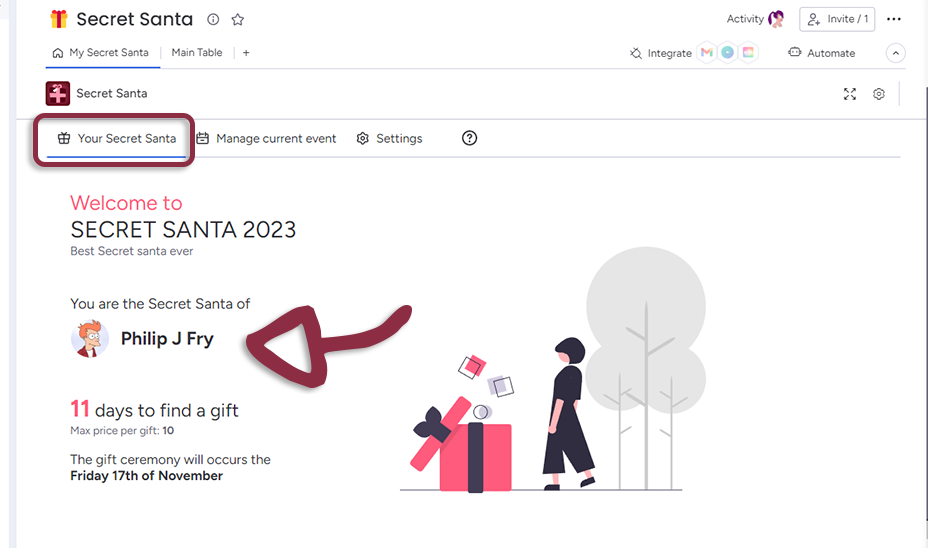
Now go back to the My Secret Santa tab to see who's the person you need to send gift to. That's the page the invited persons will see.
Settings
You have several settings in the applications. To access the Settings page, click on the Settings in the administration panel.
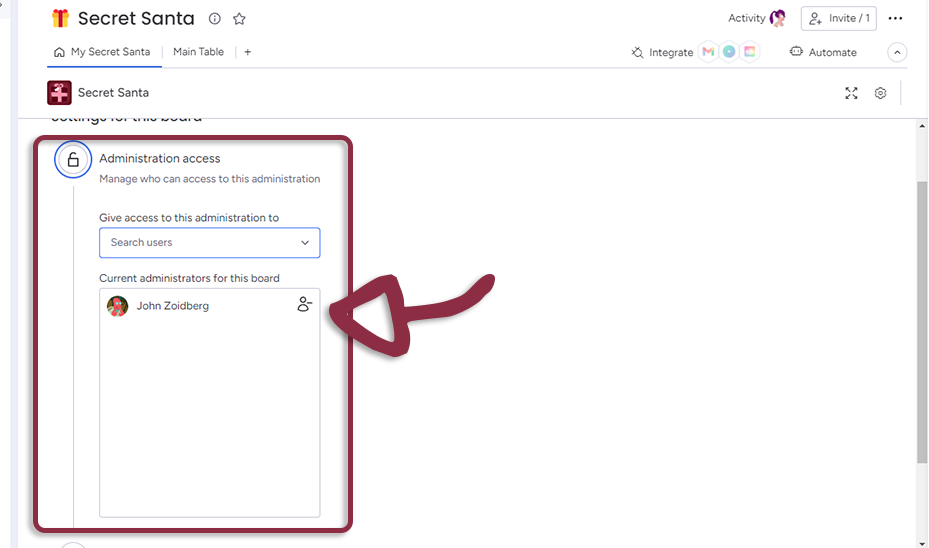
There are three parts in the administration
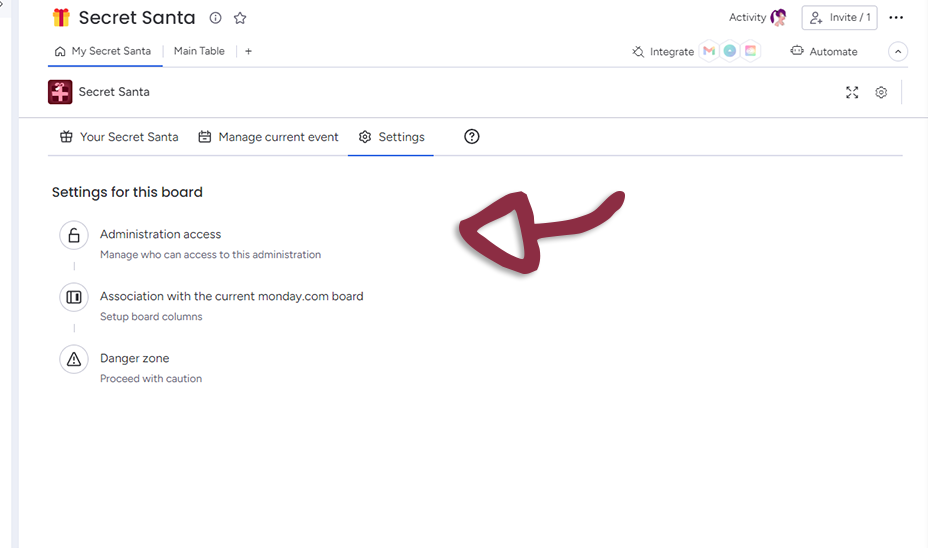
Administration Access
If you want to add additionnal users who can access to the administration (beside you)
Association with the current http://monday.com board
Select what column correspond to the Secret Santa participants.
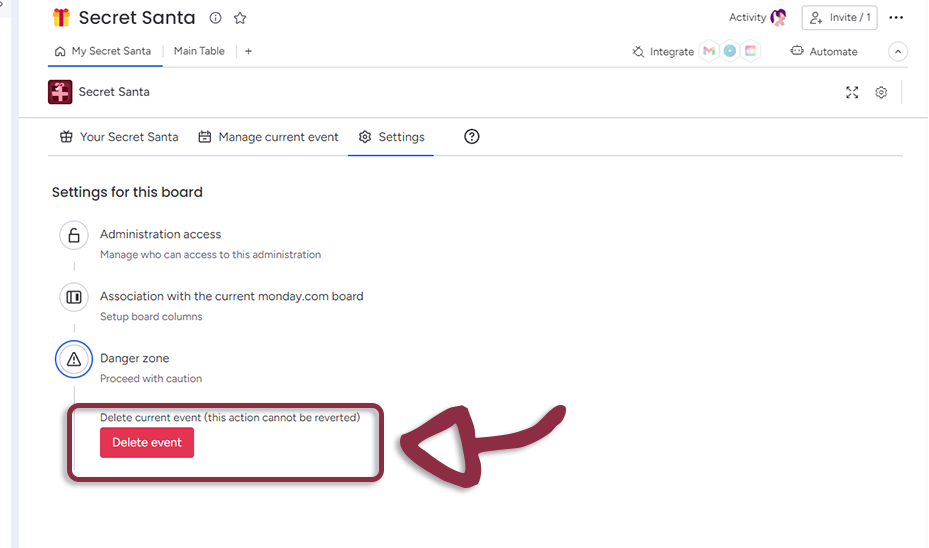
Danger Zone
If you want to cancel and delete current event, click on the Delete event button. Be careful, it cannot be undone!
Using Secret Santa - Workspace Template
Secret Santa for http://monday.com is the easiest tool to organize smooth secret santa events.
Accessing the Application
To use Secret Santa, follow these steps:
-
Navigate to your http://monday.com Workspace and open the Secret Santa Board
-
The application is displayed as the main tab.

Time to create the first event!
Click on the Create a new event button
Now you need to fill the first information about the upcomming event :
-
The Name of the event
-
An optional description of the event
-
When the Secret Santa ceremony will occur
-
A maximum amount of gift price
When done, click on the Save event details
Now just just created a Secret Santa event. The event isn't started yet but you will have to manage current event and add participant.
In the Manage Participants part of the settings, select who will be invited to the event. You can add by group or by person.
Once selected and saved, the Manage participants icon will turn to green.
You are now ready to start the event. Click on the Opent eventtab.
Select :
-
if you want to send notification to invited persons
-
If you want to create a new group in current board (in case you want to re-use the secret santa board, for first, no need for first use)
When ready, click the Open event button
Secret Santa will set-up the event. When done, click the Close button
Now go back to the My Secret Santa tab to see who's the person you need to send gift to. That's the page the invited persons will see.
Settings
You have several settings in the applications. To access the Settings page, click on the Settings in the administration panel.
There are three parts in the administration
Administration Access
If you want to add additionnal users who can access to the administration (beside you)
Association with the current http://monday.com board
As you used the Workspace template, you don't need to use these setttings, it's made to select what column correspond to the Secret Santa participants.
Danger Zone
If you want to cancel and delete current event, click on the Delete event button. Be careful, it cannot be undone!
Updated: