

This is the complete settings reference for Jira administrators. Platypus has two levels of configuration: global defaults that apply to the whole site, and optional per-project overrides. Settings pages are admin-only.
Defaults out of the box
A brand-new install works immediately without any configuration, using these defaults:
|
Setting |
Default |
|---|---|
|
Active |
On, for every project |
|
Apply mode |
Automatic |
|
Date fields |
Due only (no Start field) |
|
Dependency link type |
Blocks, detected automatically from your site's link types |
|
Default gap |
1 business day |
|
Working calendar |
Monday → Friday |
|
Pull dependents earlier / roll-up to parent |
Both off |
|
Suppress notifications |
Off |
Where the settings live
-
Global configuration: Jira Administration → Marketplace apps → Platypus → Configure (or the Platypus admin menu). Sets the defaults every project inherits.
-
Space configuration: Space settings → Apps → Platypus. Lets a single project override any of the global defaults.
Per-field inheritance means a project uses the global value for every setting unless you explicitly override that one field.
Global configuration
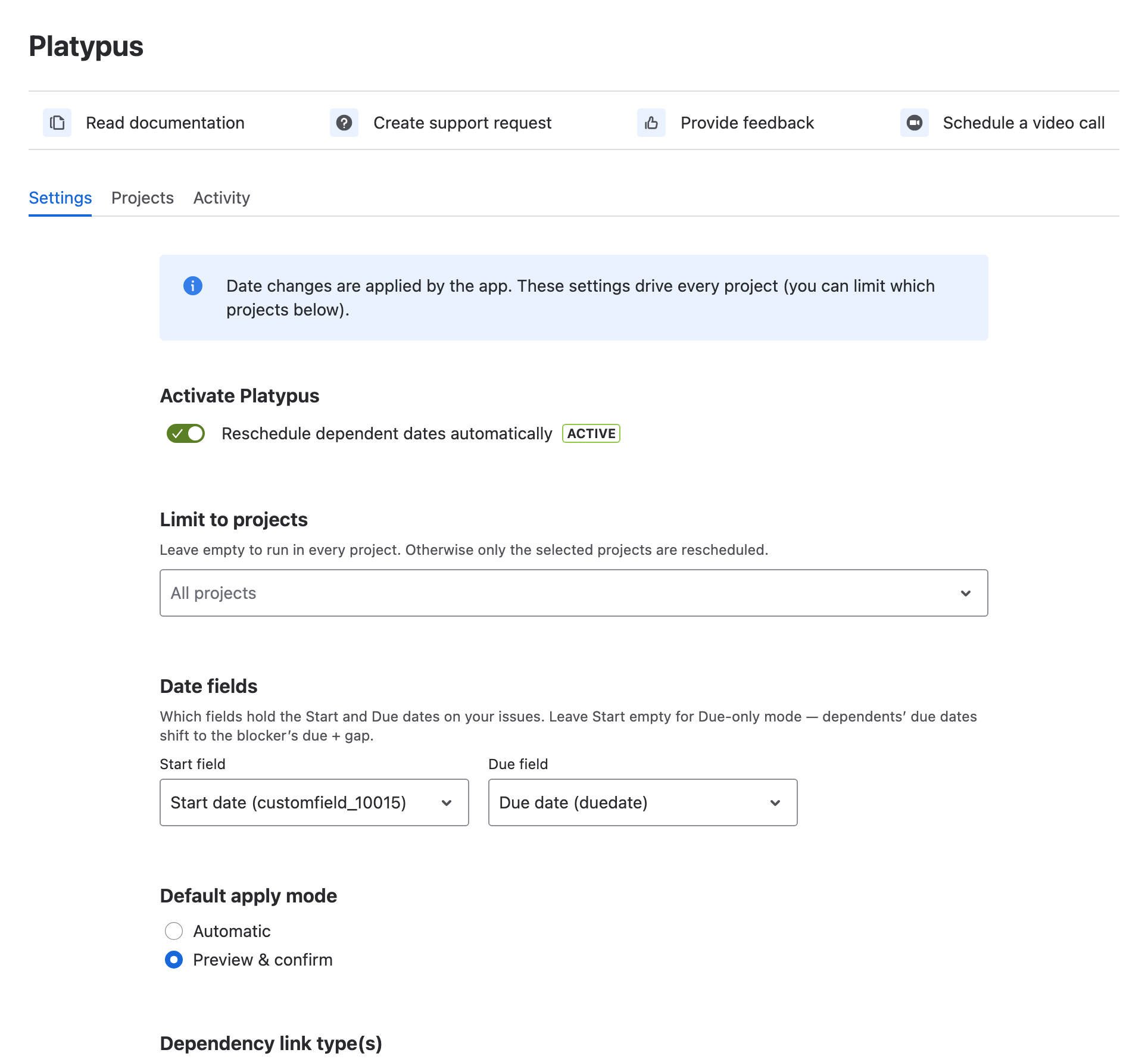
Activate Platypus
The master switch. When off, Platypus changes nothing anywhere and the rest of the settings are disabled. Turn it on to enable rescheduling across the site (subject to the project filter below). A lozenge shows the current state: Active or Off .
Limit to projects
Leave this empty to run in every project, or select specific projects to restrict Platypus to just those. Use this to pilot the app in one project before rolling it out.
Date fields
Choose which fields hold the Start and Due dates on your issues, selected by field so custom date fields work too.
-
Start + Due: Platypus preserves each issue's duration (the span between start and due) when it shifts dates.
-
Due only: leave Start empty. Platypus shifts the due date to "predecessor due + gap"; there is no duration to preserve.
Default apply mode

|
Mode |
Behaviour |
Best for |
|---|---|---|
|
Automatic |
Dependent dates are updated immediately when a trigger date changes. |
Teams that want hands-off rescheduling. |
|
Preview & confirm |
Changes are parked and shown for review; nothing is written until someone confirms. |
Regulated work, fixed deadlines, or anyone who wants the final say. |
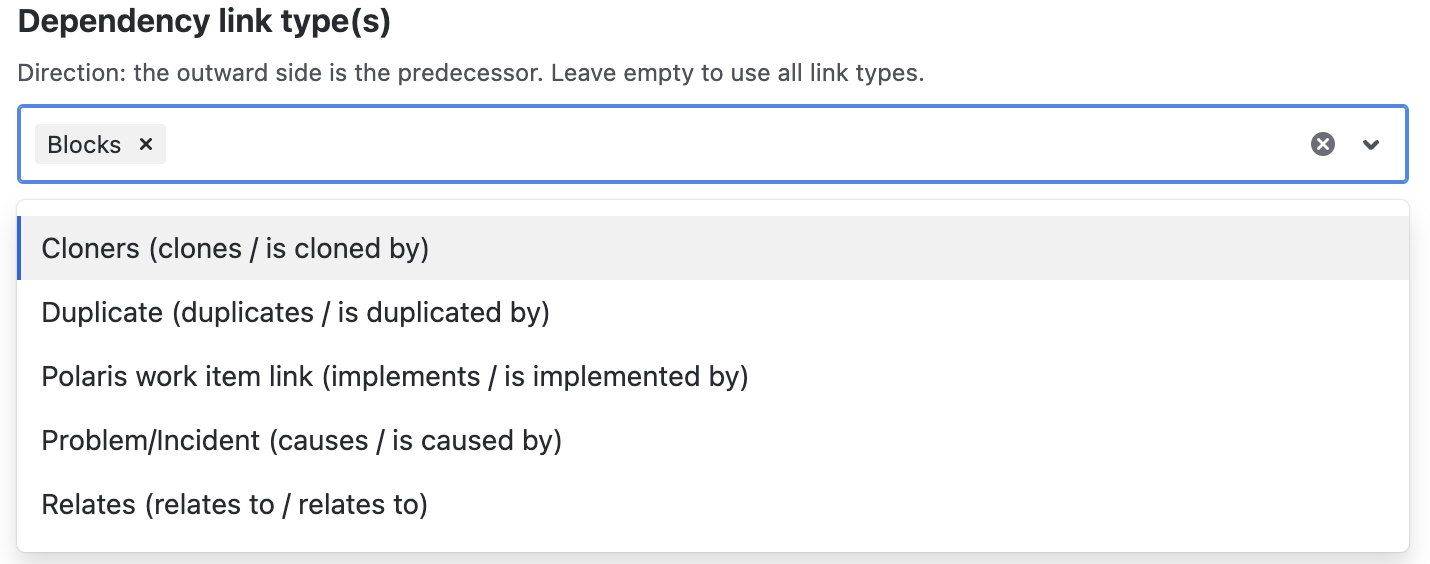
Dependency link type(s)
Which Jira link types Platypus treats as dependencies. The outward side of the link is the predecessor.
Recommendation: select Blocks (or your specific dependency links) rather than leaving this empty. An empty selection means all link types are treated as dependencies, including relationships like Clones or Relates that you may not want driving date changes. Platypus already selects Blocks automatically on install if your site has that link type, so this only matters if you've changed it or your site doesn't have a Blocks link type.
Default gap
The spacing Platypus leaves between a predecessor's due date and its dependent's start. For example, a gap of 1 means "start the next day". Choose business days (skips non-working days) or calendar days (counts every day).

Working calendar
Tick the days that count as working days. In business-days mode, unticked days are skipped when Platypus counts the gap and shifts dates. The default is Monday–Friday, but you can set any pattern, for example, untick Friday and Saturday for a Friday/Saturday weekend.

You must keep at least one working day selected; otherwise the configuration cannot be saved.
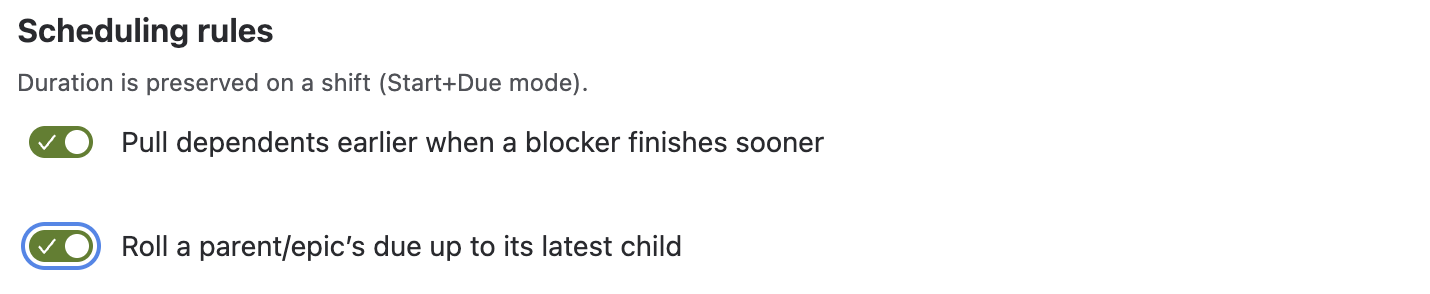
Scheduling rules
-
Pull dependents earlier: by default Platypus only ever pushes dates later (when a predecessor slips). Enable this to also pull dependents earlier when a predecessor finishes sooner. Off by default.
-
Roll a parent/epic's due up to its latest child: when on, a parent or epic's due date is set from its latest-finishing child. Off by default.
Notifications
Suppress notifications during cascades reduces the email/notification noise when Platypus updates many issues at once. Turn it on if a large cascade would otherwise flood your team.

Click Save to store the global defaults. The page warns you about anything that needs attention before saving.
Space (Project) configuration
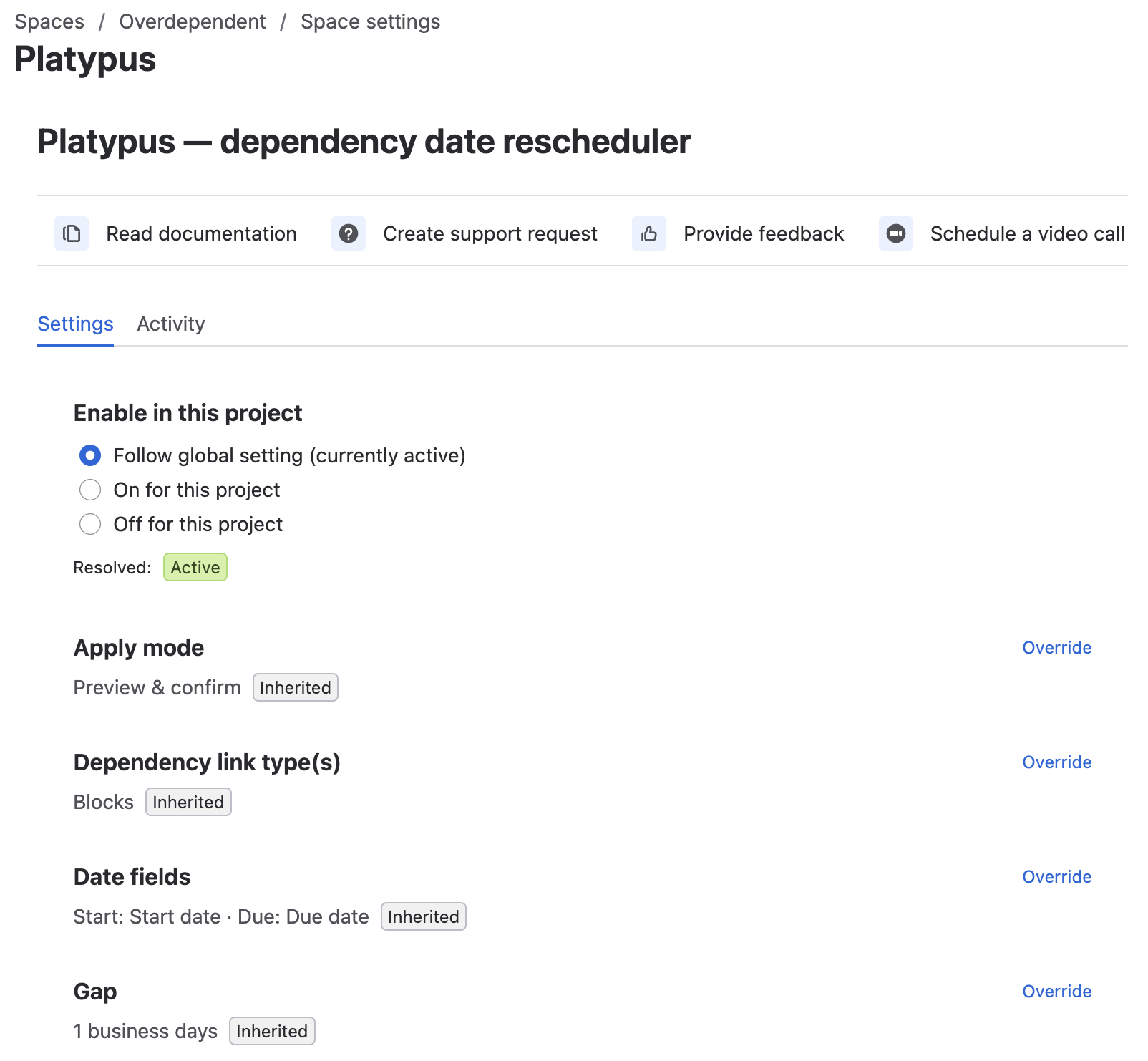
Open Space settings → Platypus in any space. A brand-new project simply inherits everything from global; click Customise for this project to start overriding.
Who can save changes here? Project and space admins can save changes on this page, the same as full Jira administrators - no elevated access is required.
Enable in this project
A three-way switch:
-
Follow global: the project is on or off according to the global master switch.
-
On for this project: force Platypus on here, regardless of global.
-
Off for this project: force it off here, regardless of global.
A Resolved lozenge shows the effective state after applying the rule.

Per-field overrides
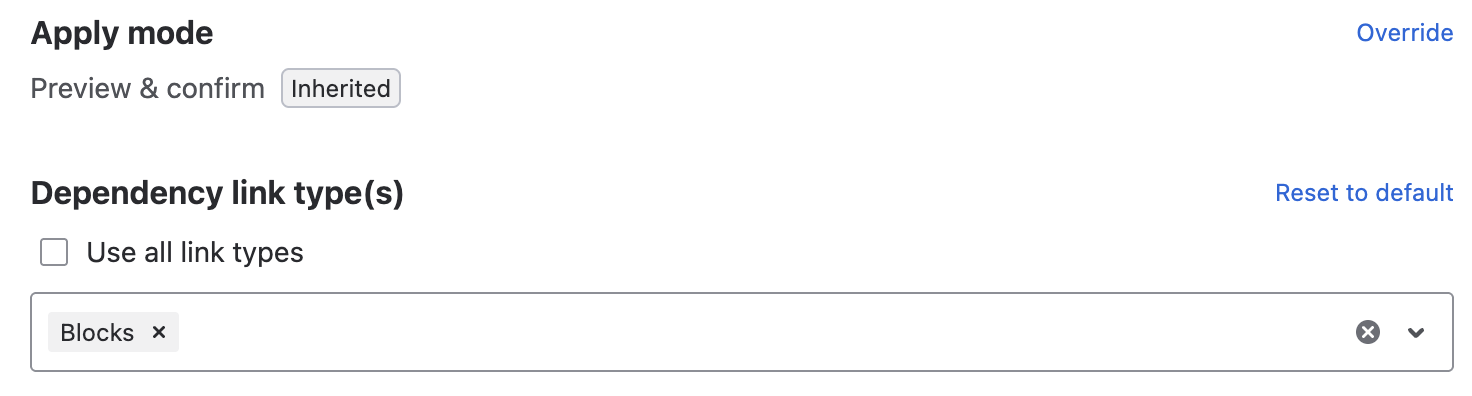
Each setting below shows its inherited global value with an Override link. Click it to set a project-specific value; click Reset to go back to inheriting. You can override: apply mode, dependency link types (including a "use all link types" option), date fields, gap, pull earlier, and parent/epic roll-up.
Issue-type filter (project-only)
Limit cascades to specific issue types (for example, only Stories and Tasks). Leave empty to include all issue types. The id shown in brackets disambiguates types that share a name.
Anchor label (project-only)
An issue carrying this label holds its dates and stops the cascade at that point, ideal for fixed approval windows or compliance deadlines. Matching is case-insensitive. For example, set the anchor label to platypus-anchor and add it to any issue that must never move.

Test configuration
Click Test configuration to validate the effective settings (the project's values with inherited defaults filled in). A success message confirms the resolved link types and date fields; a warning tells you what is missing.

Activity log & audit
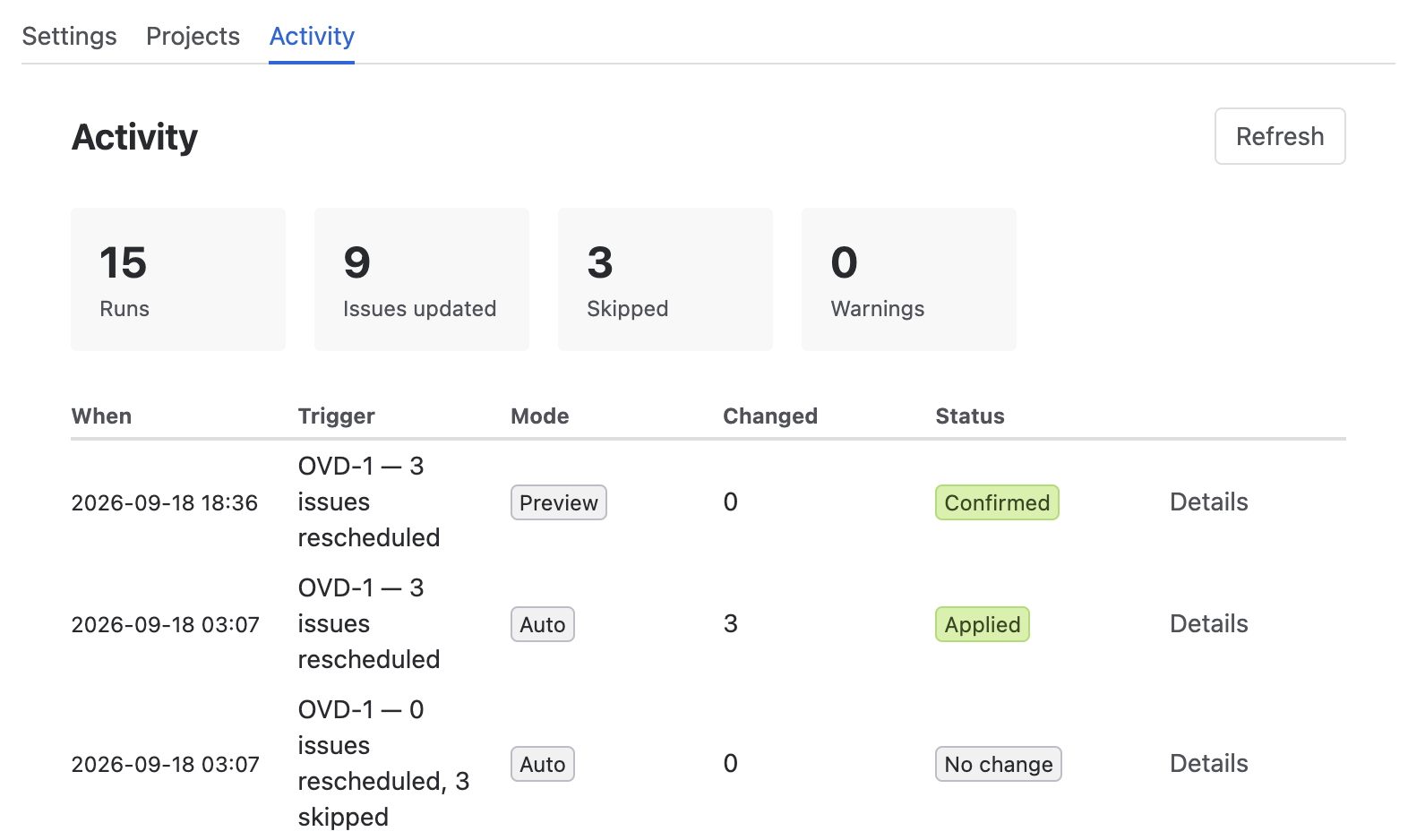
Both the global and project pages have an Activity tab, a 60-day record of every cascade.
-
Summary metrics: total runs, issues updated, issues skipped, and warnings across the loaded entries.
-
Run table: when it ran, the trigger issue and change, the apply mode, how many issues changed, and an outcome status (Applied, Confirmed, Warning, No change, Cancelled).
-
Details: click Details on any row to expand the per-issue before→new dates, any skipped issues and why (e.g. anchored, cycle, a chain that hit the safety limit below), and who triggered the run.
-
Export CSV: download the log as a spreadsheet-friendly file.
-
Load more: page through older entries.
Skip reasons
A skipped issue always shows one of these reasons in the Details view:
-
Anchored - the issue carries the anchor label, so its dates are held.
-
Cycle - the issue sits in a dependency loop Platypus can't resolve; see "Watch out for loops" in How to get started.
-
Depth or size limit - the cascade hit the 100-level or 1000-issue safety cap below.
-
Resolved - the issue's status is in Jira's Done category (Done, Closed, Resolved, Won't Do), so it's treated as finished and never rescheduled.
-
Past date - the computed start or due date would fall before today; Platypus never backdates an issue, so it skips the change instead.
Entries are retained for 60 days, then purged automatically.
Safety limits. Every cascade is capped at 100 levels deep and 1000 issues, to protect against runaway or accidental huge dependency graphs. If a cascade hits either cap, the remaining issues are skipped and recorded in the Activity log with a depth- or size-limit reason rather than left silently unprocessed.
Licensing
Platypus requires an active Atlassian Marketplace license (or trial) to run in production. If your license lapses, Platypus stops applying changes on your production site until it's renewed; nothing already scheduled is lost.
Privacy
For what Platypus stores, how long it's retained, and what usage analytics are collected, see Security & Privacy.
Recommended setup
-
Start with Preview & confirm while your team gets used to the cascades; switch projects to Automatic once you trust the behaviour.
-
Set Dependency link types to Blocks explicitly rather than "all link types".
-
Use Limit to projects to pilot in one project first.
-
Define an anchor label and apply it to any fixed-deadline issues.
-
Set the working calendar to match your region's weekend.
Updated: September, 2026