

Platypus automatically reschedules dependent issues when a due date changes. This guide shows you how to set it up in three steps and how to review changes before they are applied. No technical knowledge required.
The big idea
Imagine two pieces of work: Design (OVD-1) must finish before Build (OVD-2) can begin. In Jira you record that relationship with a Blocks link, and you give each issue a due date.
Now Design slips by a few days. Normally you would have to find Build, and everything after it, and move each date by hand. With Platypus, you just change Design's due date, and Build (and anything Build blocks, and so on down the chain) is rescheduled for you, keeping the gap and duration you set.
What you'll need
-
Platypus installed in your Jira site (your Jira admin does this once).
-
Issues that have a due date (and optionally a start date).
-
A dependency link between issues, by default Platypus uses the built-in Blocks link type.
Platypus works out of the box with sensible defaults. If you want to change how it behaves, see How to configure it.
Finding Platypus
After installation, Jira administrators can access the Manage apps page by clicking the Settings cogwheel in the top-right corner of Jira and selecting Marketplace apps. Look for Auto Reschedule Linked Tasks: Dependency Dates for Jira in that list - that's the name it's listed under on the Atlassian Marketplace. From the left-hand navigation, select Platypus, which is what it's called everywhere inside the app itself.
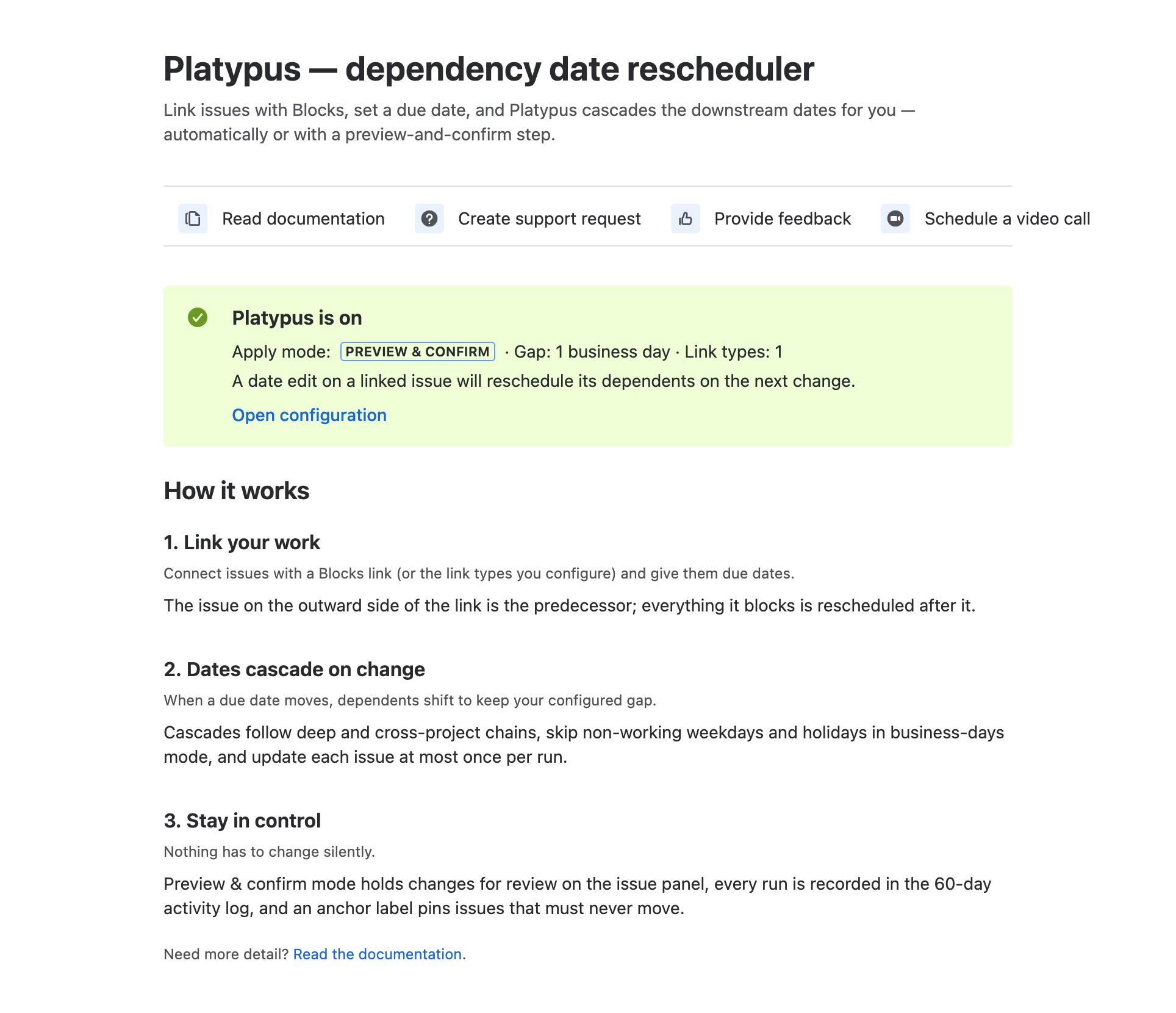
The first page displayed is the Get started page. This page shows whether Platypus is currently enabled and provides links to its configuration settings.
Step 1: Link your issues
Open the work item (predecessor) that should be completed first (for example, Design (OVD-1)). To create a dependency, select Link work item from the work item's actions menu, choose the Blocks link type, and then select the dependent work item (for example, Build (OVD-2)).
The relationship should read:
Design blocks Build
This tells Platypus that Build cannot start until Design is finished.
Direction matters. The work item that blocks another work item should be the one that needs to be completed first. When a work item is rescheduled, Platypus automatically reschedules any work items it blocks. If the link is created in the wrong direction, schedule changes will cascade through your plan incorrectly.
For example:
✅ Correct:
Design blocks Build
If Design is delayed by three days, Platypus will also move Build by three days.
❌ Incorrect:
Build blocks Design
In this case, Platypus would treat Build as the work item that must be completed first. If Build is delayed, Design would be rescheduled instead, which is the opposite of the intended dependency.
Watch out for loops. If issues end up linked in a circle (for example, A blocks B, and B blocks A), Platypus has no way to decide which one should move first. It halts that part of the cascade and records a warning in the Activity log instead of looping forever, so check your links if a cascade stops partway through unexpectedly.
Step 2: Give the issues due dates
Make sure both issues have a Due date set. If your project also uses a Start date, Platypus will keep each issue's duration (the span from start to due) intact when it moves dates. If you only use due dates, Platypus simply shifts the due date, that is called Due-only mode.
Step 3: Change a date and watch it cascade
Edit the predecessor's due date. Within a few seconds Platypus recalculates every dependent down the chain. What happens next depends on the apply mode your admin has chosen:
If you edit the same issue's date more than once in quick succession, Platypus waits a few seconds for things to settle before cascading, so only your final edit triggers a cascade, not each one individually.
-
Automatic: the dependent dates are updated immediately, and the run is recorded in the activity log.
-
Preview & confirm: nothing is changed yet; Platypus prepares the changes and waits for someone to review and confirm them (see below).
Whenever Platypus reschedules an issue automatically, or after you confirm a preview, it leaves a short comment explaining what changed and why.
A worked example
Design blocks Build; the gap is +1 business day. Design's due date moves from Friday to the following Tuesday:
|
Issue |
Before |
After |
Why |
|---|---|---|---|
|
Design (OVD-1) |
Due Fri |
Due Tue |
You changed this one |
|
Build (OVD-2) |
Starts Mon |
Starts Wed |
One business day after Design's new due date; weekend skipped; its duration is preserved |
Reviewing changes before they apply (Preview & confirm)
If your project uses Preview & confirm, Platypus never changes dates silently. Instead it flags the proposed changes so a person can approve them. There are two ways this shows up.
On the issue: a "pending review" badge
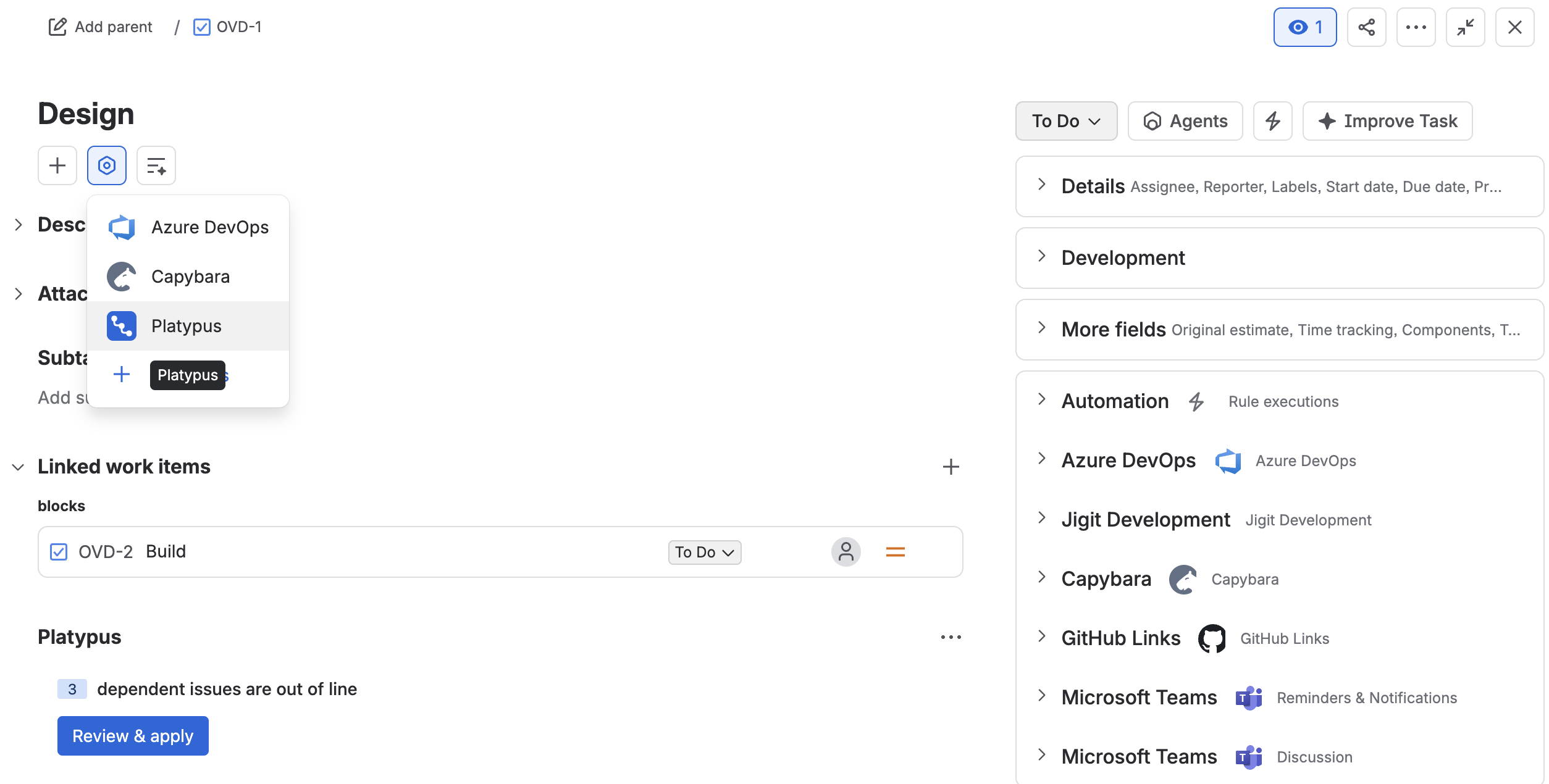
The issue you edited shows a Platypus panel telling you how many dependent changes are waiting. Click Review changes to open the preview.
The preview dialog
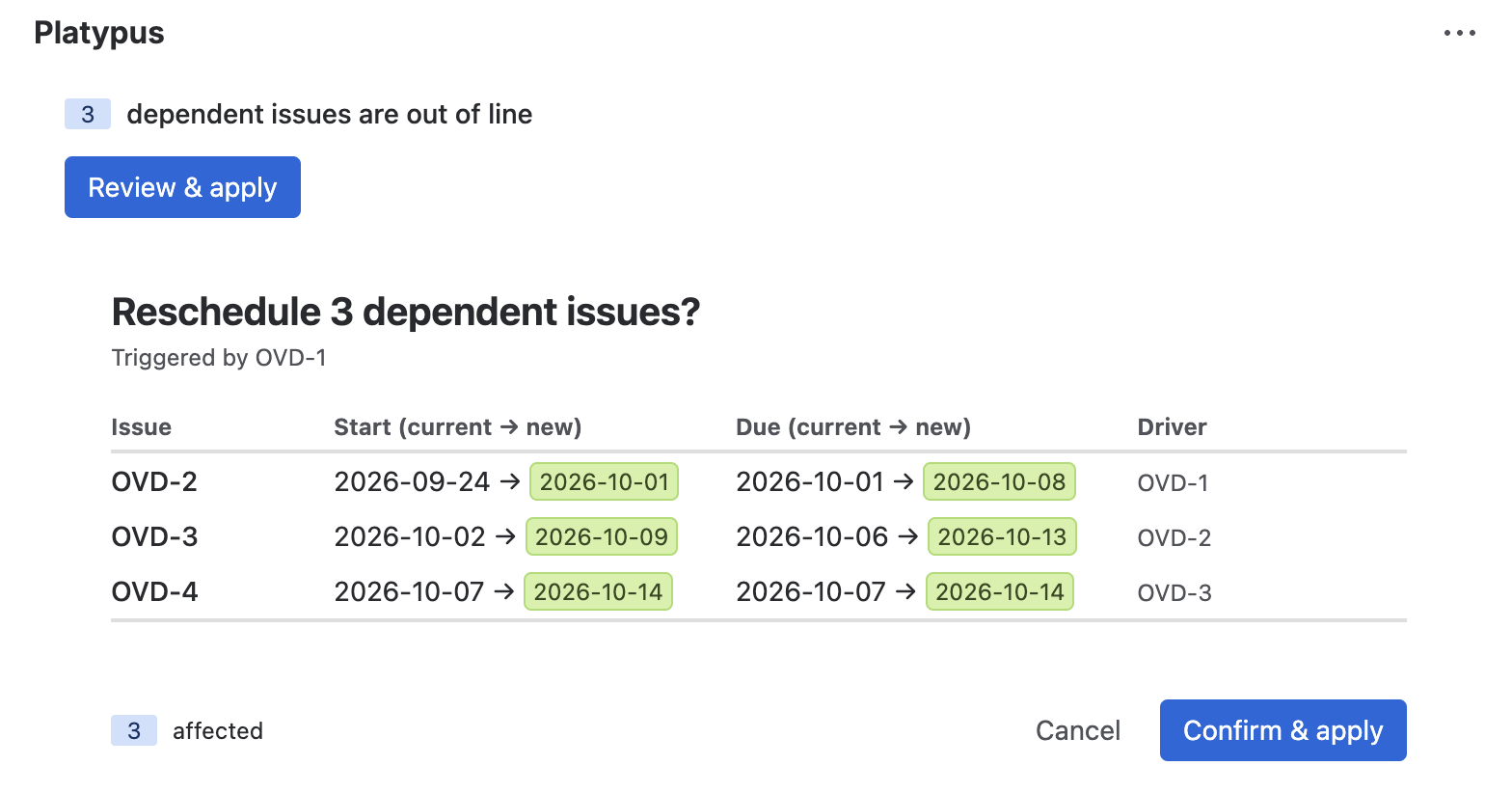
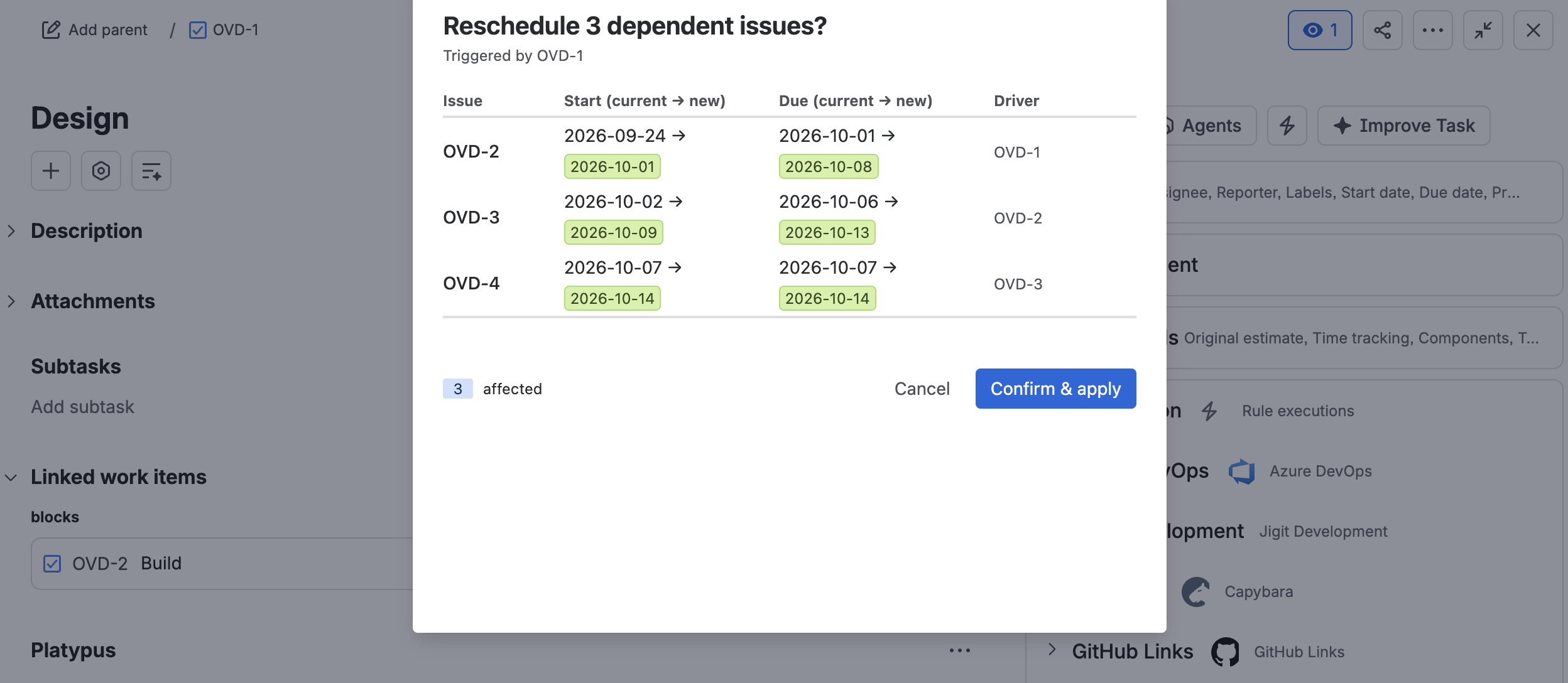
The preview lists every issue that would change, with its current date and the proposed new date side by side, and the driver (the upstream issue causing the move). Review the list, then choose Confirm & apply to make the changes, or Cancel to discard them. Hover over a highlighted date to see the exact "old → new" values.
Pending reviews are held for 14 days. If nobody confirms or cancels one within that window, it expires automatically and the badge disappears.
Triggering a preview yourself
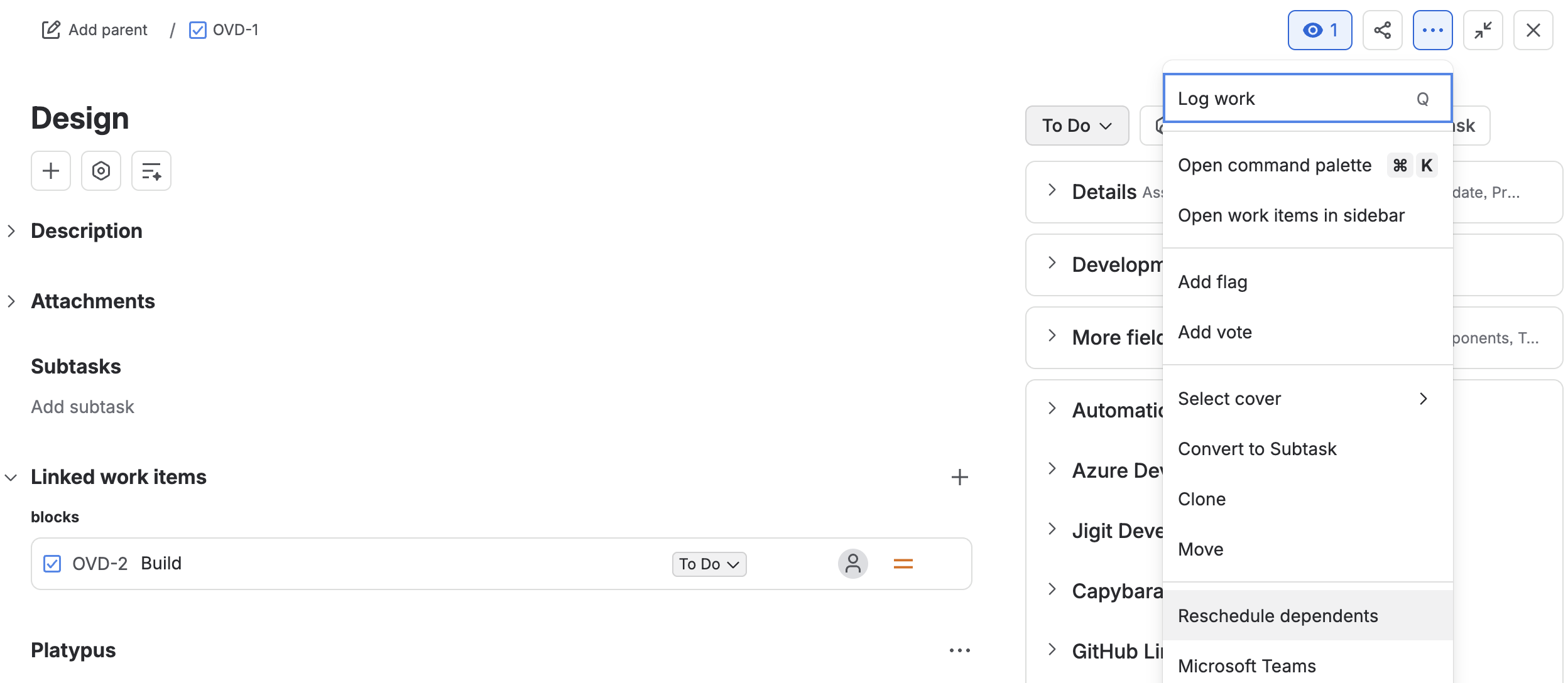
You can also start a review on demand without waiting for a date edit: open any issue's ••• menu and choose Reschedule dependents…. Platypus calculates the plan live and shows the same preview dialog. This works in any project where Platypus is enabled.
Seeing what happened
Every cascade - automatic or confirmed - is recorded for 60 days. Your admin can open the Activity tab to see each run, how many issues changed, and the before/after dates. See How to configure it for details.
Tips
-
Pin a fixed deadline. If an issue must never move (a compliance date, a launch), ask your admin to set up an anchor label and add it to that issue. Platypus will stop the cascade there.
-
Marked Done? Issues in Jira's Done category (Done, Closed, Resolved, Won't Do) are never rescheduled - Platypus skips them and stops treating them as movable.
-
Computed date in the past? Platypus never backdates an issue. If a computed start or due date would land before today, that issue is skipped instead of being written.
-
Nothing happened? Check that both issues have due dates, that they are linked with a recognised link type, and that Platypus is enabled for the project.
-
Too many changes at once? Use Preview & confirm mode so you always get the final say.
-
Cascade stopped partway through? Very deep (100+ issues) or very wide (1000+ issues) chains are capped for safety. Check the Activity log for a depth- or size-limit note on the affected run.
Updated: September, 2026