

This guide explains how to install and configure GitLab for Confluence Cloud.
The configuration process requires:
-
A Confluence administrator
-
Either a GitLab Personal Access Token (PAT) or OAuth (GitLab SaaS only)
The integration supports both GitLab SaaS and GitLab On-Premises deployments.
Prerequisites
Before configuring the app, ensure that:
-
You have Confluence administrator permissions
-
You have access to a GitLab account
-
The GitLab account can access the required repositories
-
You can create a GitLab Personal Access Token (PAT), or, if using GitLab SaaS, you have a GitLab.com account to authorize via OAuth
For GitLab On-Premises deployments:
-
Your GitLab instance must be accessible from the public internet
-
HTTPS is strongly recommended
-
OAuth is not available for On-Premises deployments; use a Personal Access Token
Install the App
Install GitLab for Confluence Cloud from the Atlassian Marketplace. A free trial is available.
Once installed, the app becomes available within your Confluence instance.
Authorize the Connection
Choose one of the following methods to authorize the integration. You only need to complete one.
Method A: Personal Access Token (GitLab SaaS or On-Premises)
The integration requires a GitLab Personal Access Token (PAT) to retrieve GitLab data securely.
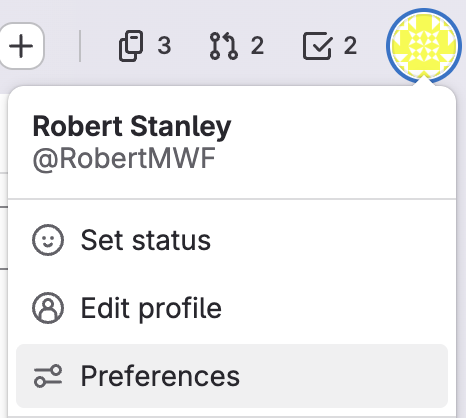
Step 1: Open GitLab Preferences
In GitLab:
-
Click your profile avatar
-
Select Preferences
Step 2: Navigate to Access Tokens
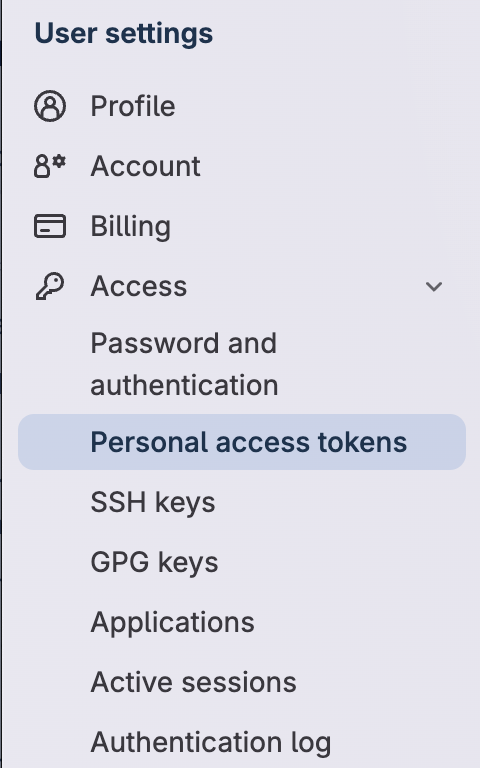
In the left navigation menu:
-
Under Access, select Personal access tokens
-
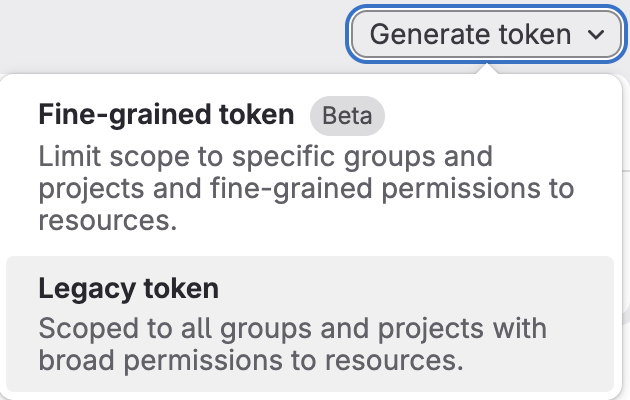
Under Generate token, select Legacy token
Step 3: Create the Token
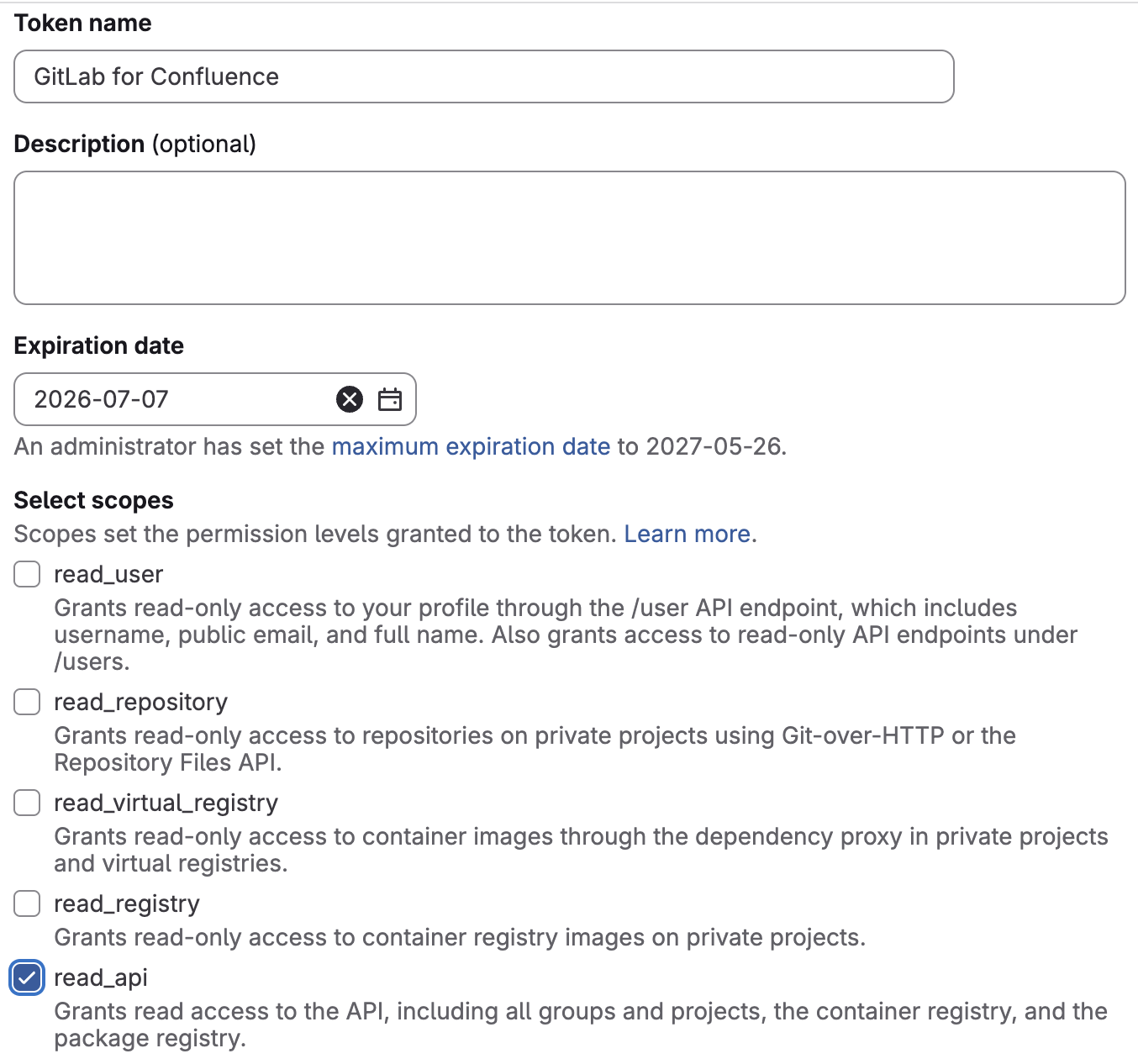
Configure the following:
Token Name
Choose a descriptive name such as:
Gitlab for Confluence
Expiration Date
Select an expiration date that matches your organization's security requirements.
Scopes
The following scope is required:
-
read_api
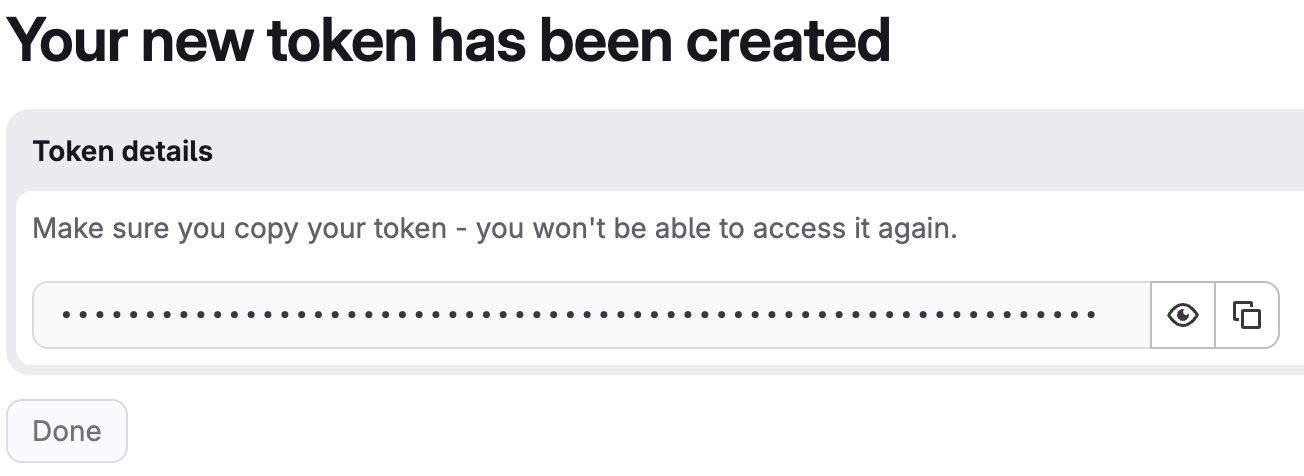
Step 4: Copy the Token
After generating the token:
-
Copy the Personal Access Token immediately
-
Store it securely
Important:
GitLab only displays the token once.
Step 5: Configure GitLab in Confluence
In Confluence:
-
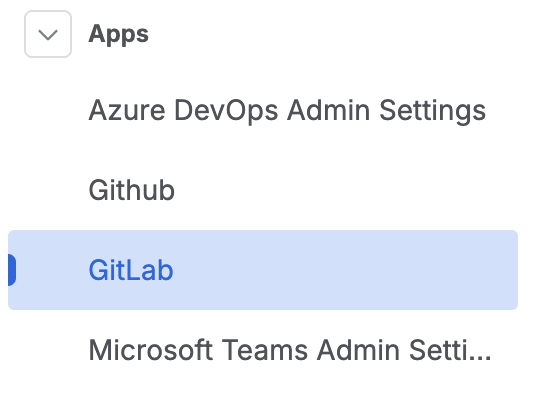
Navigate to the Confluence administration by clicking the cogwheel next to the avatar
-
From the left-hand menu, expand Apps and select GitLab
-
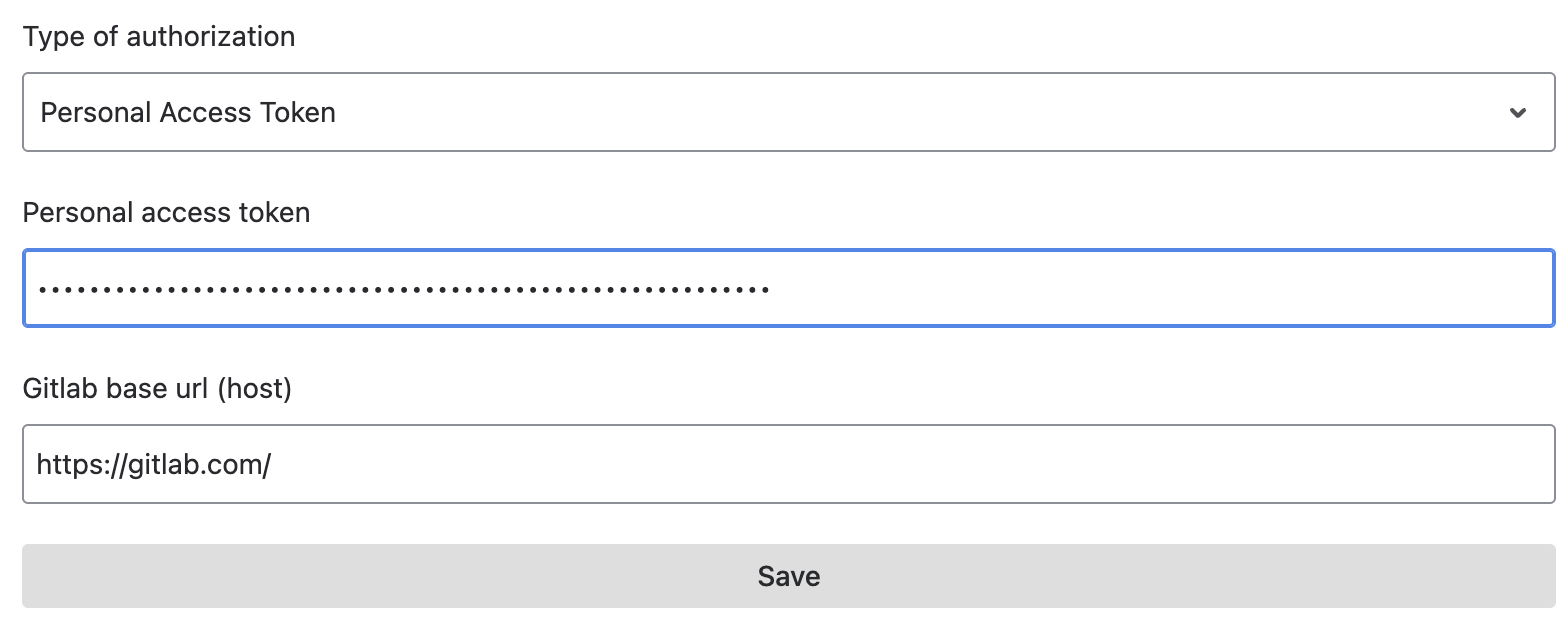
Enter:
-
The Personal Access Token
-
The GitLab Base URL
-
-
Save the configuration
Method B: OAuth (GitLab SaaS only)
GitLab SaaS accounts can authorize the integration using OAuth instead of a Personal Access Token.
Step 1: Open Confluence Administration
In Confluence:
-
Navigate to the Confluence administration by clicking the cogwheel next to the avatar
-
From the left-hand menu, expand Apps and select GitLab
Step 2: Connect via OAuth
-
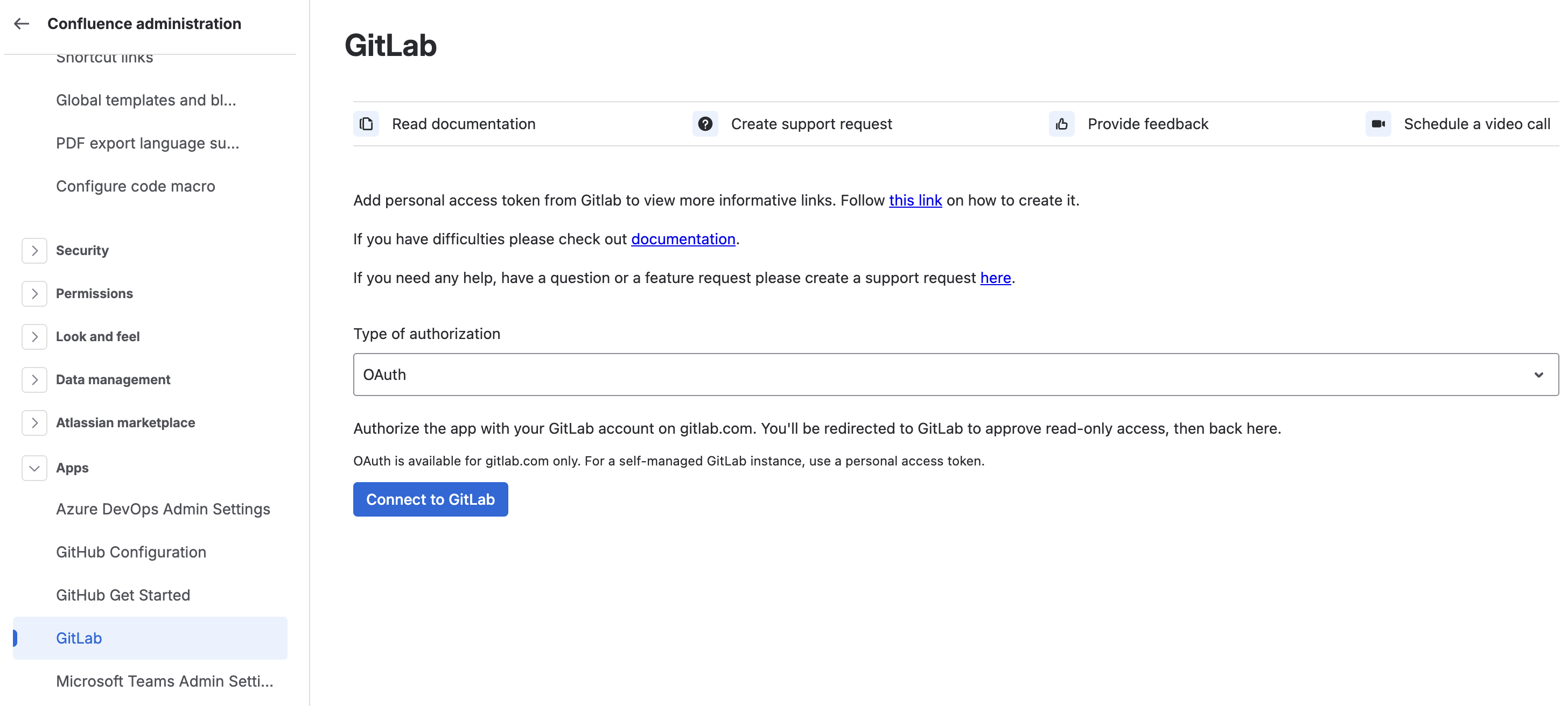
Under "Type of authorization," select OAuth
-
Select Connect to GitLab
-
You'll be redirected to GitLab to approve read-only access, then back to Confluence
OAuth is available for GitLab.com only. For GitLab On-Premises, use Method A instead.
GitLab Base URL
Use the appropriate base URL for your deployment type.
GitLab SaaS
Use:
https://gitlab.com
This applies when using a Personal Access Token. OAuth connections are fixed to GitLab.com and do not require a Base URL to be entered.
GitLab On-Premises
Use your publicly accessible GitLab URL, for example:
https://gitlab.example.com
The URL must be accessible from the internet so the integration can retrieve GitLab metadata.
Updating the Configuration
For security reasons, when using a Personal Access Token:
-
The Personal Access Token and Base URL must be updated together
-
They cannot be changed independently
If your token expires, generate a new token and reconfigure both values.
Verify the Configuration
After saving the configuration:
-
Open a Confluence page
-
Insert a supported GitLab link
-
Confirm that the macro renders correctly
Supported links include:
-
Projects
-
Merge requests
-
Issues/work items
-
Pipelines
-
Source Code
Security Recommendations
We recommend:
-
Using a dedicated service account where possible
-
Limiting token permissions to the minimum required scopes
-
Rotating tokens regularly
-
Avoiding personal administrator accounts for production integrations
-
If using OAuth, there is no token to rotate manually, the authorization can be revoked at any time from your GitLab account settings
Troubleshooting
Common setup issues include:
|
Issue |
Possible Cause |
|---|---|
|
No valid token |
Token expired or invalid |
|
Permission denied |
Missing |
|
Content not loading |
Incorrect base URL |
|
On-Premises connection issues |
GitLab instance not publicly accessible |
|
OAuth connection lost |
OAuth authorization expired or revoked in GitLab |
See the Troubleshooting guide for additional details.
Next Steps
After completing the installation:
-
Review supported GitLab link types
-
Configure your team documentation workflows
Updated: August, 2026