Autodesk Forma Connector for Teams sends Autodesk Forma issue updates to Microsoft Teams, so your team can follow project activities without leaving Teams.
You can get notifications in two places:
-
Teams channels. Notifications for all issues in a connected project, from whoever made the change.
-
Personal chat. Notifications about issues where you are the Assignee, Watcher or Issue Creator, or where someone mentions you in a comment.
Before you start
-
You need a Microsoft Teams account.
-
You need an Autodesk Forma account.
-
To connect a Forma project, you must be an admin of that Forma project.
-
Our companion app must be authorised in your Autodesk Forma Apps Gallery.
Install Autodesk Forma Connector in Teams
-
Open Microsoft Teams and go to Apps.
-
Search for Autodesk Forma Connector.
-
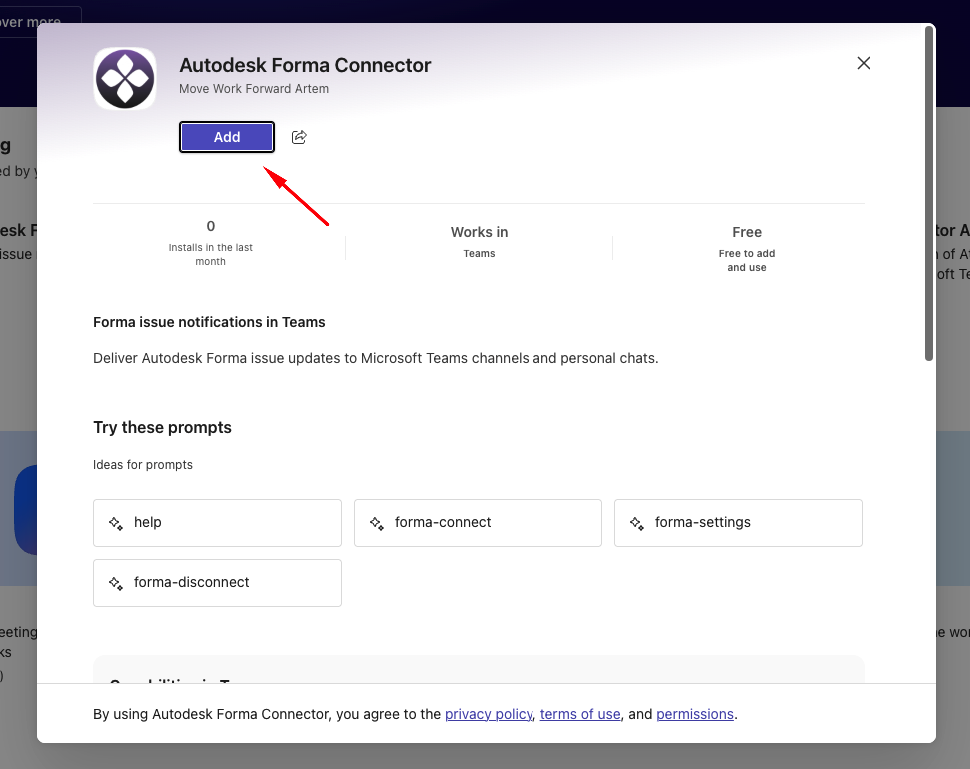
Select the app and click Add.
-
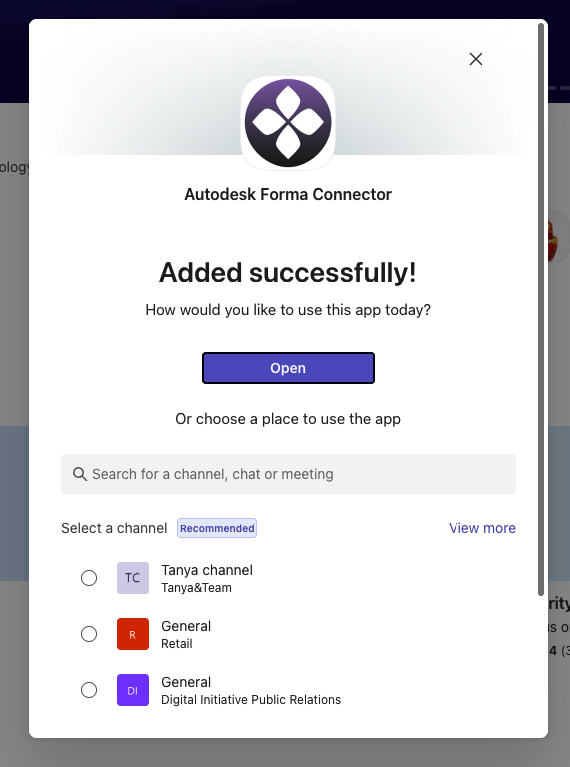
When the confirmation appears, click Open. This opens your personal chat with the app, where you'll receive notifications.
Connect a Forma project (only for project admins)
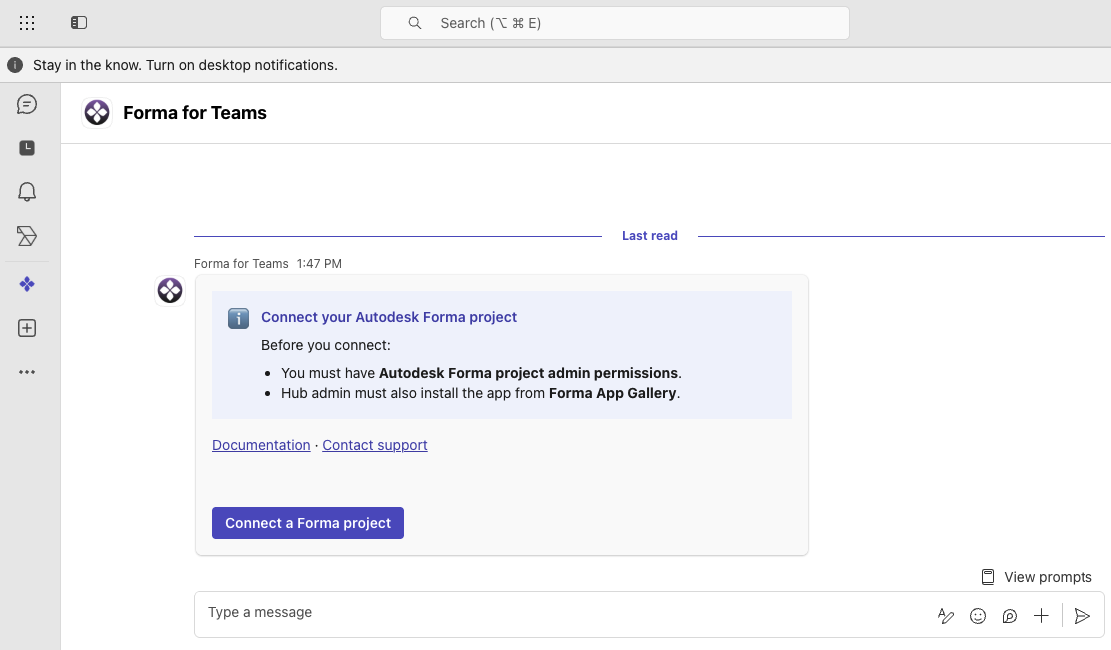
After you install the app, the bot sends you a welcome message asking you to connect your first Forma project.
-
Click Connect a Forma project.
-
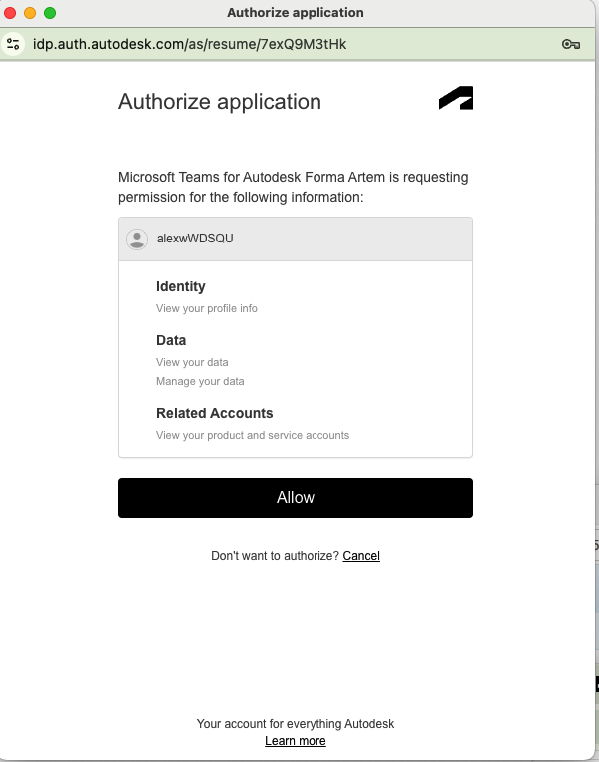
Sign in to Autodesk Forma. If asked, enter the one-time passcode from your email.
-
In the authorisation window, click Allow.
-
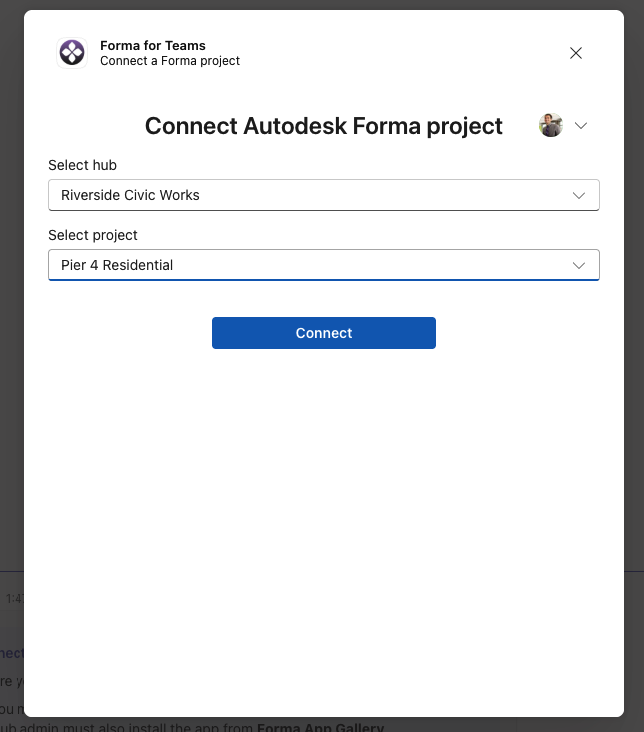
Select a hub, then select a project in that hub, and click Connect.
-
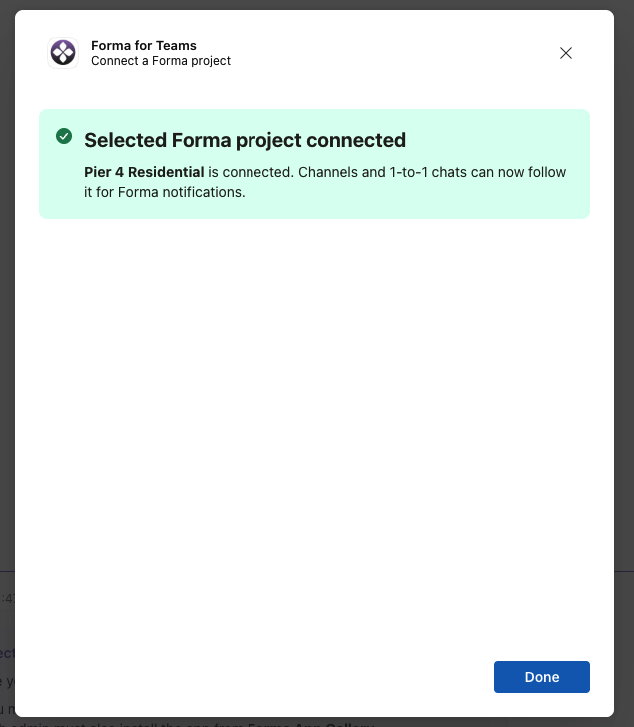
Click Done.
-
You'll get a Personal notifications enabled card, which confirms the project is connected.
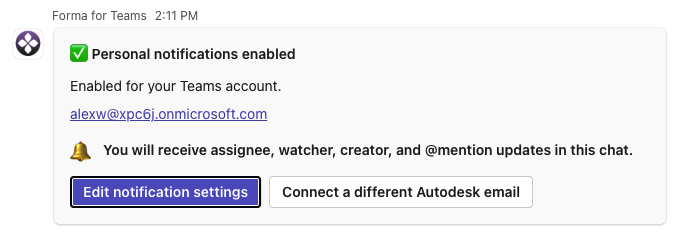
You only need to connect a project once for your entire Teams organisation. After that, any user in your organisation can set up notifications for it.
Personal notifications
Once you connect at least one Autodesk Forma project, you can configure personal notifications about issue changes and comments where you are the assignee, watcher, issue creator, or mentioned in a comment.
-
Install Autodesk Forma Connector from the Teams Apps store as explained above.
-
The app finds projects your organisation has already connected and automatically turns on personal notifications.
-
To customise your notification settings, open the context menu (⋯) on any notification card.
-
Click Edit notification settings.
-
On the Personal settings tab, you can:
-
choose which of your roles on an issue trigger notifications: Assignee, Watcher, Issue Creator
-
choose which issue fields to show, and add, remove or reorder them
-
choose whether cards open expanded or collapsed by default
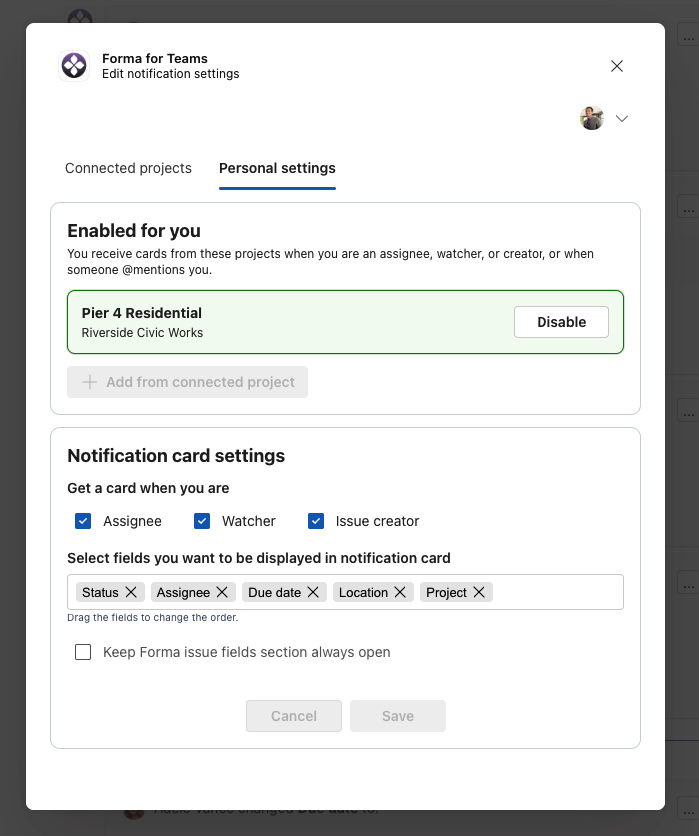
You won't get notifications about changes you make yourself.
Manage connected projects (project admins)
Open Edit notification settings from any card and go to the Connected projects tab. From there, you can:
-
Connect another project
-
Disconnect a project for your whole organisation
Only signed-in Autodesk Forma project admins can make changes on this tab.
5. Set up channel notifications
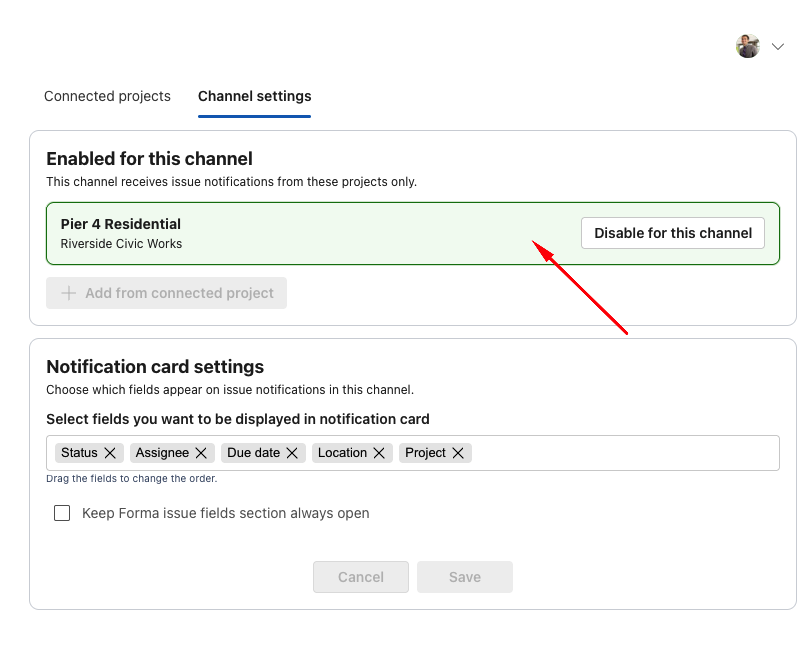
Channel notifications cover all activity in a connected project, whoever made the change.
-
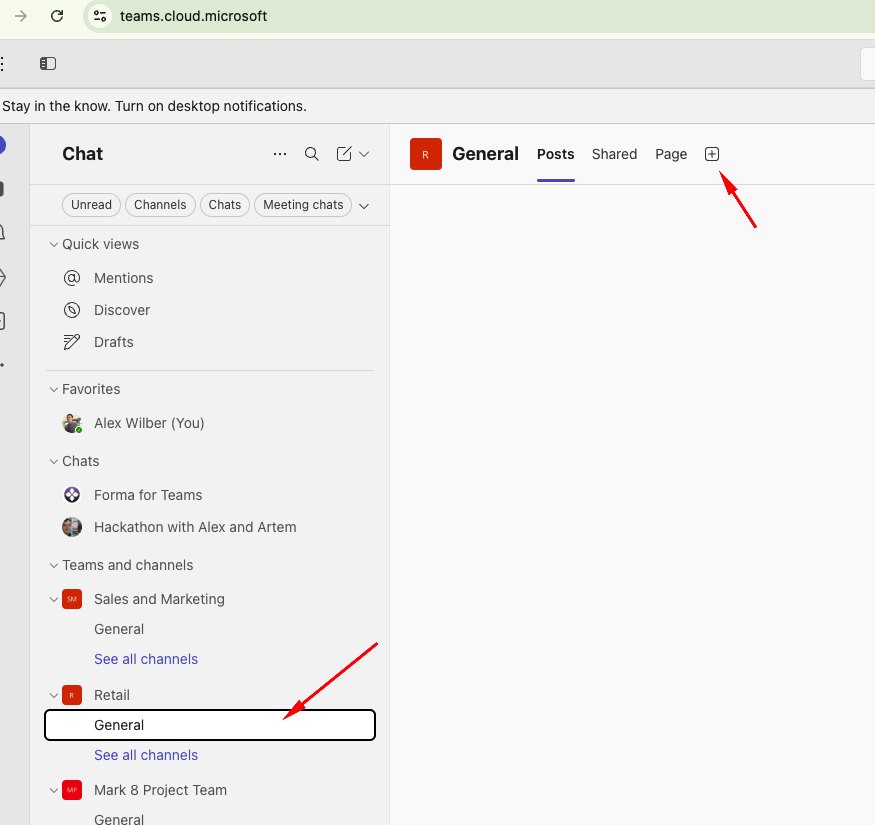
Open an existing Teams channel or create a new one.
-
Click the + button at the top of the channel.
-
Select Apps, search for Autodesk Forma Connector and select it.
-
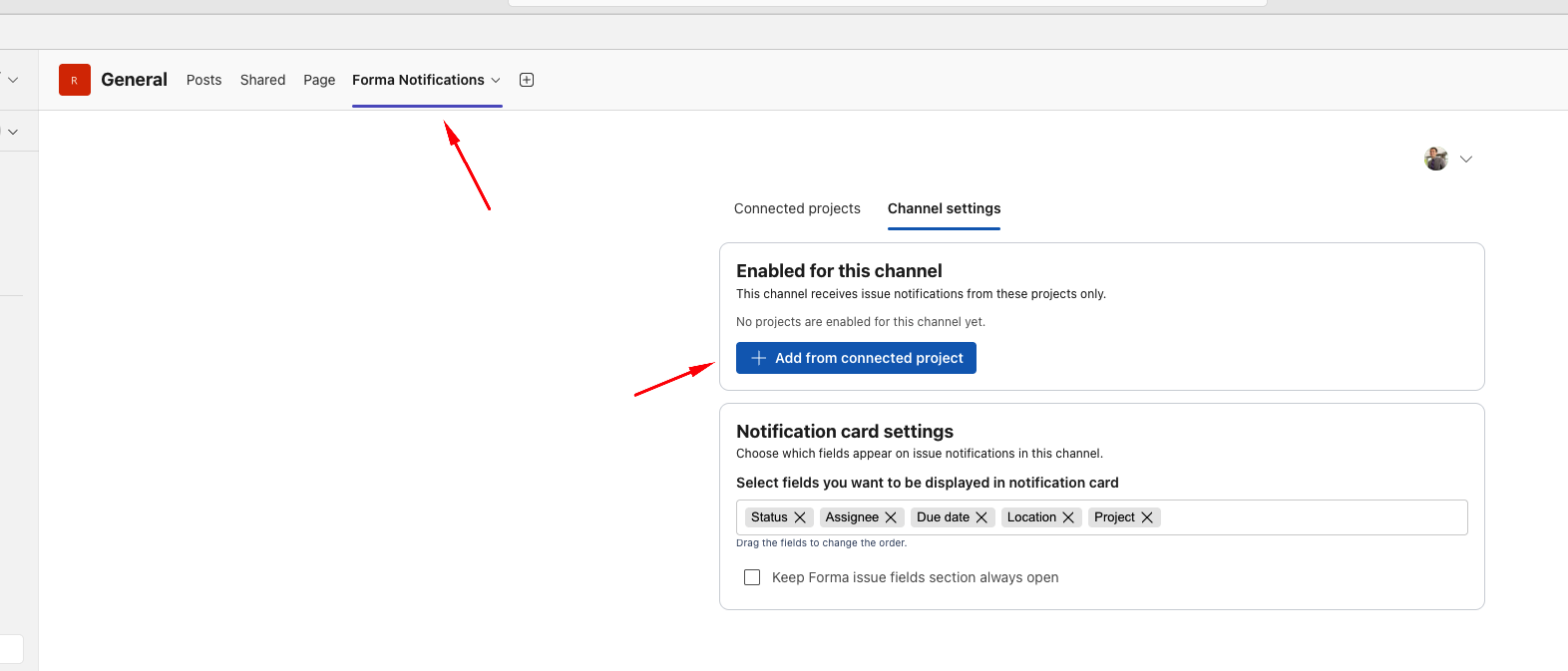
Click Save. A Forma Notifications tab is added to the channel.
-
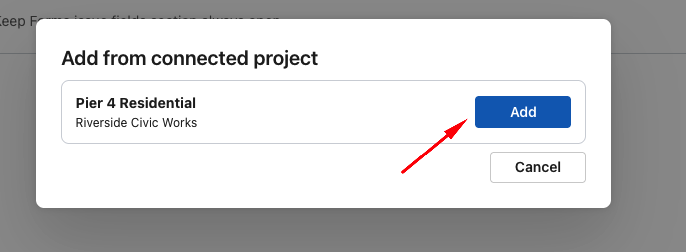
On that tab, click + Add from connected project.
-
Select the project and click Add.
The project now shows as Enabled for this channel, and new issue updates appear there as notification cards.
FAQ
Why didn't I get a notification about my own change?
Personal chat skips changes you made yourself. Channels show every change.
Why can't I connect a project?
Check that you're an admin of that Forma project and that the app is authorised in your Forma Apps Gallery.
I installed the app but get no notifications.
Someone in your organisation needs to connect a Forma project first. Ask a Forma project admin to do it.
Updated: September, 2026