

This guide explains how automatic connection of Azure DevOps projects works and describes the most common issues you may encounter during setup, along with steps to resolve them.
What does “Connect all Azure DevOps projects automatically” mean?
Setting up the Azure DevOps for Jira integration usually consists of two steps:
-
Create an Azure DevOps integration. This establishes a connection to Azure DevOps using a Personal Access Token (PAT).
-
Create project connections. Project connections allow Jira to subscribe to updates from specific Azure DevOps projects.
By default, project connections must be created manually for each Azure DevOps project.
To simplify this process, we provide an option to automatically connect all Azure DevOps projects as soon as the integration is created.
To enable this:
-
During integration creation, turn on “Connect all Azure DevOps projects automatically”. Learn more
-
The app will then attempt to create project connections for all available Azure DevOps projects.
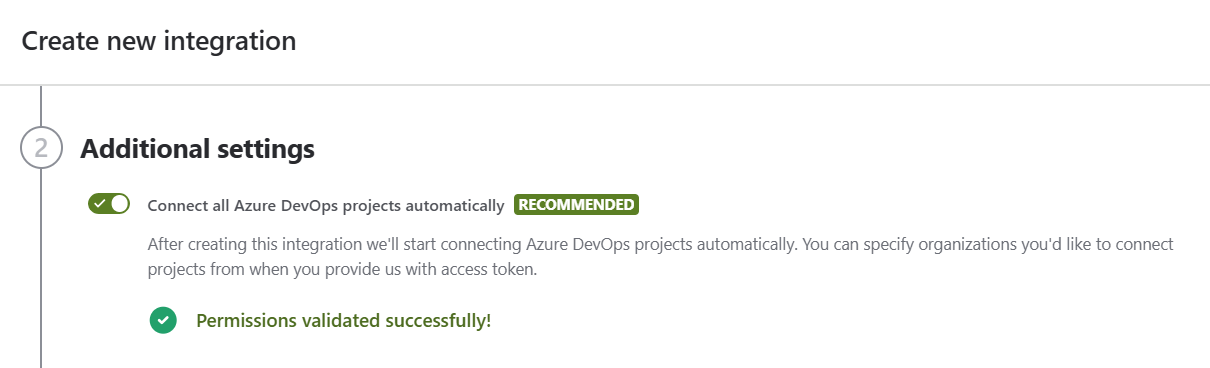
There are a few common reasons why the connection to the project can fail. Below, we will explain what caused them and how to solve those issues.
“Edit Subscription“ permission required
Error message:
"Access Denied: [user ID] needs the following permission(s) on the resource PublisherSecurity/[Azure resource ID] to perform this action: Edit Subscription"
The Personal Access Token was created by a user who does not have sufficient permissions in the Azure DevOps project.
To create subscriptions to Azure DevOps events, the token owner must have:
-
Edit Subscriptions
-
View Subscriptions
More info can be found here.
Without these permissions, the integration cannot subscribe to changes in Azure DevOps entities.
How to fix it
-
Ask your Azure DevOps organisation’s admin to grant the token’s creator administrator permissions for the project you want to connect to:
-
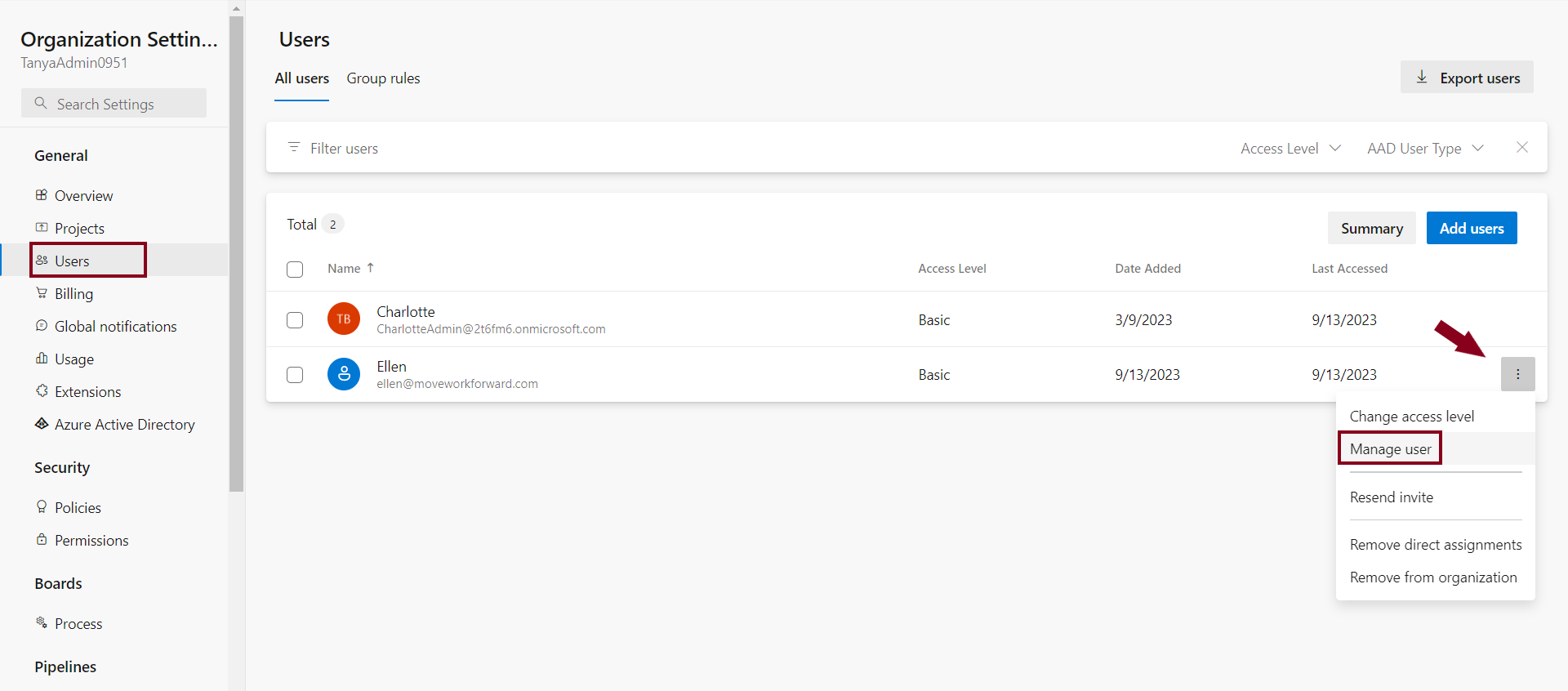
Go to Organization Settings and click on the Users section.
-
Find the user you want to grant permissions to and click on the three-dots menu.
-
Click on Manage user and edit permissions.
-
Once permissions are granted try to create an project connection again (manually or start projects auto-connect).
-
-
If you have administrator permissions for the project you want to connect, generate a new Personal Access Token and update the integration. Please, follow this guide.
-
Start the project connection again. To do that, click on Try again on the info banner you get this error or start projects auto-connect again:
-
Return to Integrations tab.
-
Click on the “pen“ icon to edit the created integration.
-
Ensure that Connect all Azure DevOps projects automatically is enabled.
-
Click Update.
-
“Failed to initialize subscription”
Error message:
“Failed to initialize subscription”
Next to this message, you can see the short message explaining the reason why it failed.
The most common is resource exhaustion, if there are too many projects to connect. Although this process has been optimised, it may still fail for very large organisations.
How to fix it
Start the project connection again. To do that, click on Try again on the info banner, you get this error, or start projects auto-connect again:
-
Return to Integrations tab.
-
Click on the “pen“ icon to edit the created integration.
-
Ensure that Connect all Azure DevOps projects automatically is enabled.
-
Click Update.
Conditional access policy restrictions
Error message:
“Conditional access policy is blocking access to organization's projects.”
Your organisation’s security (Conditional Access) policies are preventing the app from accessing project data. These policies are managed by your Microsoft Entra ID (Azure AD) administrators and may restrict access based on user, device, location, or app permissions.
How to fix it
-
Ask your Microsoft 365/Entra ID administrator to review the Conditional Access policies applied to your account.
-
Ensure that the app is allowed to access the required Microsoft services and APIs.
-
You can disable Conditional access policy restrictions for specific Azure DevOps organisation.
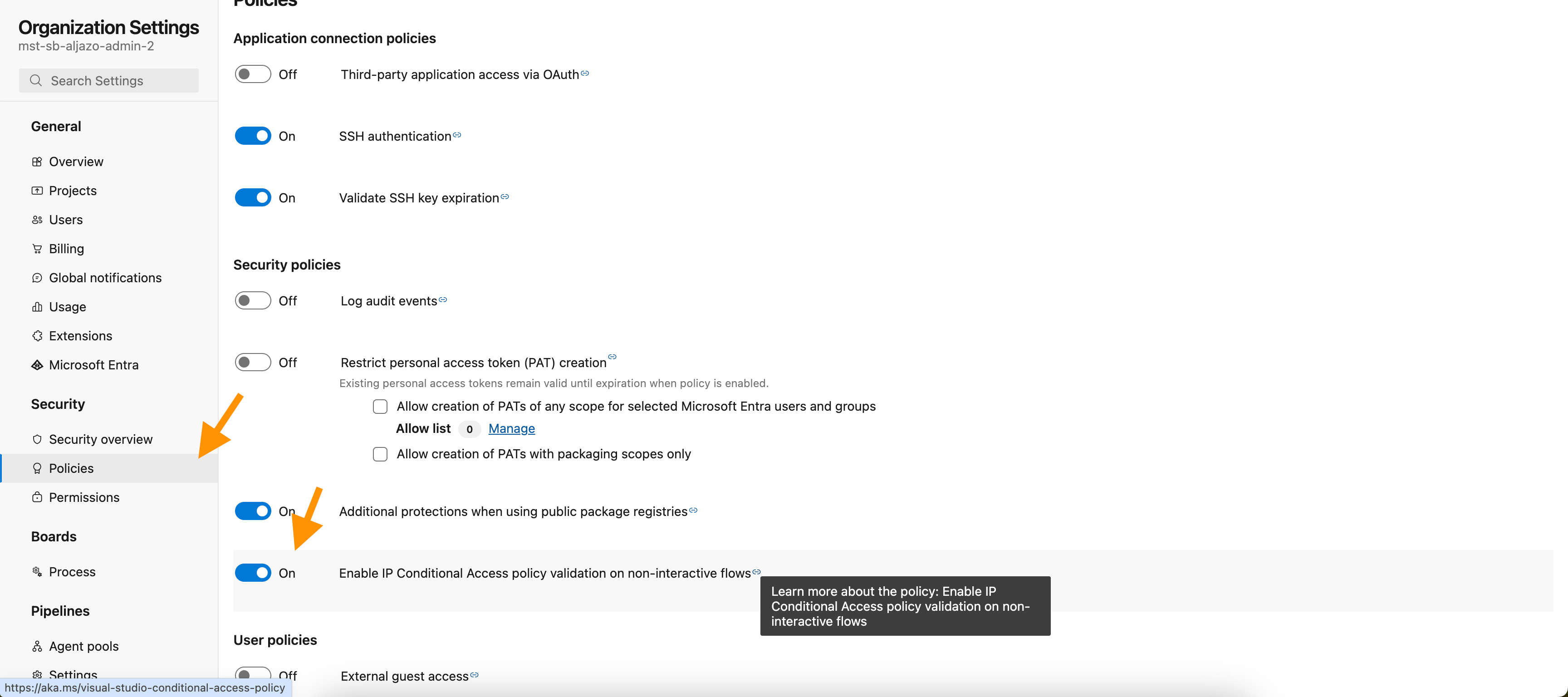
How to enable Static IP Proxy configurations (Azure DevOpsOps Cloud)
Once the policy is updated or an exception is granted, try again, and the app should be able to access your projects successfully.
Updated: December, 2025