

Follow the steps in this section to install the CAD Model Viewer on your Confluence site. You will also find important information about user access, trial usage, and licensing.
Installing from the Atlassian Marketplace
-
Go to the Atlassian Marketplace listing.
-
Click Try it free.

-
Select the Confluence Cloud site where you want to install the app.
-
Click Review, then Start free trial.
Alternatively, your Confluence administrator can install the app from within Confluence:
-
Go to Confluence administration → Atlassian Marketplace → Find new apps.
-
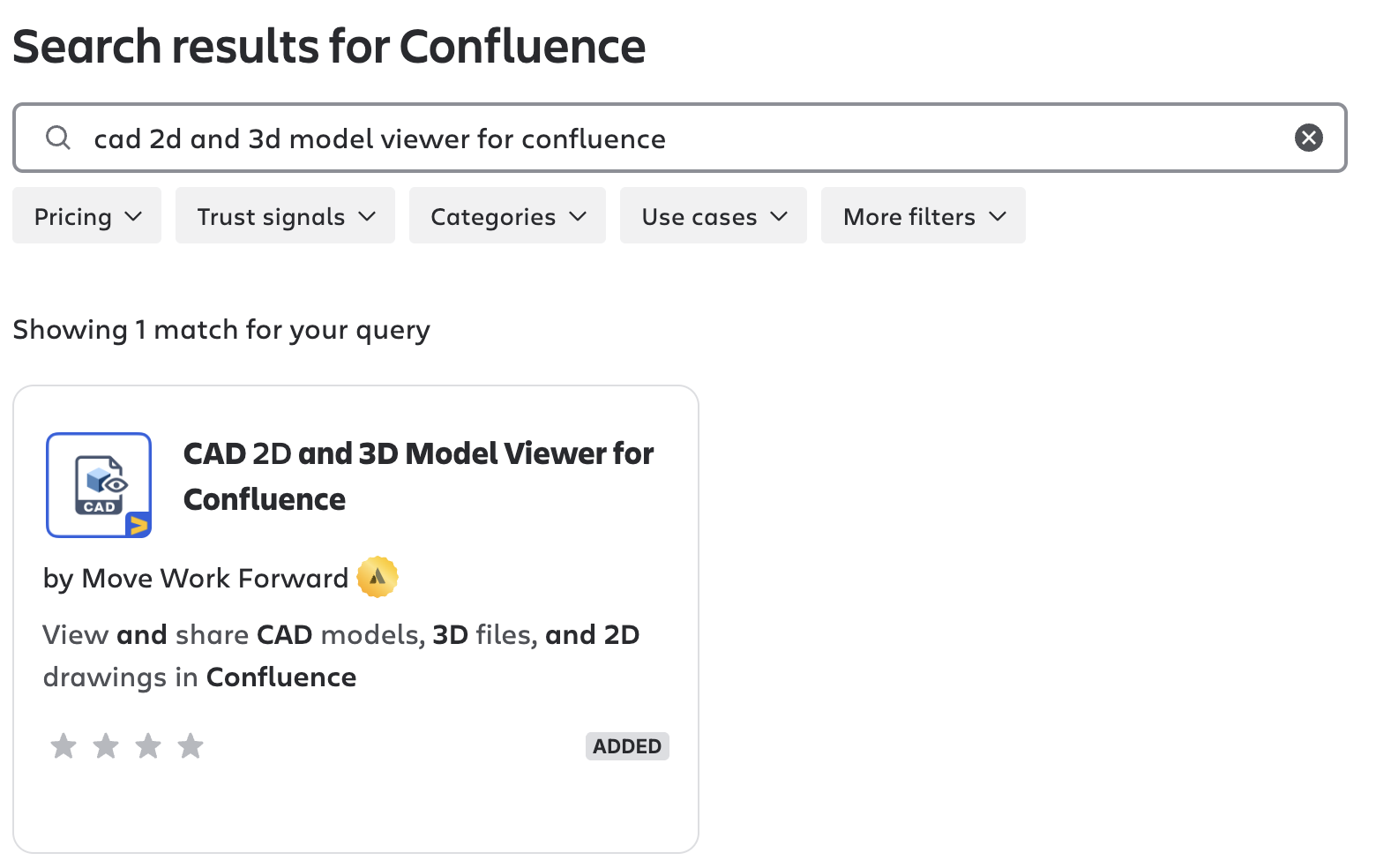
Search for "CAD 2D and 3D Model Viewer for Confluence".
-
Click Try it free and follow the same prompts as above.
Permissions and Access: After installation, the app is available to all users in your Confluence workspace. No additional consent flows are required.
Trial and Licensing: During the trial period, you can upload up to 30 models. To upload more, upgrade to a paid subscription. Licensing is managed through the Atlassian Marketplace.
Related CAD Products
-
CAD Model Viewer for Jira - View CAD models directly in Jira issues
-
CAD Model Viewer for Outlook - Preview CAD attachments in your Outlook inbox
-
View all products on moveworkforward.com
Updated: