

Automatically create an Azure DevOps work item whenever a new work item is created in Jira, with fields kept in sync between the two.
Before you begin
Make sure you have an Azure DevOps Sync integration already set up for this direction, with Work Items: Read & Write scope - see Setting Up a Work Item Sync Integration. If you don't have one yet, starting a synchronization below will redirect you there automatically.
Step 4 (User Mapping) works from your Azure DevOps project team membership by default, with no extra token scope needed. To map users from anywhere in the organization instead of just the project's team, add the optional Member Entitlement Management: Read scope.
Step 1. Start a new synchronization
-
From the Synchronizations tab, select Create new synchronization.
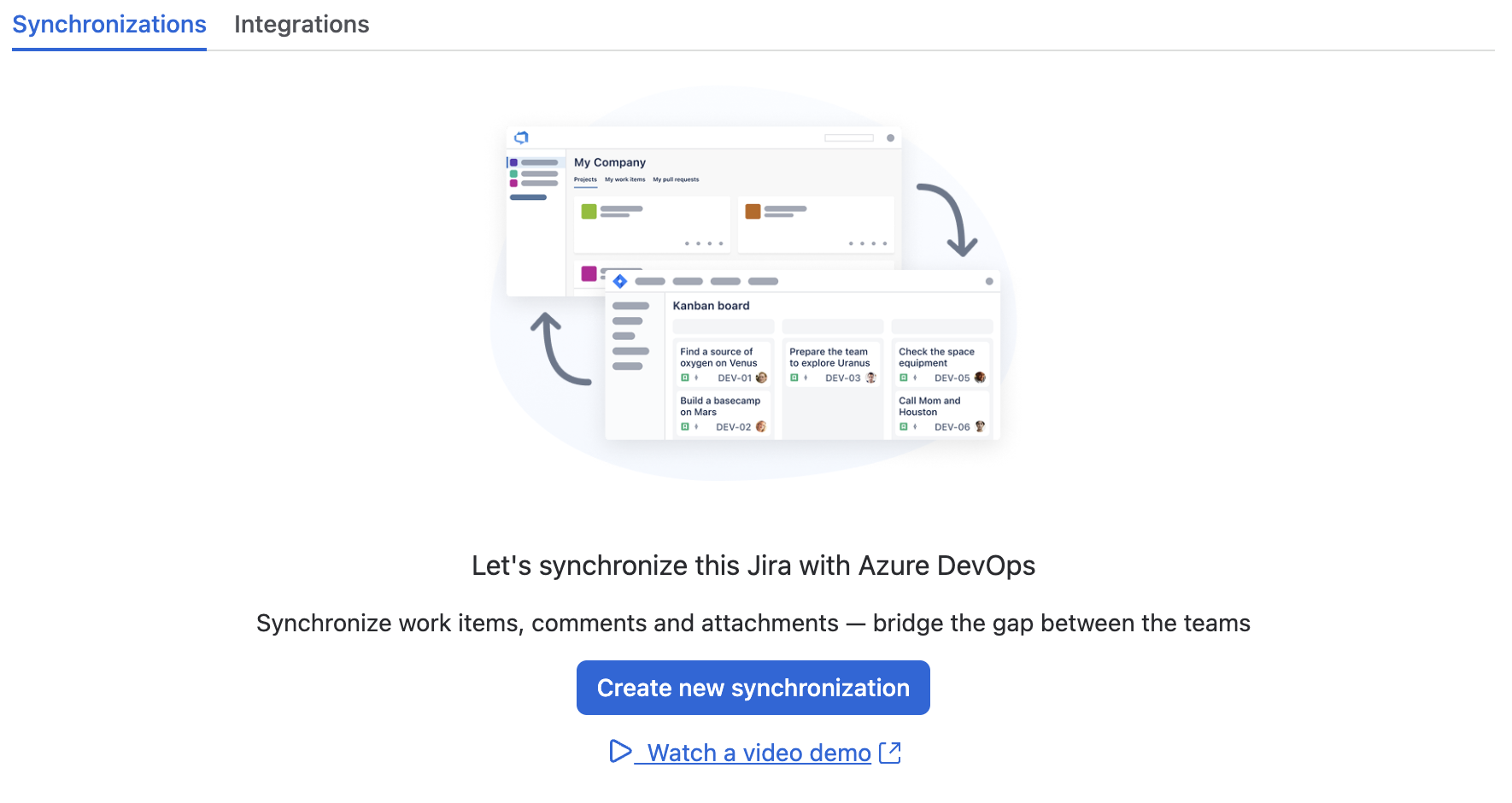
If no integration exists yet for this direction, you'll be redirected to set one up first.
Step 2. Connect Azure DevOps
-
Select Jira to Azure DevOps, then select Continue.

-
Select an existing Azure DevOps integration, or create a new one.

-
Select the Jira space and Azure DevOps project to synchronize.
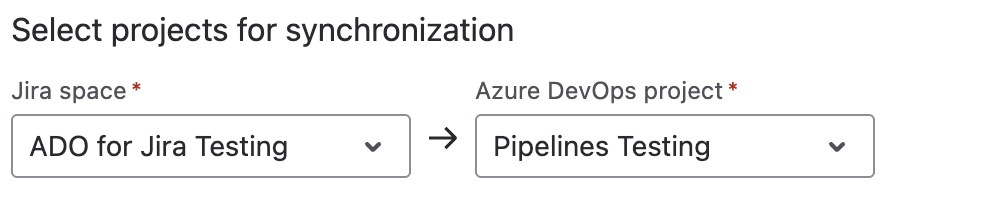
-
Optionally, turn on Synchronize comments and/or Synchronize attachments to keep those in sync as well (attachments up to 25 MB per file, over a direct Azure DevOps Cloud connection).
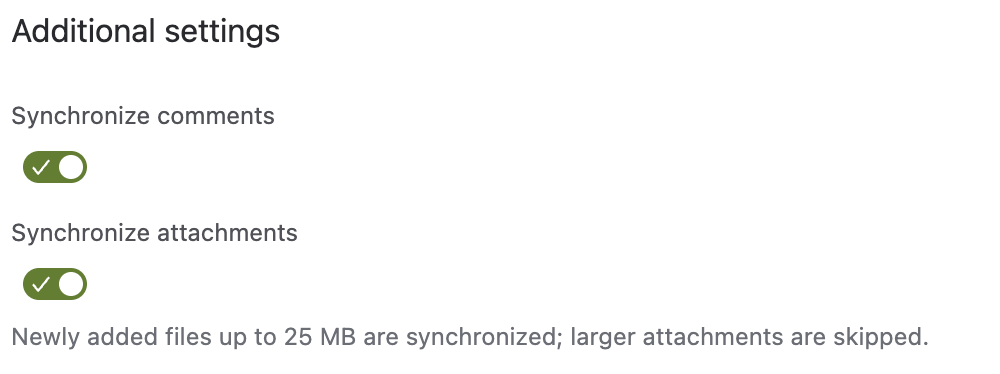
-
Select Next.
Step 3. Map fields
-
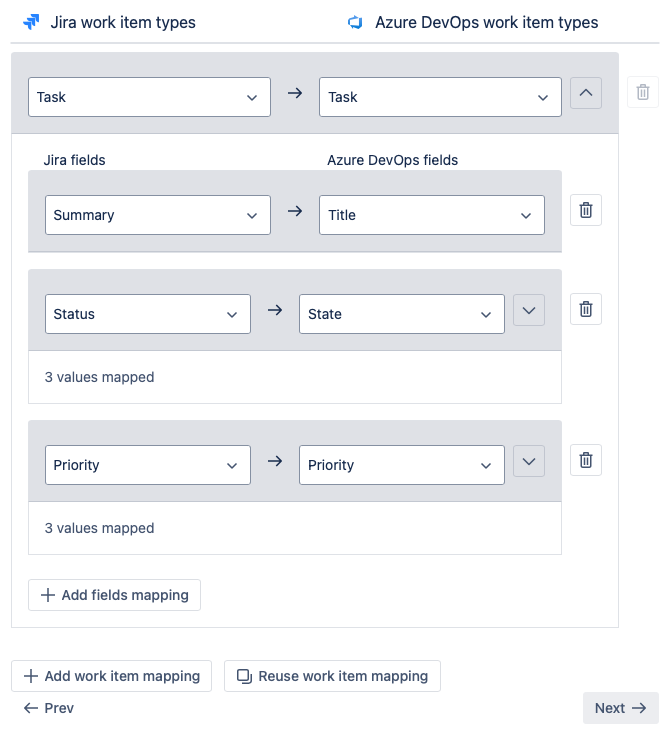
Map each Jira work item type to its corresponding Azure DevOps work item type.
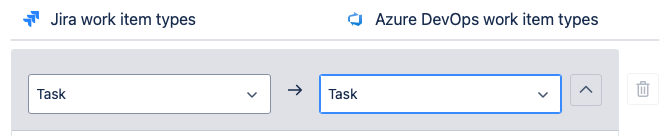
-
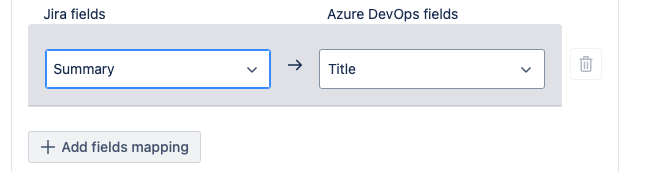
Select the Jira field to map to the Azure DevOps field. Select Add fields mapping to map more.
-
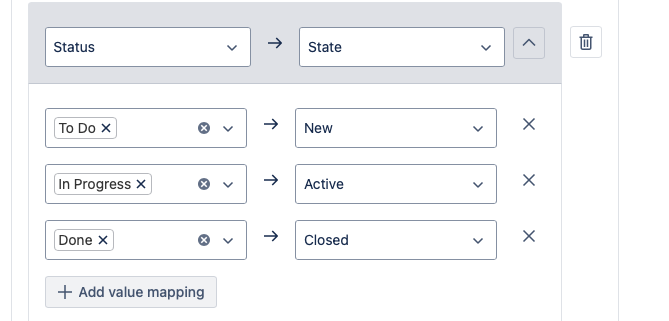
Where a field has a fixed set of values, map those to their corresponding Azure DevOps values too. Select Add value mapping for more.
-
Once all desired fields and values are mapped, select Next.
Step 4. Map users (optional)
You can map Azure DevOps users to Jira users. This is an optional feature, but it can be useful for keeping assignees correct across both platforms.
This reads from your Azure DevOps project's team membership by default. Add the optional Member Entitlement Management: Read scope to map users from across the whole organization instead of just the project's team.
-
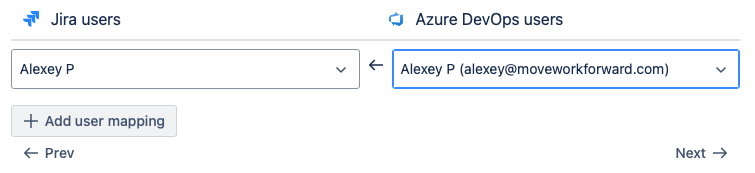
Select Add user mapping.

-
Map each Jira user to their corresponding Azure DevOps user.
-
Select Add user mapping again for additional users as needed.
-
Select Next.
Step 5. Name and save
-
Give the synchronization a name and select Save.
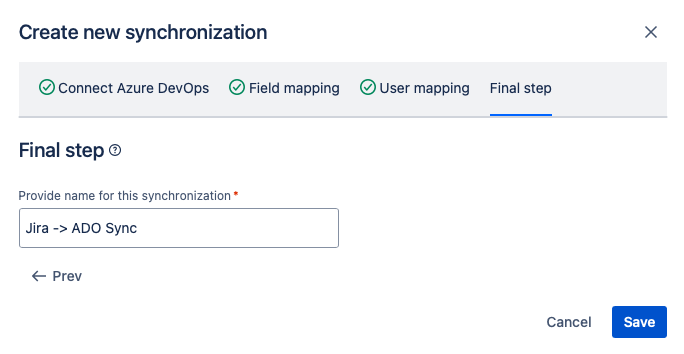
Work items created in Jira will now automatically create corresponding work items in the associated Azure DevOps project.
If a required Azure DevOps field isn't populated when the work item is created in Jira, the corresponding Azure DevOps work item won't be created.
Related guides
-
Work Item Sync (overview)
Updated: September, 2026