

Keep work items in sync in both directions at once - a change in either Jira or Azure DevOps updates the other automatically, without creating duplicate work items or update loops.
Before you begin
Make sure you have an Azure DevOps Sync integration set up with the Both directions option - see Step 1 below if you don't have one yet. That integration's Personal Access Token needs:
-
Work Items: Read & Write -
Project and Team: Read & Write
User mapping works from your Azure DevOps project team membership by default, with no additional scope required. To map users from anywhere in the organization instead of just the project's team, also include the optional Member Entitlement Management: Read scope.
Direction can't be changed later. A synchronization's direction is fixed when it's created. If you already have a one-way synchronization and want to make it two-way, you'll need to create a new Both directions synchronization rather than convert the existing one - the existing one's issue links won't carry over automatically.
Step 1. Set up a two-way integration
-
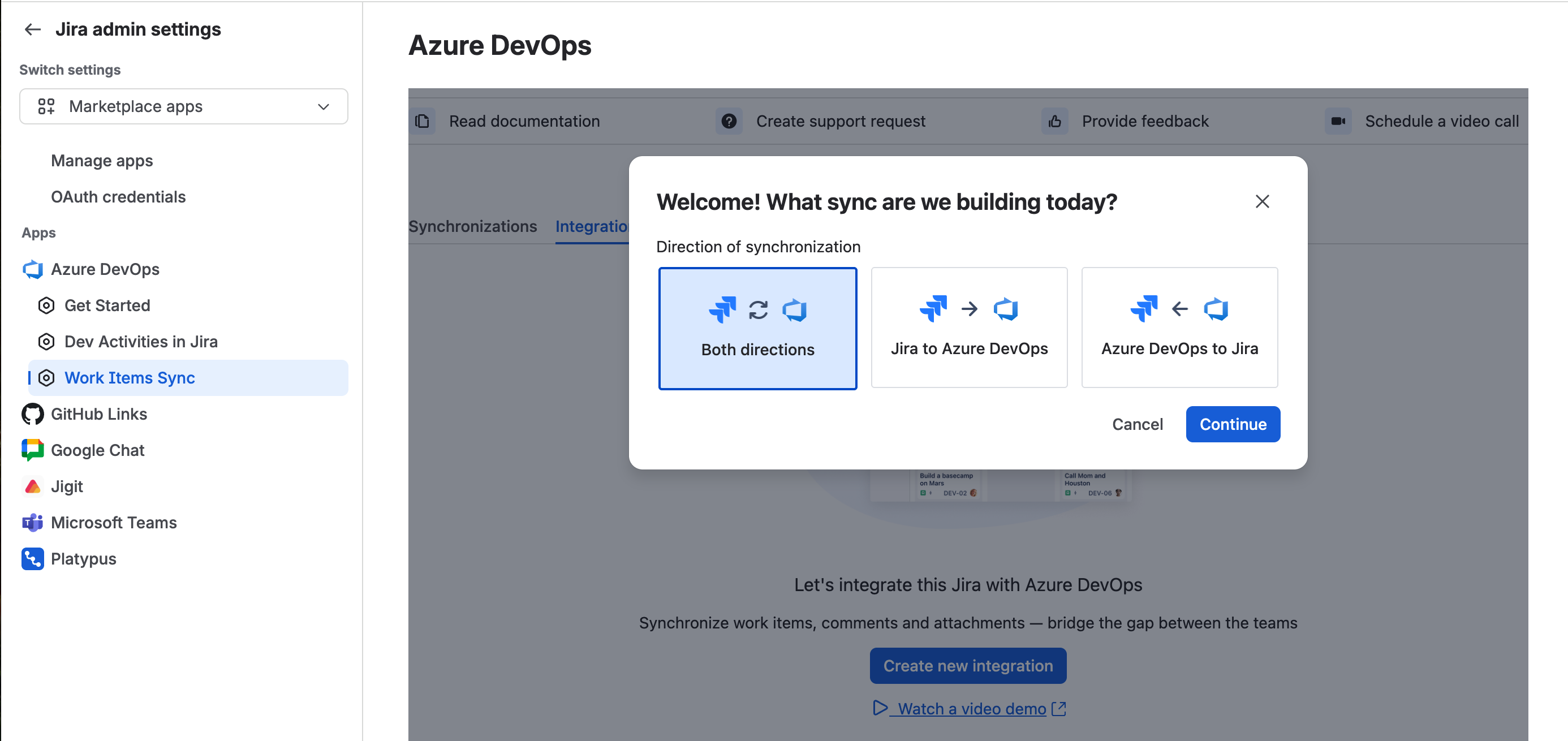
From the Jira admin settings, go to Marketplace apps, expand Azure DevOps, and select Work Items Sync.
-
Open the Integrations tab and select Create new integration.
-
Select Both directions as the direction this integration is for.
-
Enter your Azure DevOps organization name and Personal Access Token (with the scopes listed above), select the Jira spaces it can access, give it a name, and select Test Connection then Save.
See Setting up a Work Item Sync Integration for more detail on any of these fields if you haven't created an integration before.
Step 2. Start a new synchronization
-
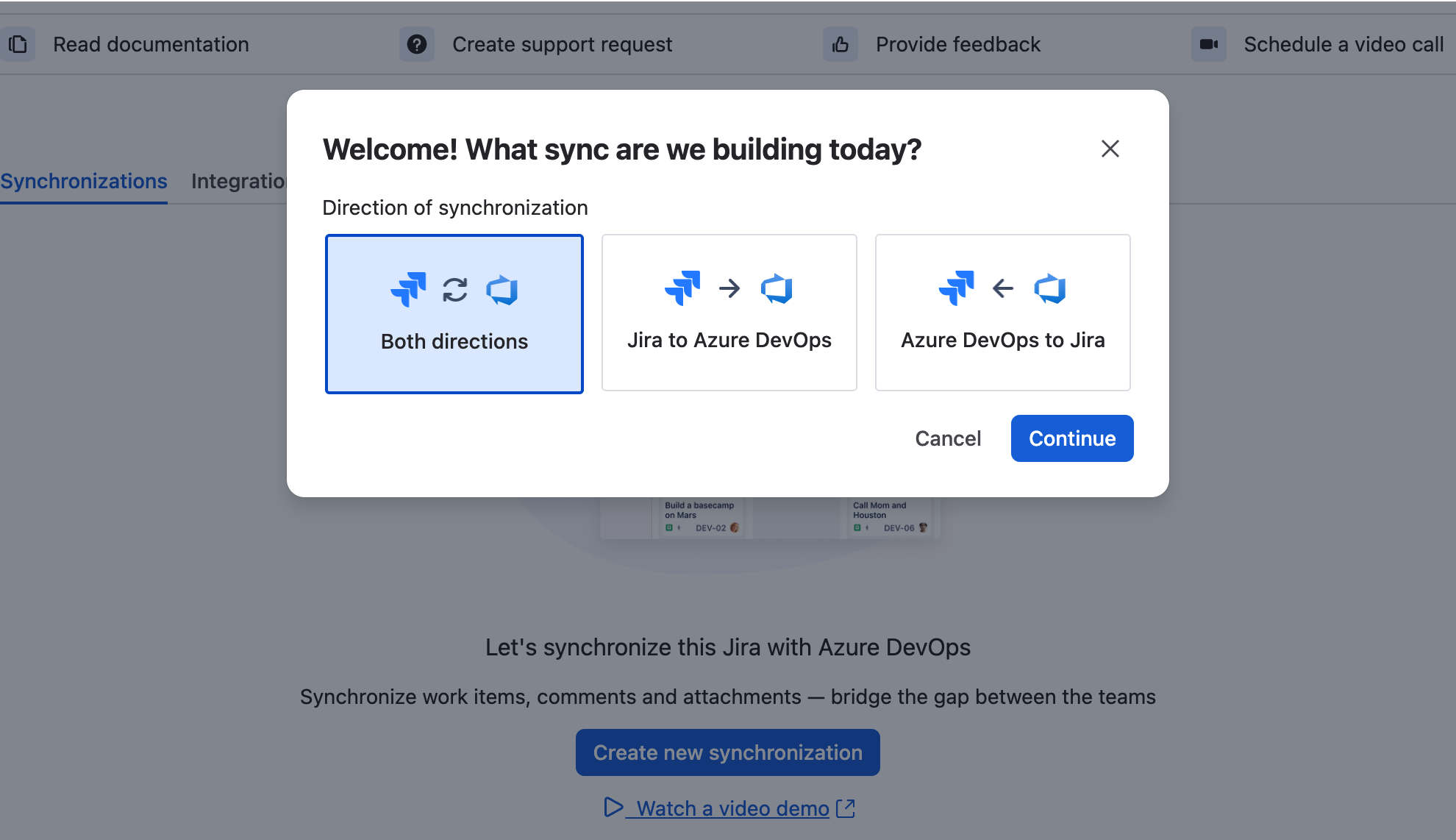
From the Synchronizations tab, select Create new synchronization.
-
Select Both directions, then select Continue.
-
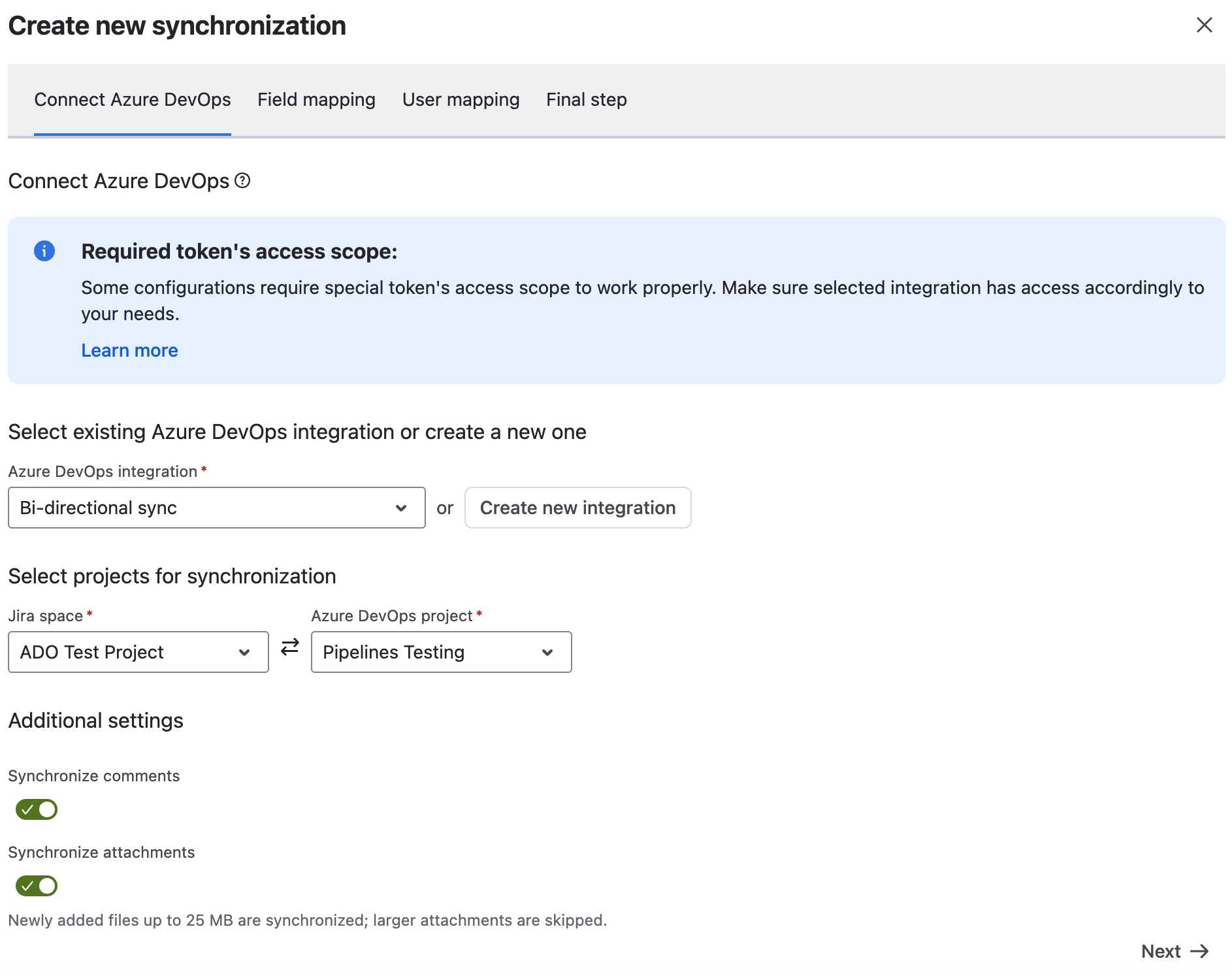
Select the two-way integration you just created (or an existing one), then the Jira space and Azure DevOps project to synchronize, and select Next.
Step 3. Map fields in both directions
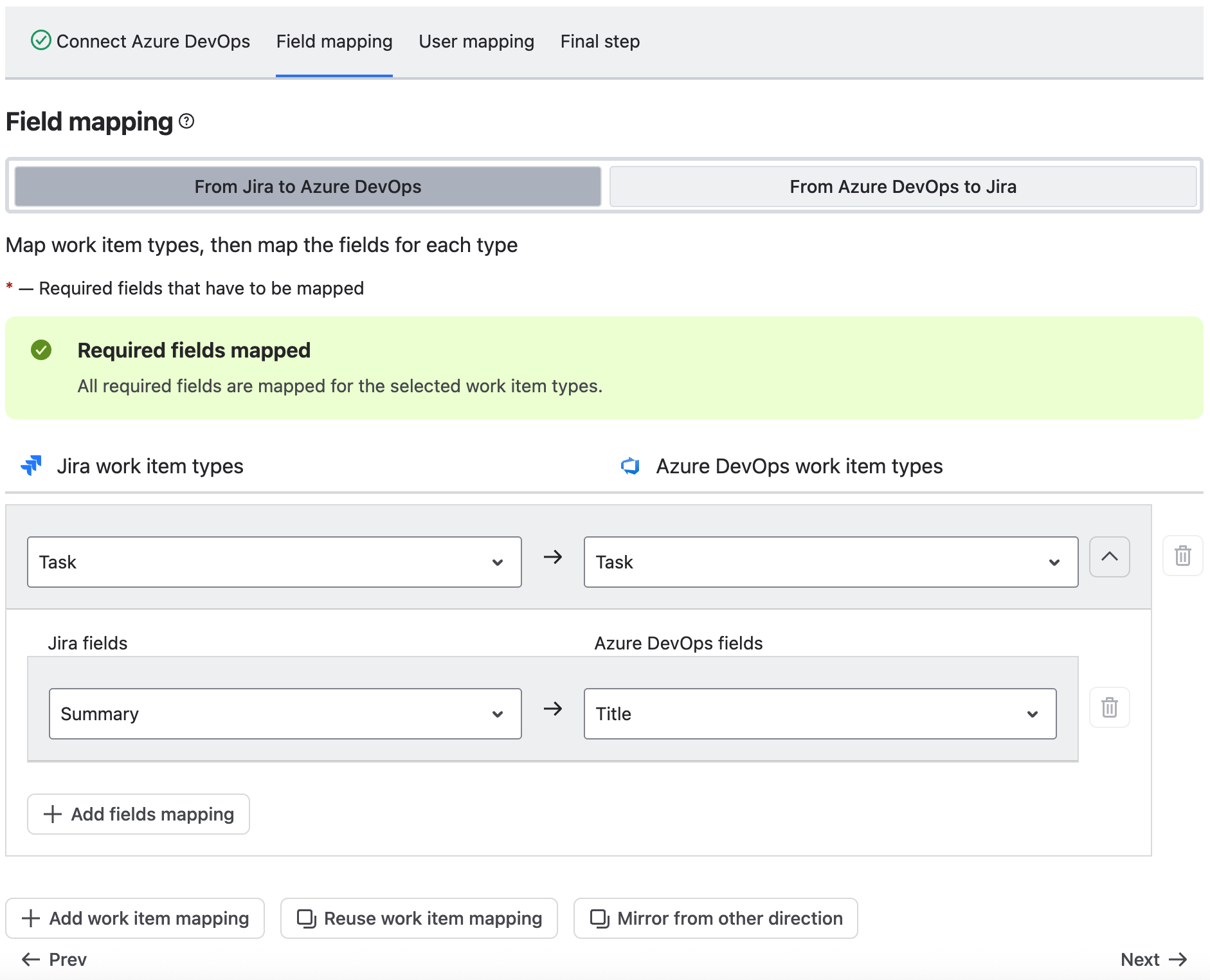
Because changes can start on either side, a two-way synchronization asks for two field mappings instead of one: a Jira → Azure DevOps table and an Azure DevOps → Jira table, moved between with Next and Previous. You start on the Jira → Azure DevOps table.
-
Map each work item type in one direction, then select Next to map the other direction's work item types.
-
Map fields and, where a field has a fixed set of values, its value mappings, for each direction.
When you set up one direction's mapping, a Mirror this mapping option offers to fill in a sensible starting point for the reverse direction automatically. It's a starting suggestion, not a requirement - review and adjust it before moving on.
Switching between the two tables never discards your edits - each table keeps its own state, so you can go back and forth as many times as you need before saving.
Contradictory mappings are blocked. A field mapped both ways doesn't have to be a perfect mirror - for example, several Jira statuses can collapse into one Azure DevOps state, in either direction. What isn't allowed is a genuine contradiction, such as a value-mapping cycle where a value maps forward to one thing and back to something else that conflicts with it. If your two tables contradict each other, you'll see a specific error naming the conflicting fields and systems before you can save.

Step 4. Sync comments and attachments (optional)
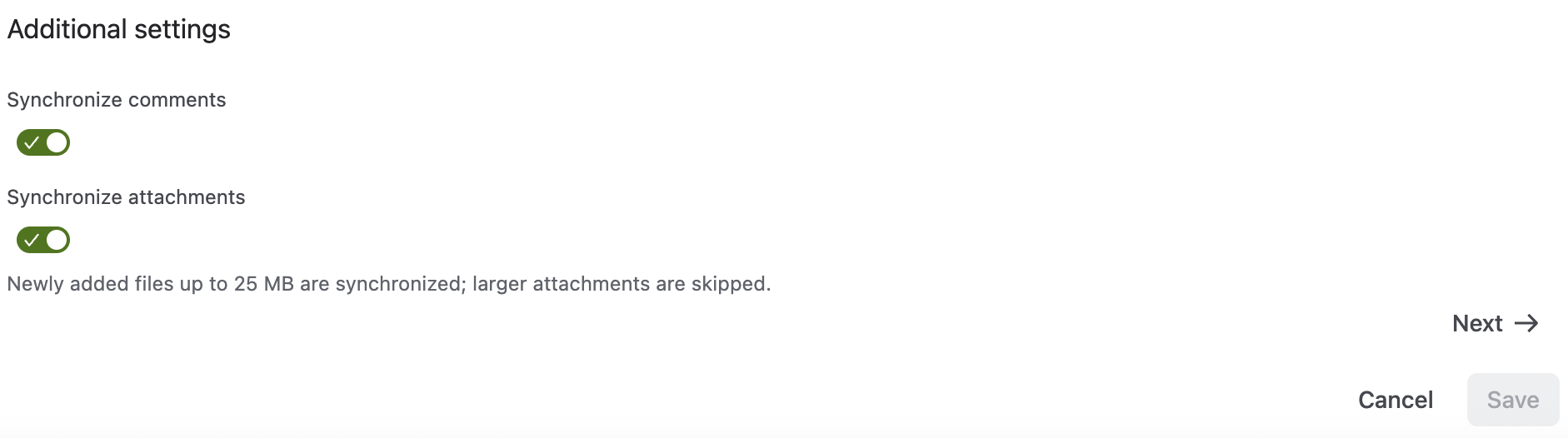
Two new toggles are available when connecting a synchronization:
-
Synchronize comments - keeps comments added on either side in sync.
-
Synchronize attachments - keeps files attached on either side in sync, up to 25 MB per file.
Attachment sync requires a direct connection to Azure DevOps Cloud - it isn't currently supported for Azure DevOps Server (On-Premises) connections that go through the Static IP Proxy. Field and comment sync are unaffected. Deleting an attachment on one side doesn't yet remove it from the other - only new attachments sync.
Step 5. Map users (optional)
You can map Azure DevOps users to Jira users so synchronized work items are assigned to the right person on both sides. This reads from your Azure DevOps project's team membership - no extra Personal Access Token scope is required.
-
Select Add user mapping, then select the Jira user and their corresponding Azure DevOps user. Repeat as needed.
-
Select Next.
Step 6. Name and save
-
Give the synchronization a name and select Save.
A change on either side now updates the other automatically. See How to configure it in the Get Started guides, or the Activity log on the Integrations tab, to see synchronization runs as they happen.
How conflicts are handled
You don't need to configure anything for this - it's automatic. Each field is updated independently on a last-write-wins basis: whichever system a field was most recently edited on is the one that's reflected everywhere. There's currently no admin-facing setting to make one system always win over the other for a given field.
The app automatically recognizes changes it made itself, so a change synced from Jira to Azure DevOps doesn't bounce back to Jira as if it were a new edit - you won't see runaway update loops even though both directions are active on the same work items.
Good to know
-
Direction is set when you create the synchronization. Choose Both directions up front if that's what you want. If you already have a one-way synchronization, set up a new Both directions synchronization alongside it rather than converting the existing one.
-
Field mapping direction applies to the whole synchronization. Every mapped field follows the sync's overall direction - there isn't a per-field override yet for keeping one specific field one-way inside an otherwise two-way sync.
-
Conflicts resolve by most recent edit, per field. Whichever system a field was last changed on is what's reflected everywhere. There isn't a separate setting to make one system always take priority for a given field yet.
-
Attachments sync new files up to 25 MB over a direct Azure DevOps Cloud connection.Deleting an attachment on one side isn't mirrored to the other yet, and attachment sync isn't yet available over the Static IP Proxy for Azure DevOps Server (On-Premises) - field and comment sync work normally either way.
Related guides
-
Work Item Synchronization (overview)
Updated: September, 2026