

The Get Started page is a built-in onboarding page available to Jira administrators. It provides step-by-step setup guides, live connection status, and quick links to documentation and support - all in one place.
How to access
Go to Jira admin settings (gear icon) then Marketplace apps then GitHub Links then Get Started.
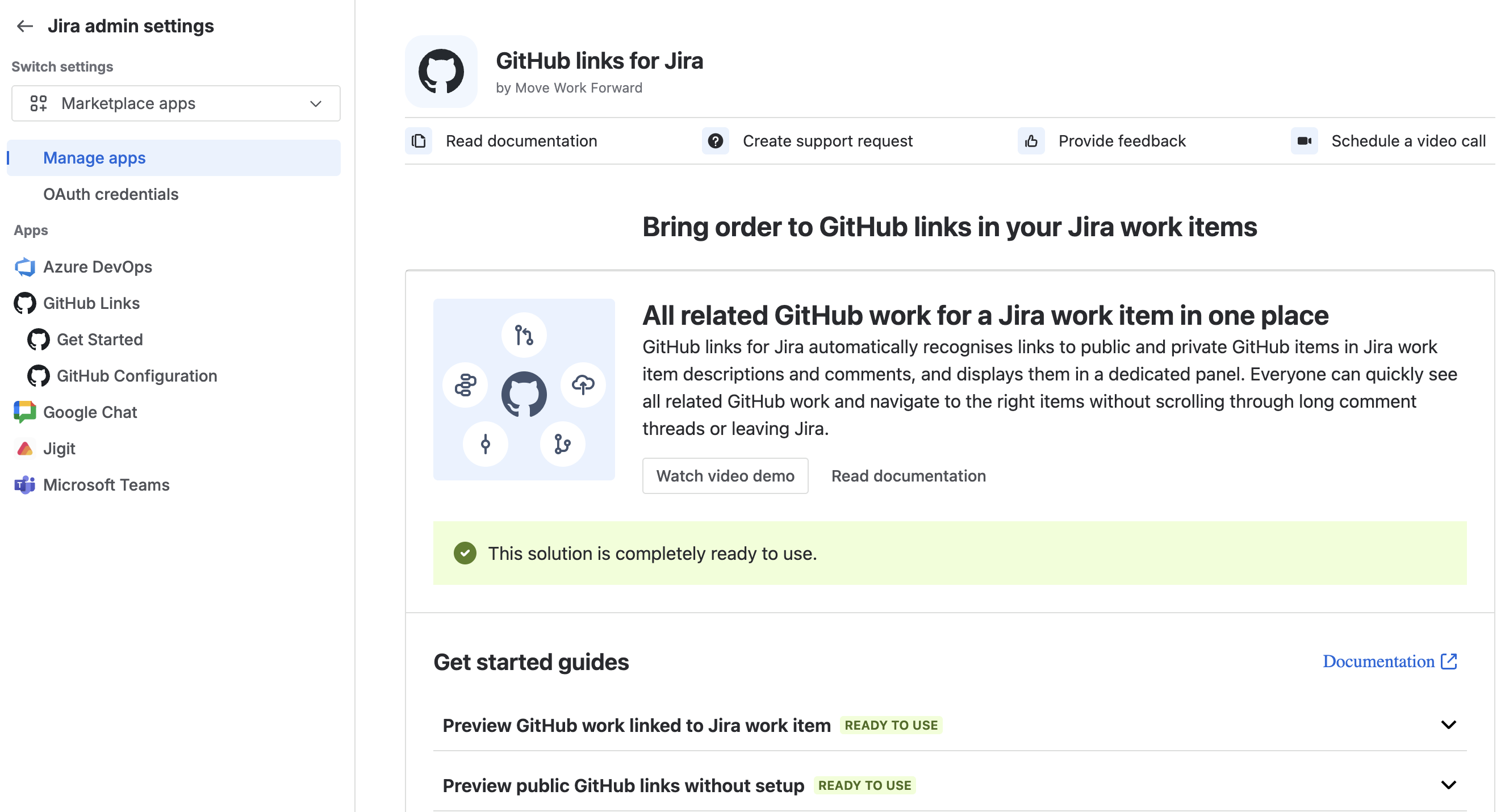
The Get Started page is also shown automatically the first time you open the app after installation (the Atlassian Marketplace "Get started" flow).
Connection status banner
Directly below the header, a section message reflects the current GitHub connection state:
|
State |
What is shown |
|---|---|
|
Connected |
A success message: "This solution is completely ready to use." |
|
Not connected |
A prompt for the admin: "Jira admin needs to complete the setup" with a Start setup button that links directly to the GitHub Configuration page. |
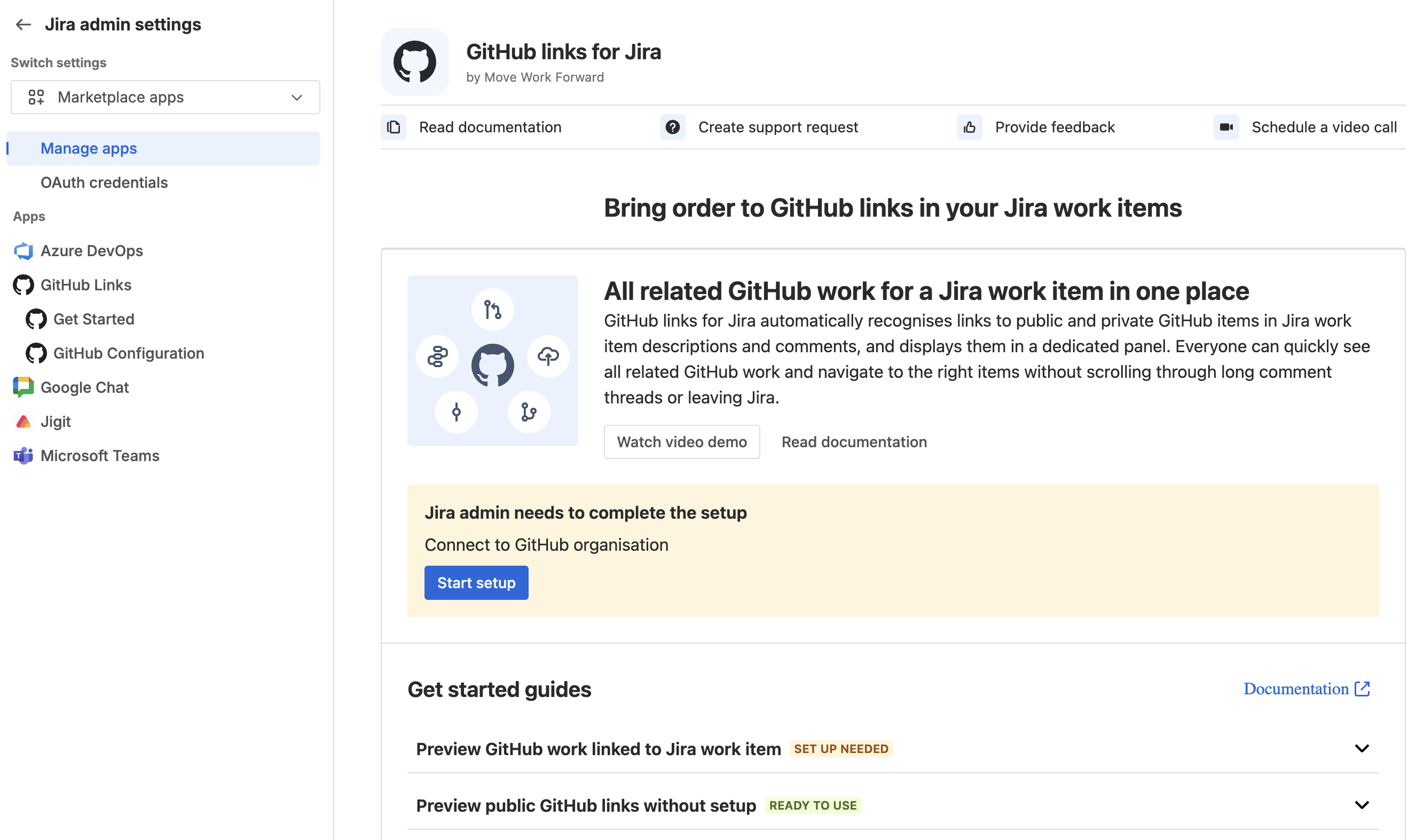
Action buttons
Below the connection status, two buttons are available:
-
Watch video demo - opens the Move Work Forward YouTube tutorial for GitHub Links for Jira.
-
Read documentation - opens the full documentation site.
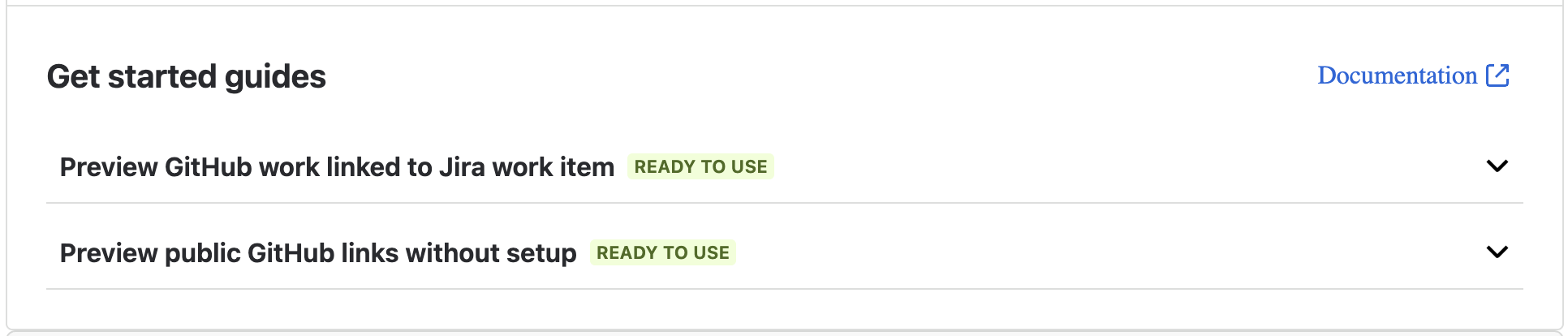
Get started guides
Two step-by-step guide sections walk through core usage:
1. Preview GitHub work linked to Jira work item
This guide shows the three-step process for using the panel.
This guide section shows a Ready to use status badge when the GitHub App is connected, or a Set up needed badge when it is not.
2. Preview public GitHub links without setup
Explains that public GitHub links are rendered automatically as rich previews with no admin setup required. This section always shows a Ready to use badge because public links work immediately after installation.
A dismissible cross-promotion banner for other Move Work Forward apps appears at the bottom of the Get Started page. It can be permanently dismissed and will not reappear.
Updated: