The GitHub Links panel appears in the right-hand sidebar of every Jira work item. This section describes the panel interface in detail.
Panel header
The top of the panel always shows:
-
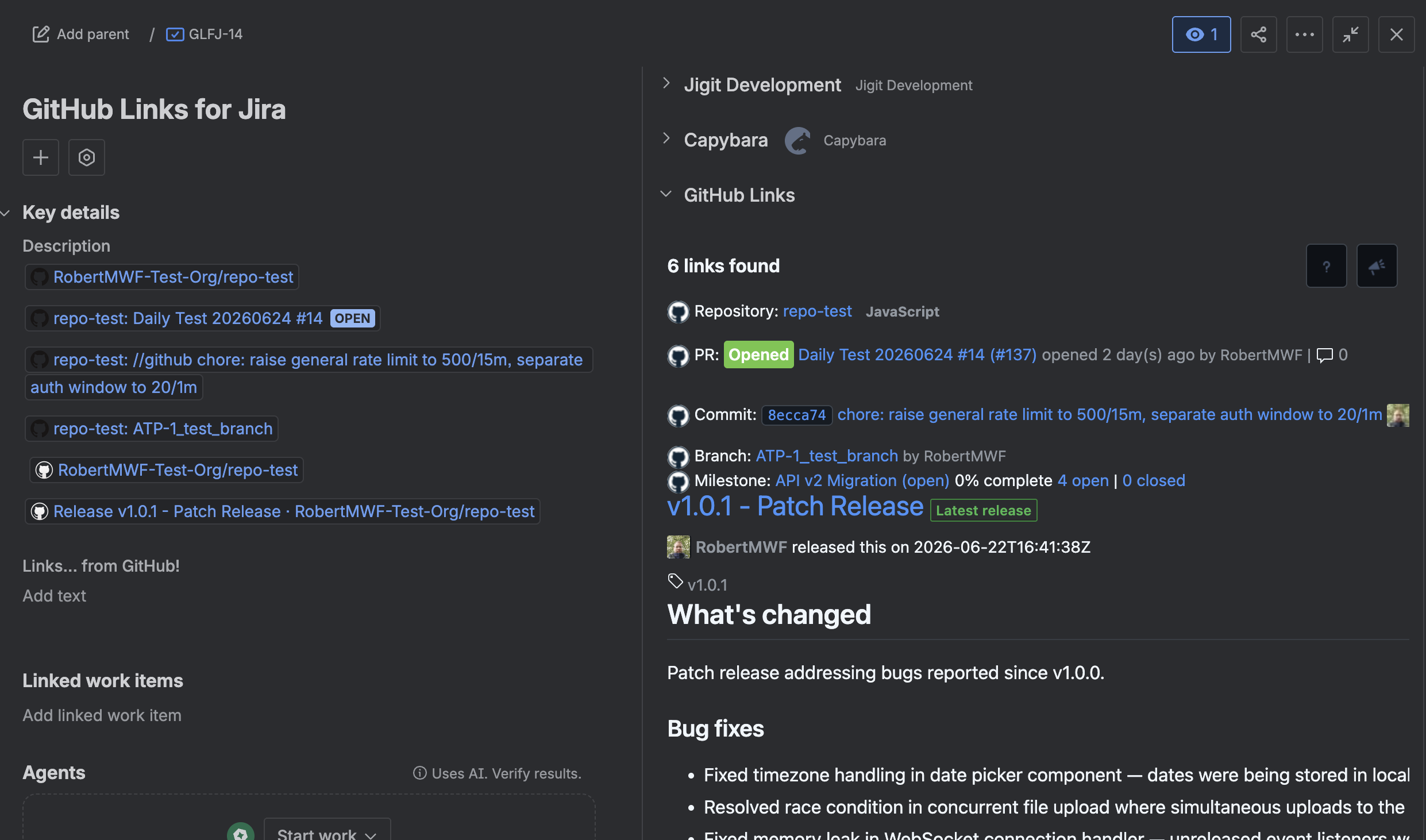
Links found count - the total number of unique GitHub URLs detected across the description, comments, and custom fields (e.g. "6 links found").
-
Help button (question mark icon) - opens the GitHub Links for Jira Cloud documentation in a new tab.
-
Feedback button (speech bubble icon) - opens the feedback form.

Empty state
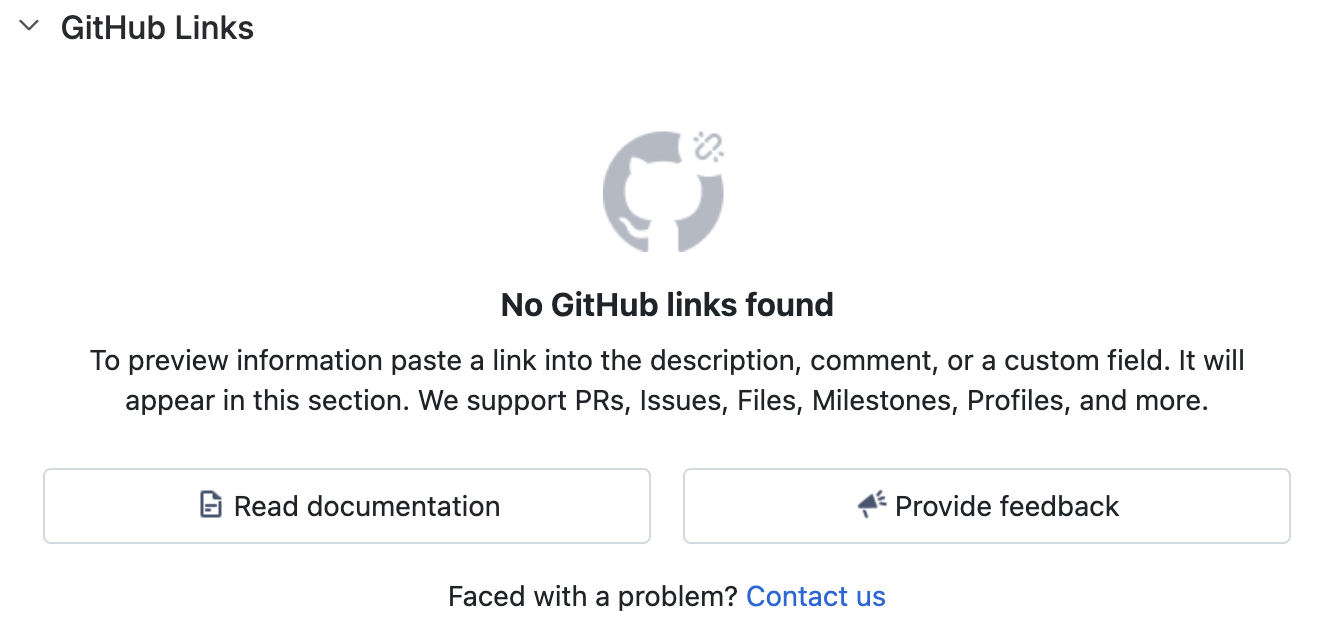
When no GitHub URLs are detected in the work item, the panel shows:
-
A "No GitHub links found" message with a brief explanation of how to use the panel.
-
Read documentation and Provide feedback buttons.
-
A Contact us link to the Move Work Forward support portal for any problems.
Connect to GitHub banner
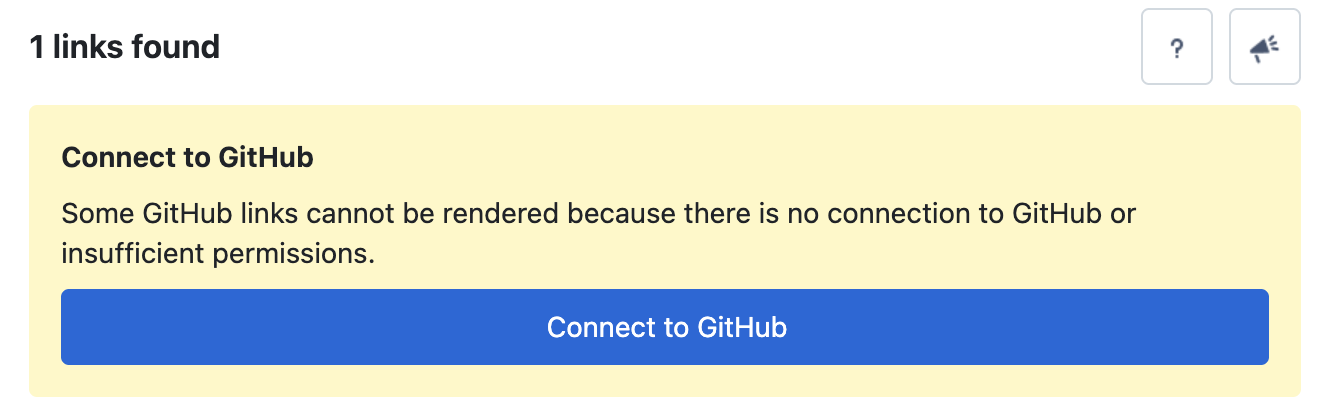
When one or more links cannot be rendered (no GitHub connection or insufficient repository permissions), a yellow attention banner appears directly below the header. Links that can be rendered - such as public repository links - still appear below the banner.
Link cards
Each detected GitHub URL renders as a distinct card. Cards appear in the order links are detected: description first, then comments, then custom fields. Duplicate URLs across fields are deduplicated and shown only once.
Expandable cards
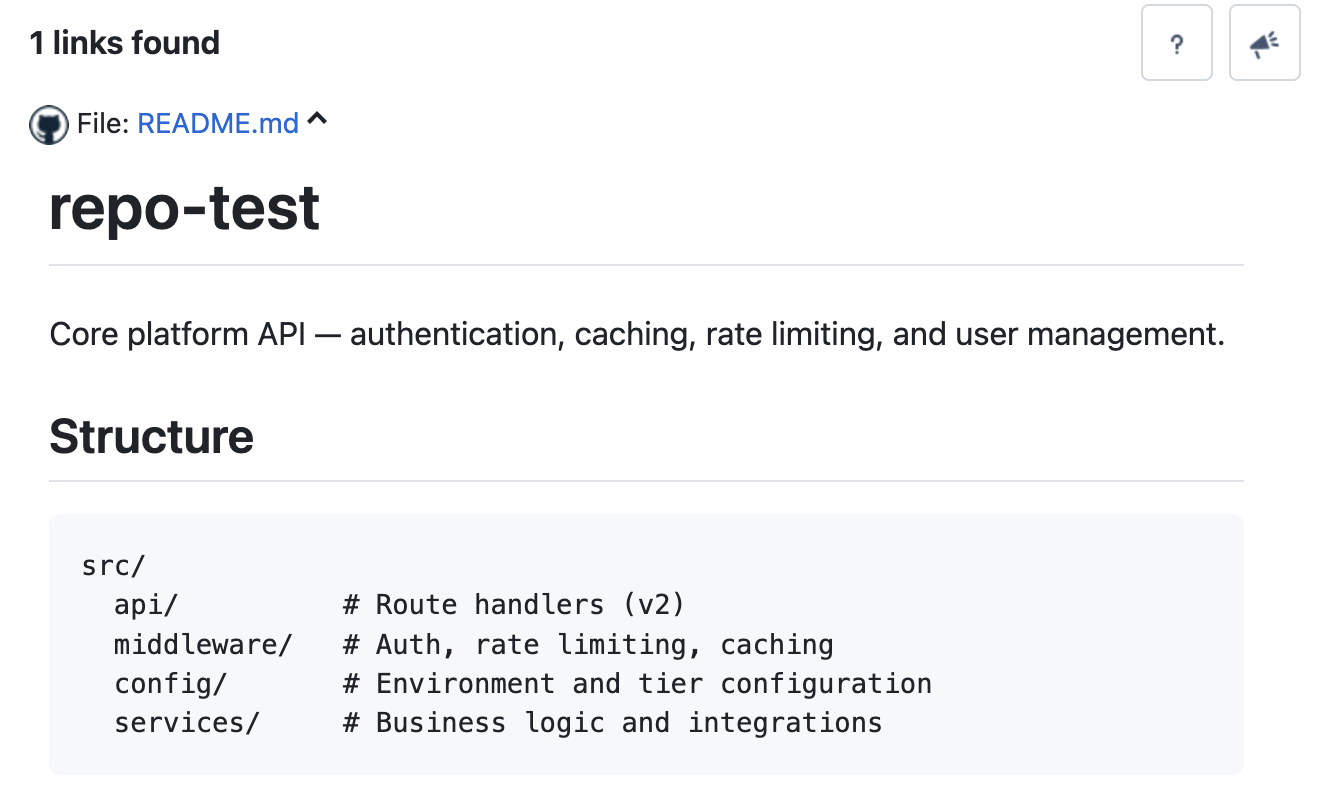
Source files and Gists are rendered collapsed by default to avoid excessively long panels. Click the chevron toggle to expand and see the full syntax-highlighted content inline.

Paginated list cards
The following list types show a Load more button at the bottom when additional items are available beyond the initial page:
-
Pull request lists
-
Issue lists
-
Release lists
-
Tag lists
Commits lists and Discussions lists display their initial set of results without pagination. All available items are shown on first load.
Dark mode support
GitHub Links for Jira fully supports Jira's dark mode. All card colours, badges, and backgrounds adapt automatically when dark mode is enabled.
Updated: