

The following steps are performed by a Jira administrator once per Jira site. End users do not need to perform any setup.
After installation, a built-in Get Started page is available from Jira Settings > Apps > GitHub Links > Get Started. It shows your current connection status and step-by-step setup guides. See Admin: Get Started Page.
Step 1 - Install the app from the Atlassian Marketplace
-
Sign in to your Jira Cloud site as a Jira administrator or site administrator.
-
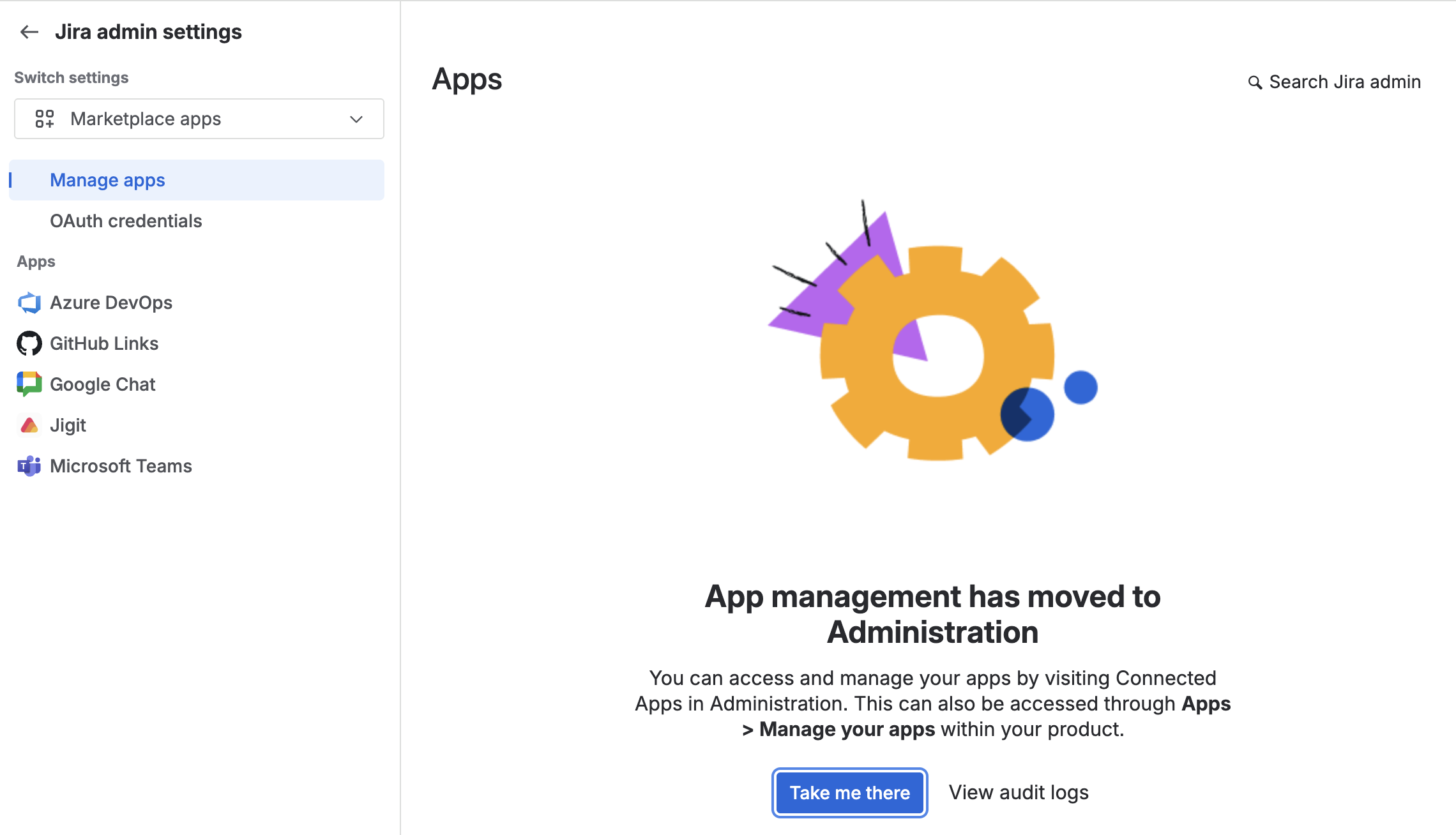
Go to Jira admin settings (gear icon, top right) then select Marketplace apps from the left sidebar, then click Take me there which will bring you to the Connected apps section of your Atlassian Administration.
-
Select Explore apps from the top right, then search for GitHub Links for Jira in the Atlassian Marketplace search bar.

-
Click Try it free to start a 30-day trial. Follow the on-screen prompts to complete installation.

Once installed, the GitHub Links panel appears automatically in the right-hand sidebar of all Jira work items. Public GitHub URLs are enriched immediately with no further configuration.
Step 2 - Connect GitHub (required for private repositories)
To display enriched data from private repositories, connect GitHub Links to a GitHub organisation or personal account using the GitHub App integration.
-
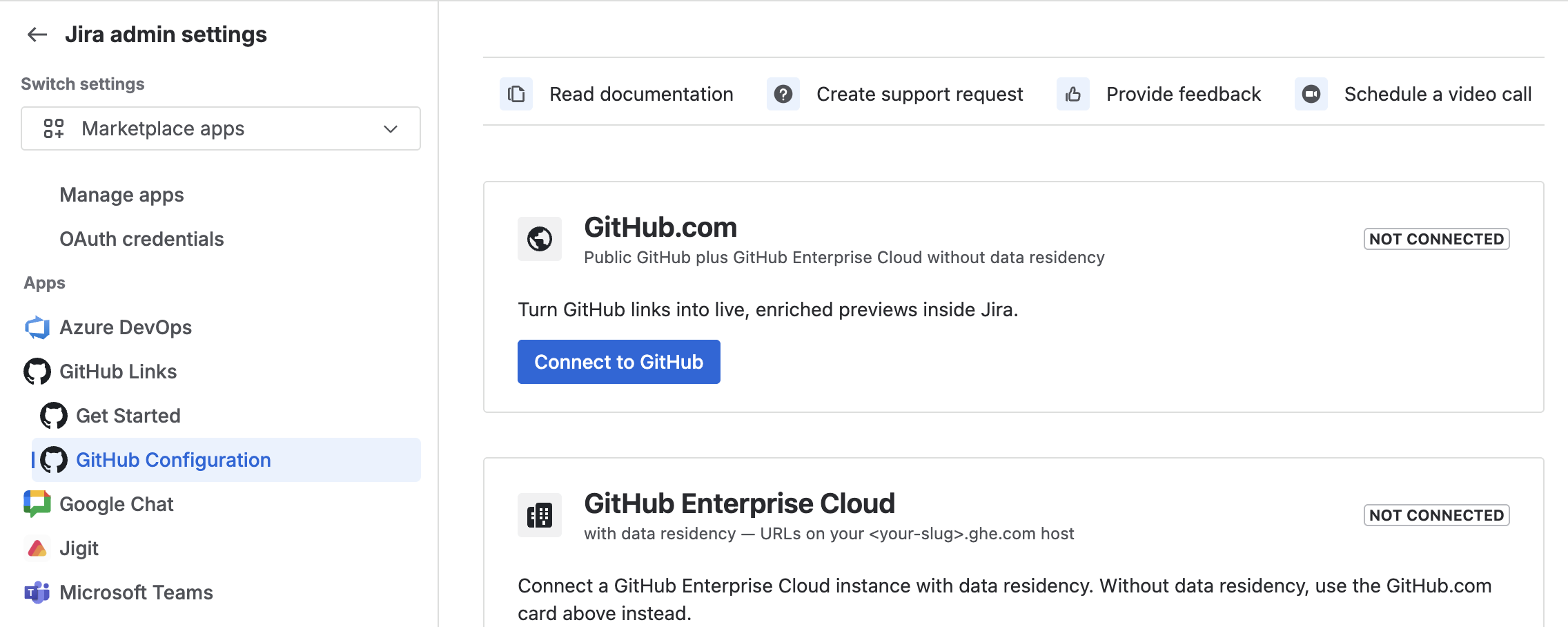
Go to Jira Settings (gear icon) then Marketplace apps then GitHub Links then GitHub Configuration.
-
On the GitHub Configuration page, click Connect to GitHub to begin the GitHub App authorisation flow.

If you receive the following notice, click Continue.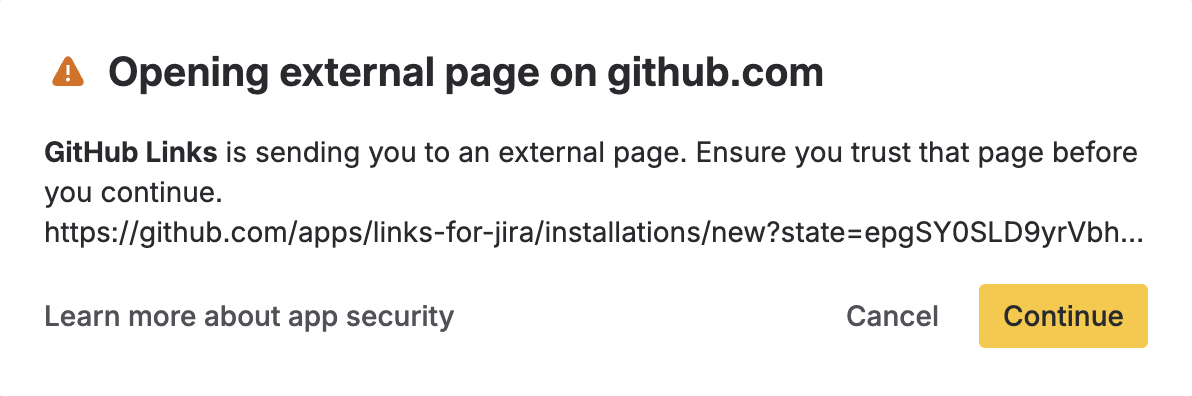
-
You are redirected to GitHub. Choose to install the GitHub App on your organisation or personal account.
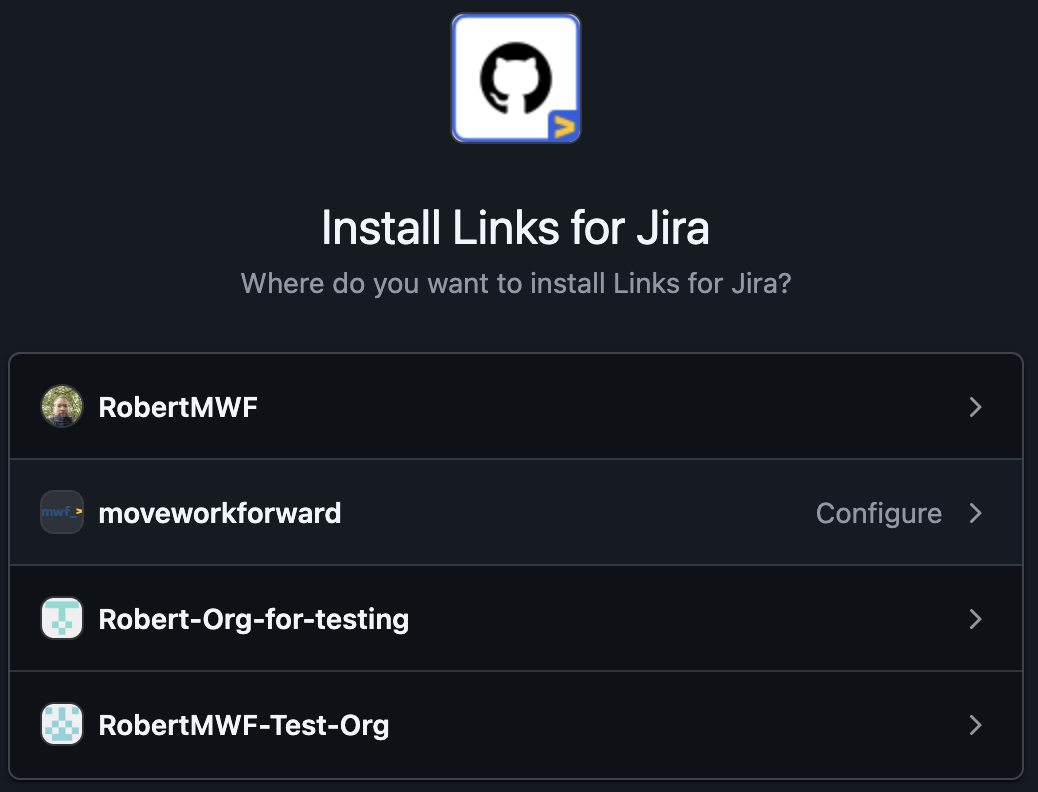
Then select which repositories to grant access to - all repositories, or specific ones only.
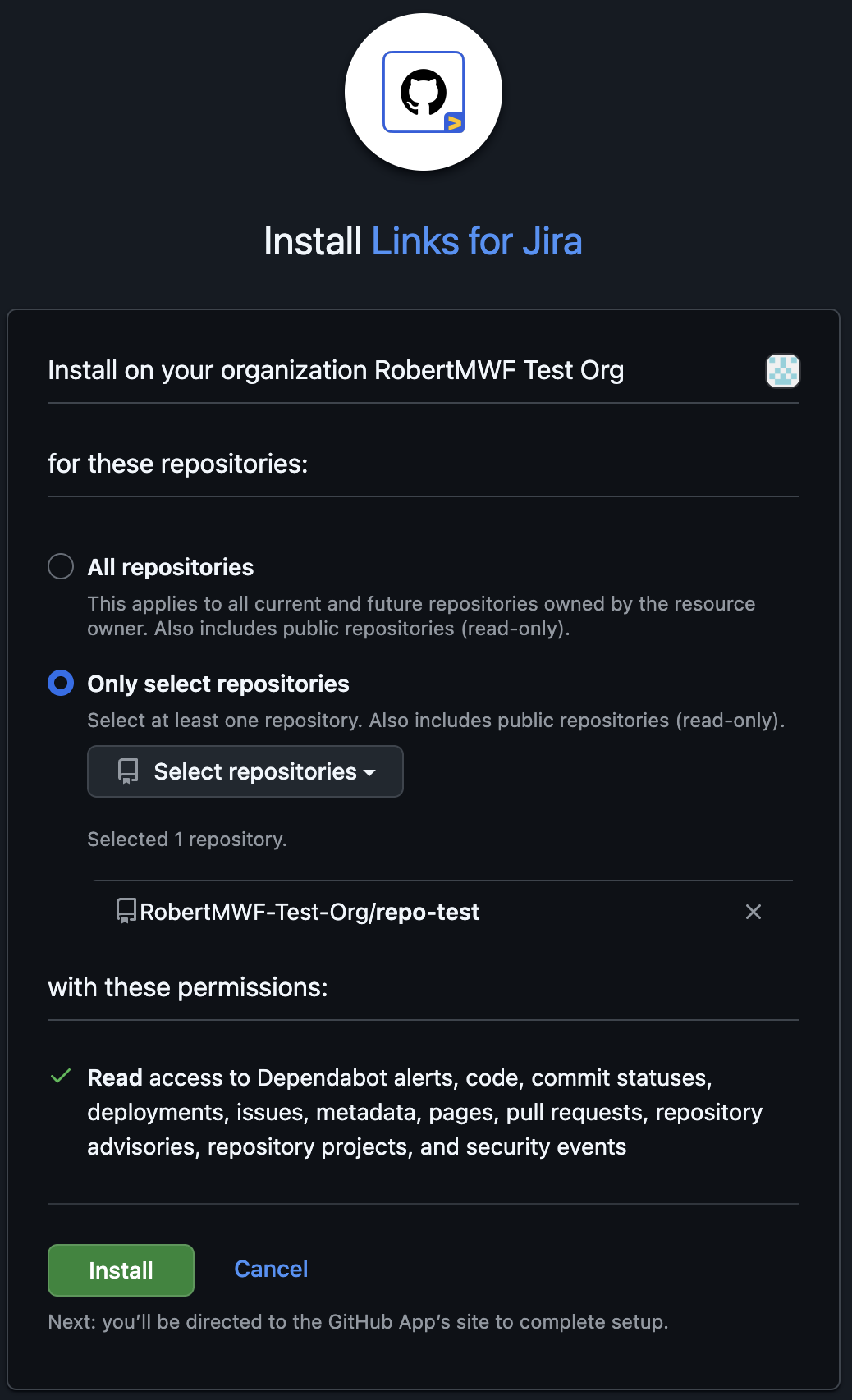
-
Click Install. GitHub redirects you back to Jira automatically.
-
The GitHub Configuration page now shows a Connected status with the name of the connected organisation or account, and an option to disconnect.
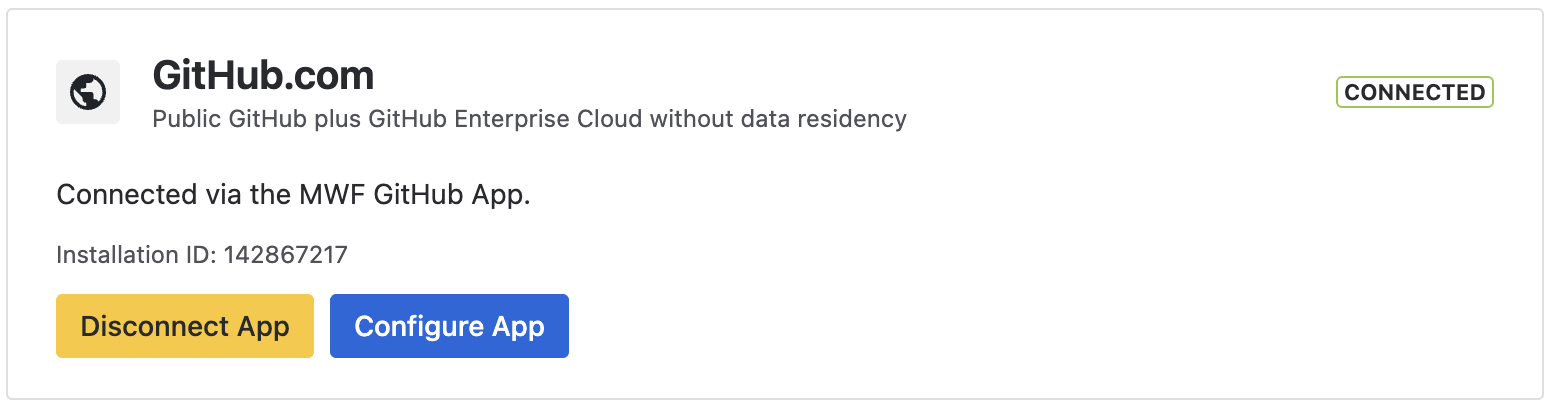
Only one GitHub organisation or account can be connected per Jira site at a time. To switch organisations, disconnect the existing connection first and then reconnect with the new one.
Step 3 - Verify the connection
-
Open any Jira work item.
-
Paste a GitHub URL from a private repository into the work item description or a comment.
-
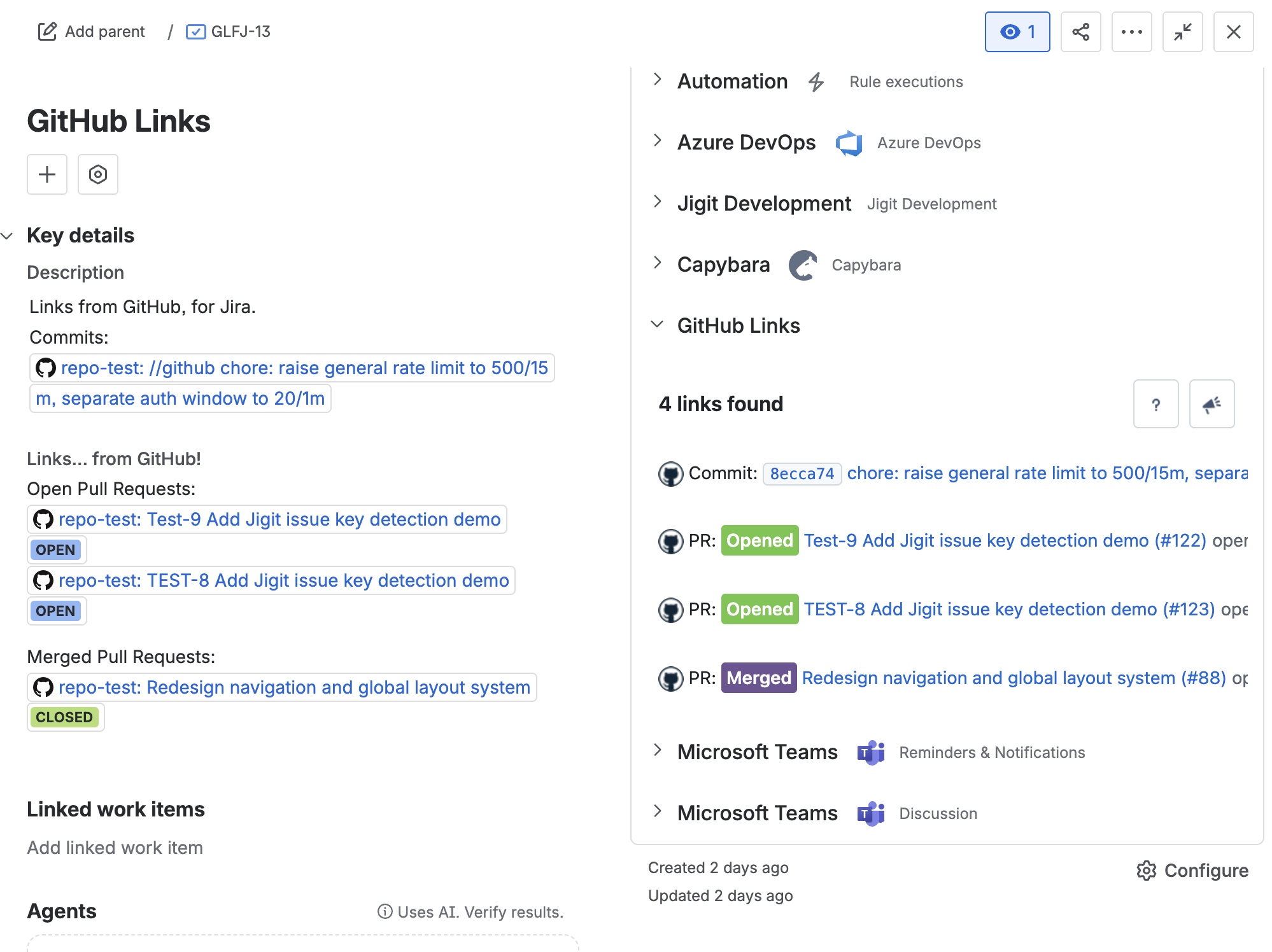
Open the GitHub Links panel in the right-hand sidebar.
-
The enriched card for the link should render without a "Connect to GitHub" warning banner.
Updated: