

Manage the org-wide connection between your Jira site and Microsoft 365 tenant, and see or change which individual Jira users are linked to which Microsoft accounts.
Two layers of connection
|
Layer |
Scope |
Who does it |
|---|---|---|
|
Admin consent |
Whole Microsoft 365 tenant, once |
Any Microsoft tenant administrator |
|
User mapping |
One Jira account <-> one Microsoft account |
Each user (self-service), or an admin on their behalf |
Admin consent
Consent must be granted before user mapping can happen. See Getting Started - Administrators for the consent steps.
Manage user mapping
-
Go to Jira administration > Marketplace Apps > Microsoft Teams > Global Settings > Users Mapping tab.
-
The table lists every Jira user alongside their linked Microsoft Teams profile (if any) and who mapped them - admin, user (self-service login), or Automatically (system auto-mapping, see below). Use Find Jira user and the Mapped/Unmapped filter to narrow the list.
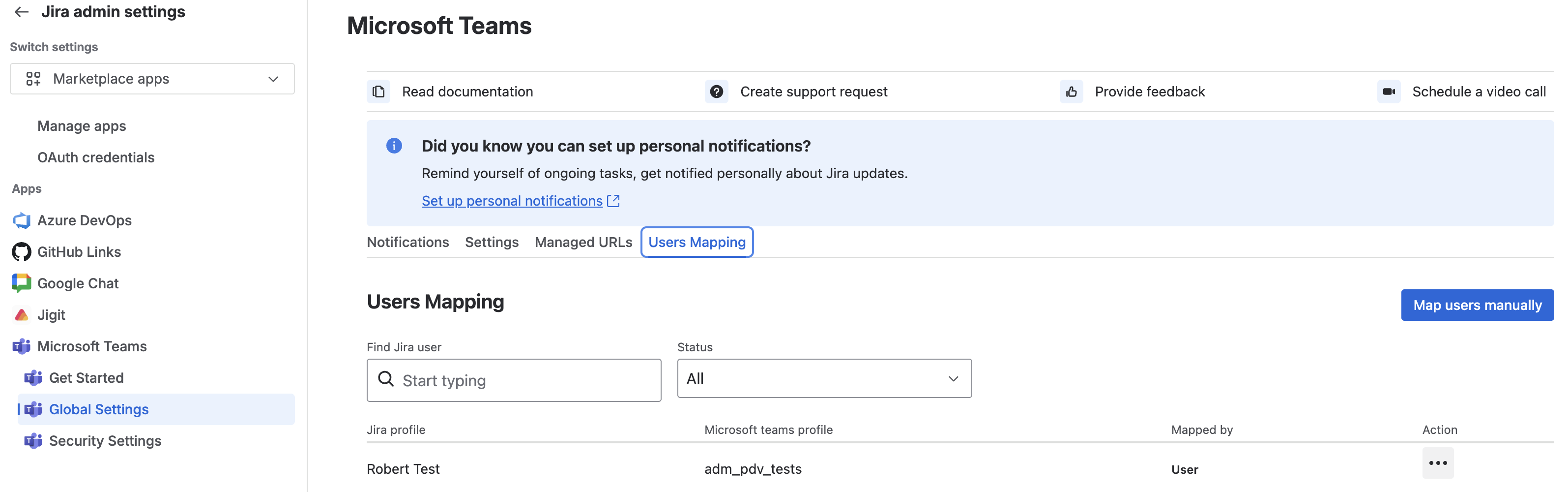
Map a user manually
-
Click Map users manually. If you're not logged in to Teams yourself, you'll be prompted to log in first (this is only to authorize the lookup - it doesn't map your own account).
-
The table switches into edit mode. For the row you want to map, use the Microsoft user picker to search for and select the right person by name or email.
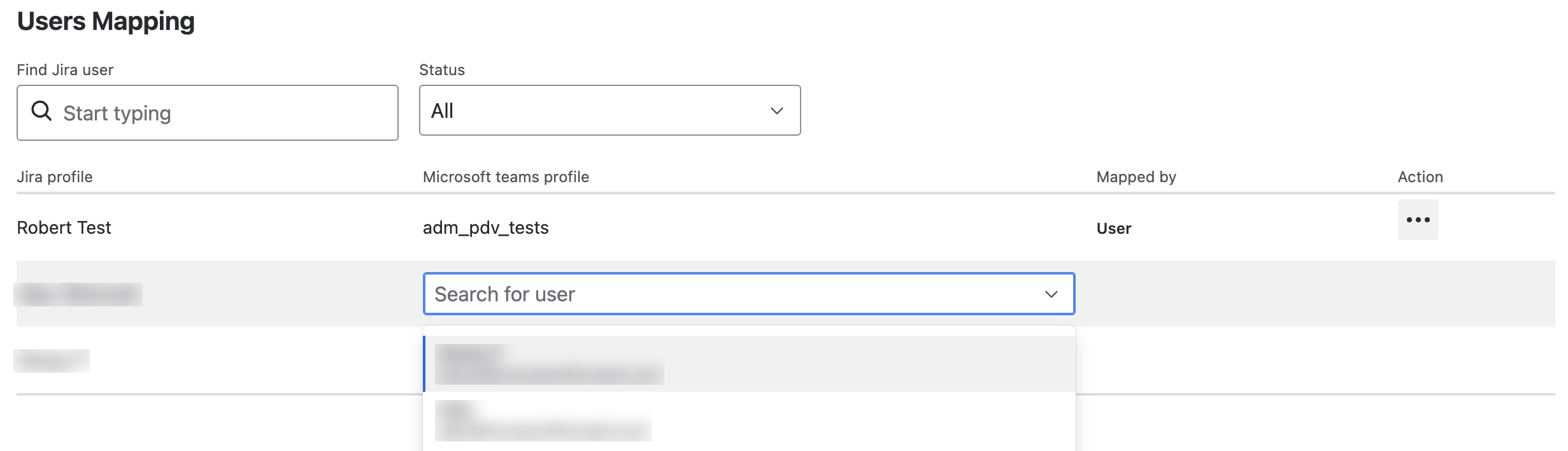
Automatic mapping
Once your tenant has granted every required consent, new and updated Jira users can be mapped to a matching Microsoft account automatically in the background, with no manual step - these rows show Automatically as their "Mapped by" value. If a Jira user is deleted, their mapping is removed the same way.
Disconnect a user's mapping
-
Find the user's row in the Users Mapping table and open the kebab (⋮) menu.
-
Select Disconnect and confirm. This unlinks their Jira and Microsoft accounts; they'll need to log in again (or be re-mapped) to use bot-based features.
Users can also connect and disconnect their own account - see Logging In & Linking Your Account.
Fully disconnecting a Microsoft tenant
There isn't a single Disconnect tenant button because a Jira site isn't tied to a single Microsoft Teams tenant. Instead, connections are established through individual user mappings.
To prevent users from a specific Microsoft tenant from connecting, block the tenant in Security & Privacy.
To remove the integration entirely, uninstall the app from Connected apps in Jira administration.
Alternatively, a Microsoft Teams administrator can revoke the application's consent from the Microsoft Entra admin center (formerly Azure Active Directory). This removes the app's access to your Microsoft tenant and prevents it from accessing Microsoft Teams resources until consent is granted again.
What's next
Updated: