

Control which Microsoft Teams tenants and which webhooks can be used with your Jira site.
Go to Jira administration > Marketplace Apps > Microsoft Teams > Security Settings.
Microsoft Teams tenant management
-
Toggle Block all new Teams tenants on if you want a default-deny policy - only explicitly Allowed tenants below will be able to connect.
-
Click Add to allow or block a specific tenant: enter its Tenant ID and Organization Name (or use Log in with Microsoft to auto-fill both from your own tenant), set Status to Allowed or Blocked, and add an optional note.
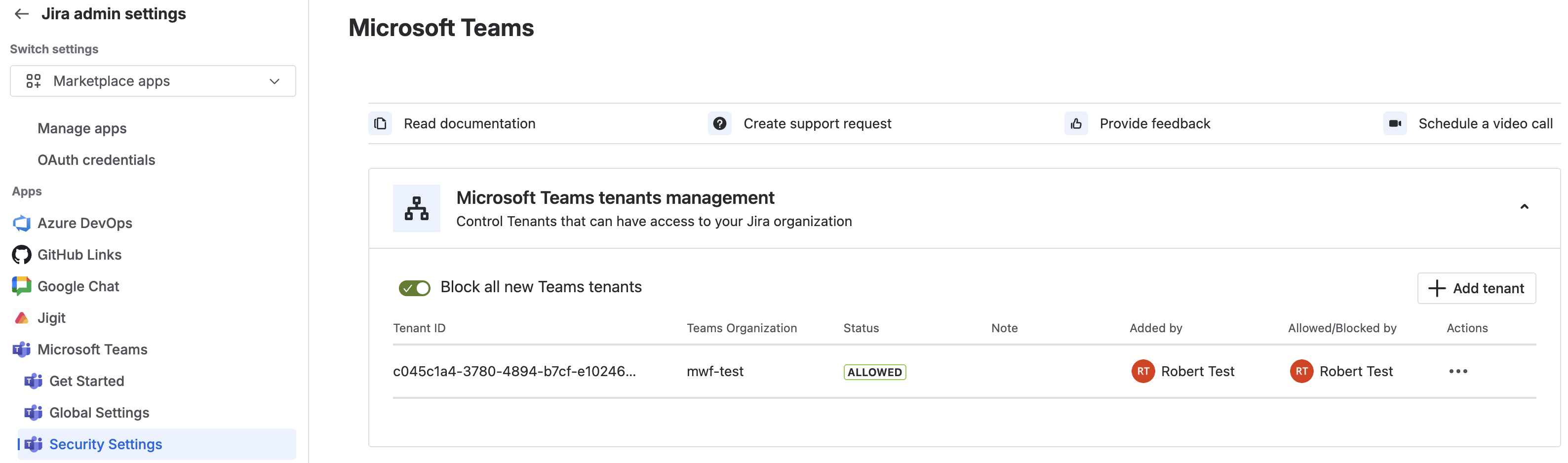
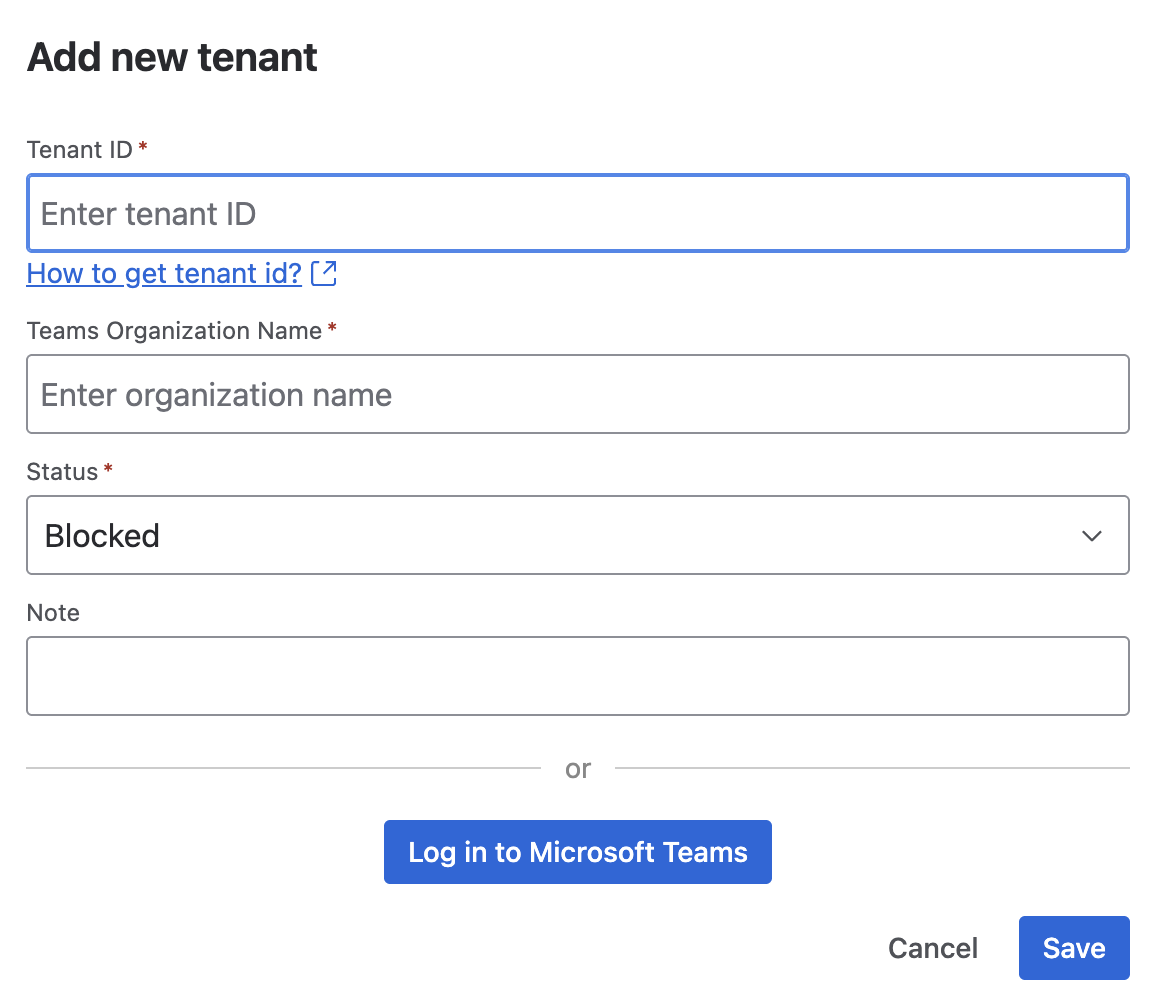
A blocked tenant's users see warnings across the app - the notification rule tables, the destination picker, and the discussion channel panel all flag it and won't deliver or create anything for that tenant.
Webhook management
-
Toggle Block all new webhooks for a default-deny policy.
-
Click Add to allow or block a webhook by its URL mask (domain/path prefix), with an optional note.
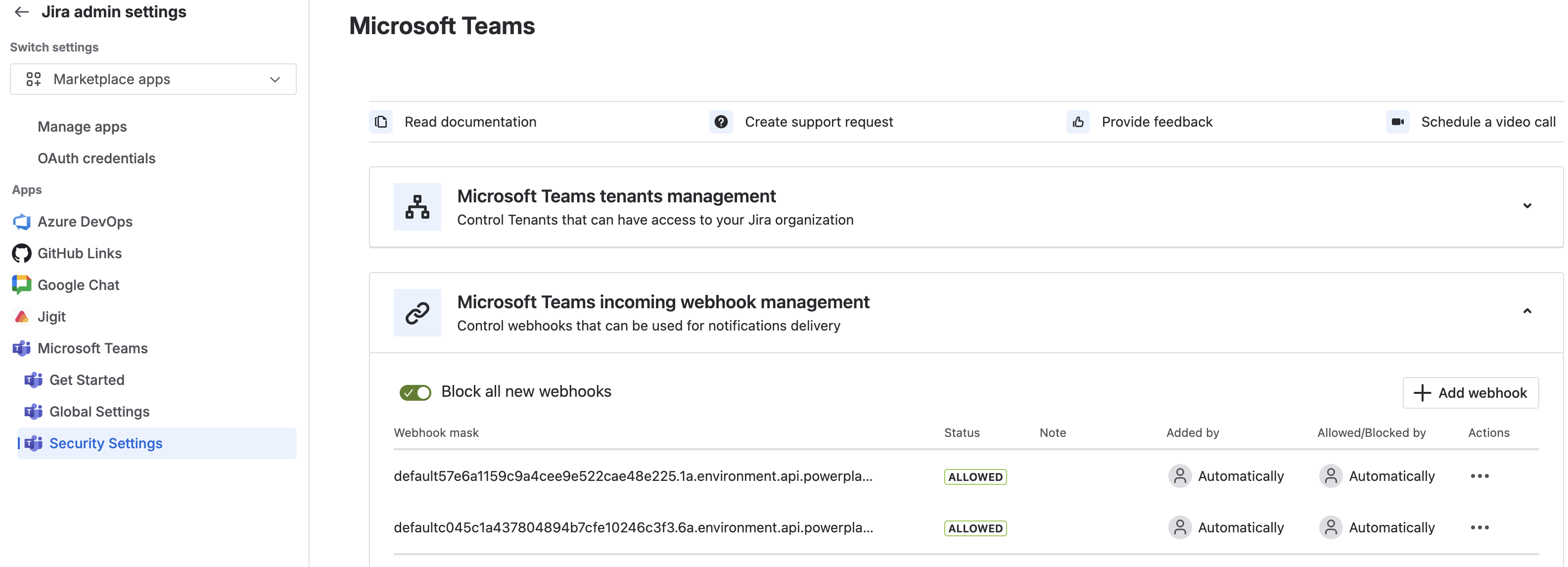
Similar to Tenants, new webhook domains are also detected automatically the first time anyone actually uses one in a rule, and added to this table with a status matching your current "block new" setting - you don't have to pre-register every one.
What's next
Updated: