

Manage Jira work items directly from Microsoft 365 Copilot, in plain language, without opening Teams or Jira. This is a separate agent from the Teams Connector Rovo Agent (see the comparison below) - it lives inside Microsoft 365 Copilot itself, not inside Rovo.
Requires a Microsoft 365 Copilot licence for your account, and your Jira account connected to the agent (see below). Your Microsoft admin does not need to configure anything extra for this beyond the normal app installation - the Microsoft sign-in setup is handled once on our side, not per customer.
Open the agent
In Microsoft 365 Copilot, open the agent picker and select Move Work Forward with Jira - the same name as the Teams app.
Connect your Jira account
The first time you use the agent, ask it to connect:
"Connect my Jira account to this Copilot agent"
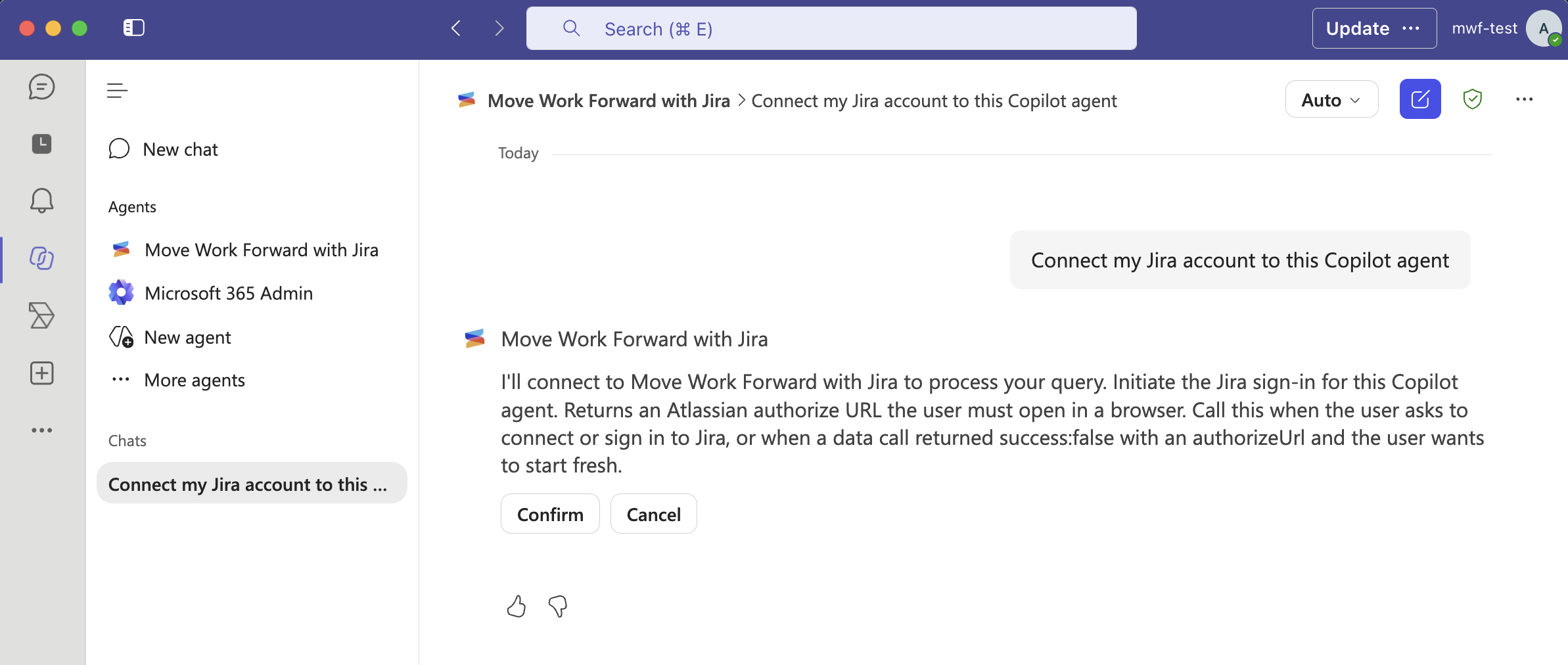
The agent replies with a card and a Connect Jira button. Click it, sign in, and come back to Copilot to repeat your request. If you ever try an action before connecting, the agent shows the same card instead of guessing or failing silently.
To disconnect: "Disconnect my Jira account from this Copilot agent" - the agent confirms with you before disconnecting.
This connection is separate from the Teams bot's own connect command - connecting or disconnecting one does not affect the other, even though both use the same underlying Jira account.
What it can do
View your open work items
"What are my open Jira tickets?"
Filter by space, work item type, or status by including that in your request.
Search across spaces
"Find work items about payment processing"
View a specific work item
"Show me PROJ-1234"
Create a work item
"Create a bug for the login timeout we discussed"
If you reference a conversation, describe what was discussed so the agent can include it in the description. The agent confirms with you before creating anything.
Update a work item
"Move PROJ-1234 to In Progress and assign to Sarah"
Covers status transitions, reassignment, adding comments, and priority changes. As with creating, the agent confirms before making the change.
If something's not quite right
-
Wrong work item type or space name: the agent offers you the valid options for your Jira site and asks you to pick one, rather than failing outright.
-
A Jira field rejects the value: the agent tells you which field needs fixing and asks for a corrected value.
-
Not connected yet: see Connect your Jira account above.
What it won't do
-
Notifications, reminders, or Teams discussion channels - that's the Teams Connector Rovo Agent's job (see below).
-
Anything outside Jira - the agent will say so rather than attempt it.
Jira Copilot Agent vs. Teams Connector Rovo Agent
Both are conversational AI assistants and both live in this app, but they're built on different platforms and cover different ground:
|
|
JIRA COPILOT AGENT |
TEAMS CONNECTOR ROVO AGENT |
|---|---|---|
|
Where you open it |
Microsoft 365 Copilot |
A Jira work item's Teams panel, or Rovo chat directly |
|
Platform |
Microsoft's own AI (Copilot) |
Atlassian's own AI (Rovo) |
|
What it manages |
Jira work items themselves - view, search, create, update |
Teams-side things - reminders, discussion channels, personal notification rules |
|
Requires |
A Microsoft 365 Copilot licence |
Rovo enabled for your Jira site |
If you want Teams notifications, reminders, or discussion channels managed by chat, see Teams Connector Rovo Agent instead.
For admins
No separate setup is required beyond installing Move Work Forward with Jira normally and your users having Microsoft 365 Copilot licences. The agent uses your organisation's existing Microsoft sign-in for this app; there's no additional Entra ID configuration for you to do.
Updated: October, 2026