Every Global and Project notification rule delivers via either the bot ("2-way") or an incoming webhook ("1-way"). Personal rules always use the bot, to your own 1:1 chat.
2-way (bot) vs 1-way (webhook)
|
|
2-way (bot) - Recommended |
1-way (webhook) - Limited |
|---|---|---|
|
Setup |
Requires tenant consent + login; pick a Team and Channel |
No login or consent needed; paste a webhook URL |
|
Act on work items from Teams |
Yes |
No |
|
Threaded message grouping |
Yes |
No |
|
Create/edit work items from Teams |
Yes |
No |
|
Jira tab in Teams |
Yes |
No |
|
Notify a different organization's Teams tenant |
No |
Yes |
Setting up bot delivery
-
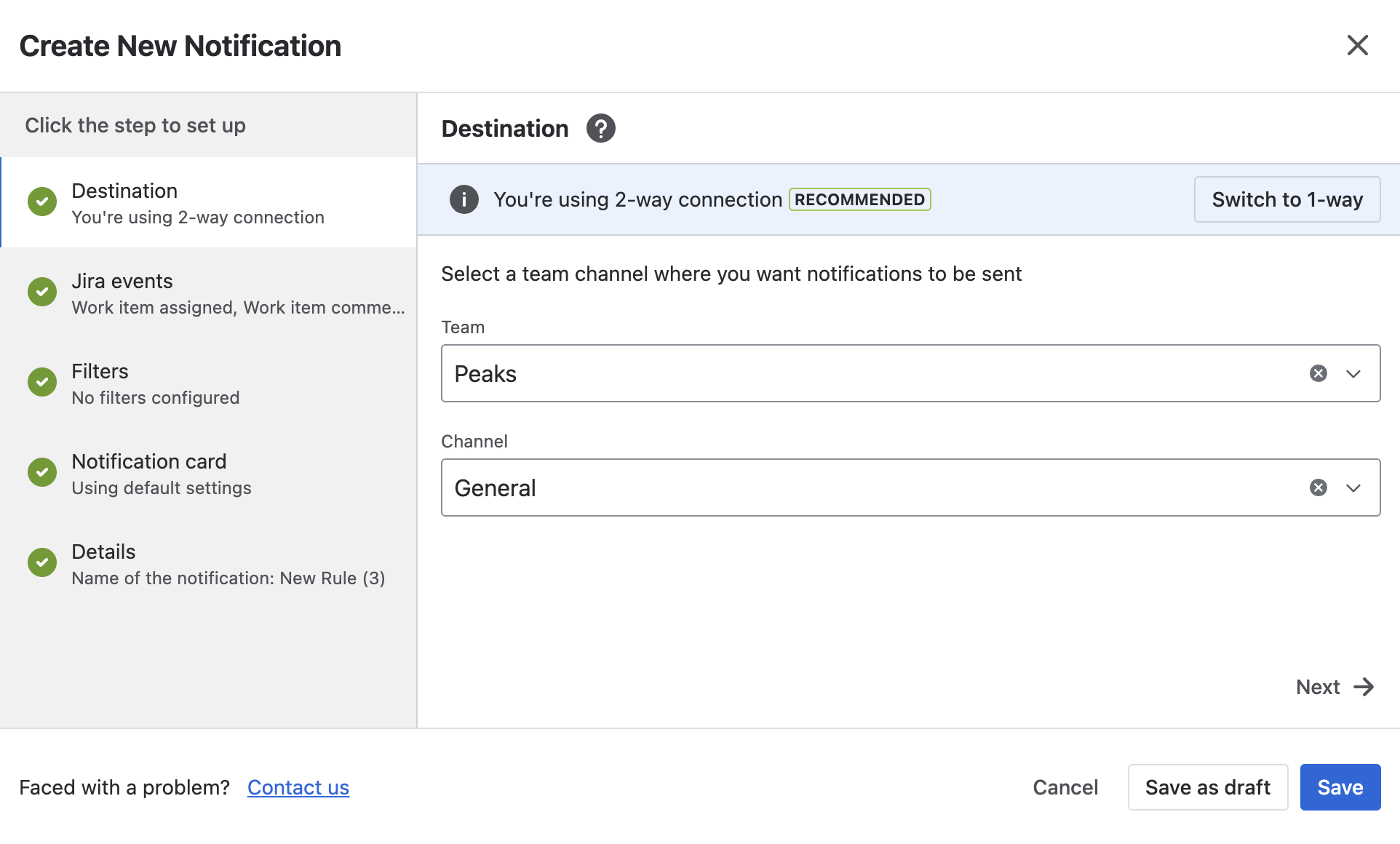
In the rule wizard's Destination step, choose 2-way (bot).
-
Log in to Microsoft Teams if prompted.
-
Pick a Team, then a Channel within it.
Setting up webhook delivery
-
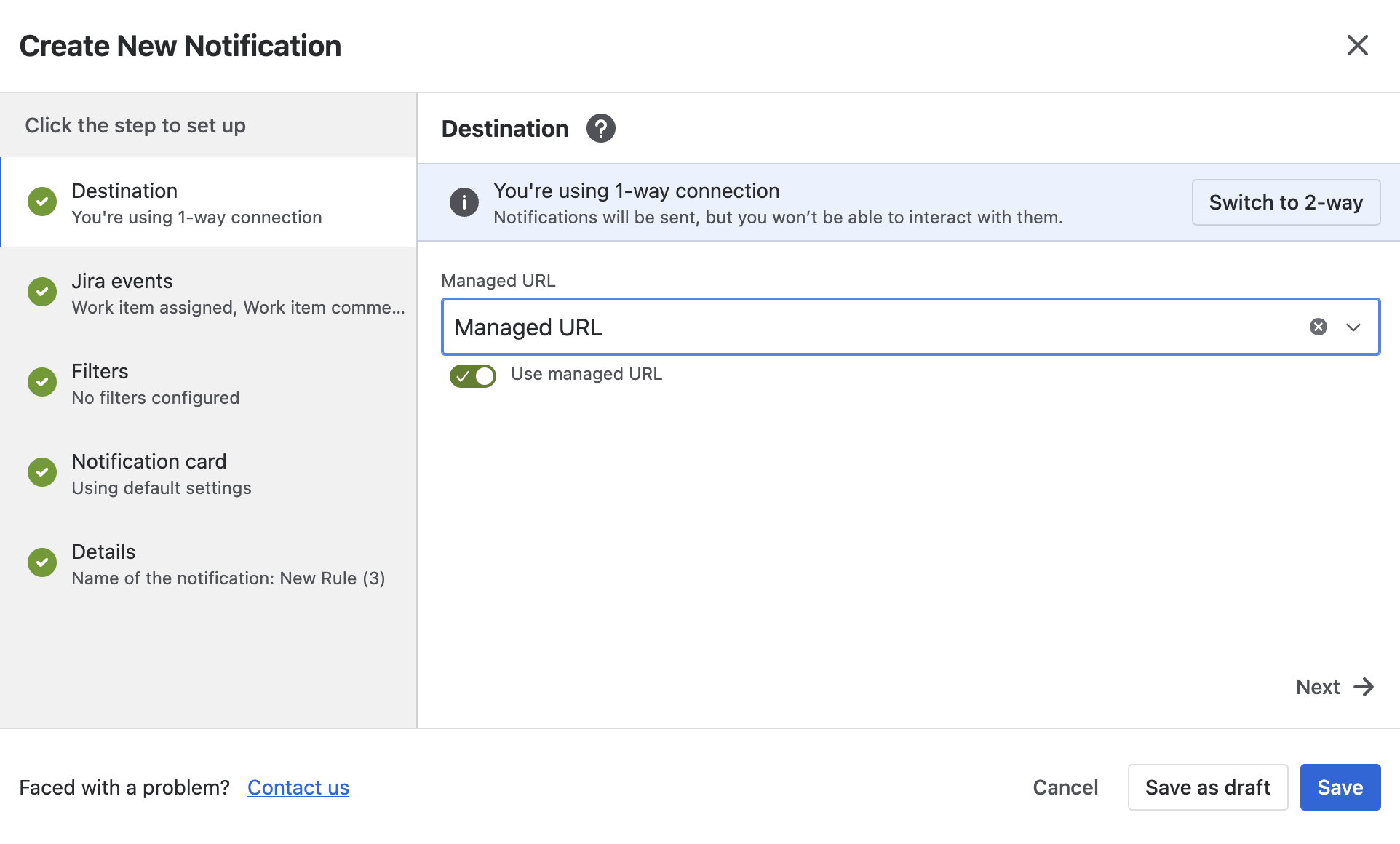
Choose 1-way (webhook).
-
Paste an Incoming Webhook URL from Microsoft Teams (use the How to generate Webhook URL? link if you need one - Teams now creates these through the Workflows app), or toggle Use managed URL to pick a pre-saved one instead.
Rules using an old office.com Incoming Webhook show an Update webhook pill - Microsoft has retired the old Office 365 Connectors in favor of the Workflows app. Regenerate the webhook and update the rule when you see this.
Managed URLs
A Managed URL is a named, reusable webhook that any rule can point at, so rule authors don't need to know the raw URL and an admin can rotate it centrally without editing every rule.
-
Go to Global Settings > Managed URLs tab > Create URL.
-
Fill in Name, Webhook Url, and optionally restrict it to specific Projects (defaults to all).
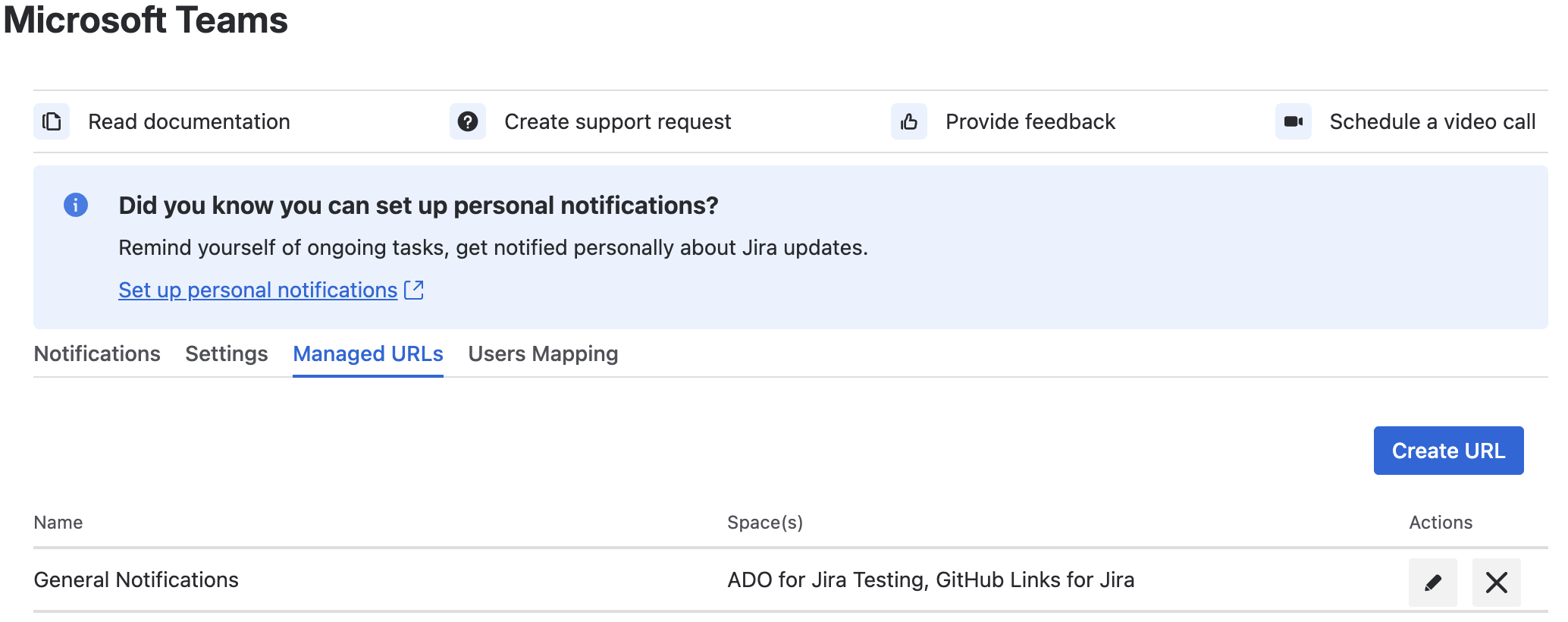
Deleting a Managed URL that's still referenced by one or more rules is blocked with a warning, since there's no way to undo it.
What's next
Updated: