

Send Jira updates to Microsoft Teams channels - either across your whole site (Global) or scoped to one Space (Project).
Where to configure each
|
Scope |
Location |
Who can access |
|---|---|---|
|
Global |
Jira admin settings > Marketplace apps > Microsoft Teams > Global Settings > Notifications tab |
Jira admins |
|
Space |
Space settings > Apps > Microsoft Teams Space Settings |
Space admins |
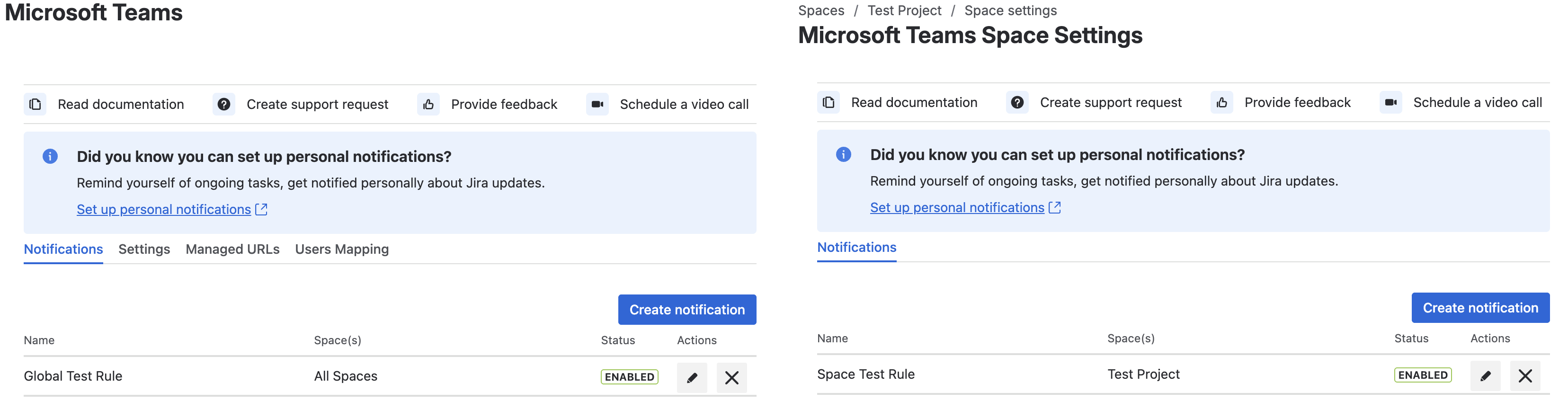
If a Jira admin has disallowed the app for a space (see below), space admins see a notice instead of the rule table: "Jira admin does not allow configuration for this project."
Create a notification rule
Both Global and Space (Project) rules use the same rule wizard, with five steps:
-
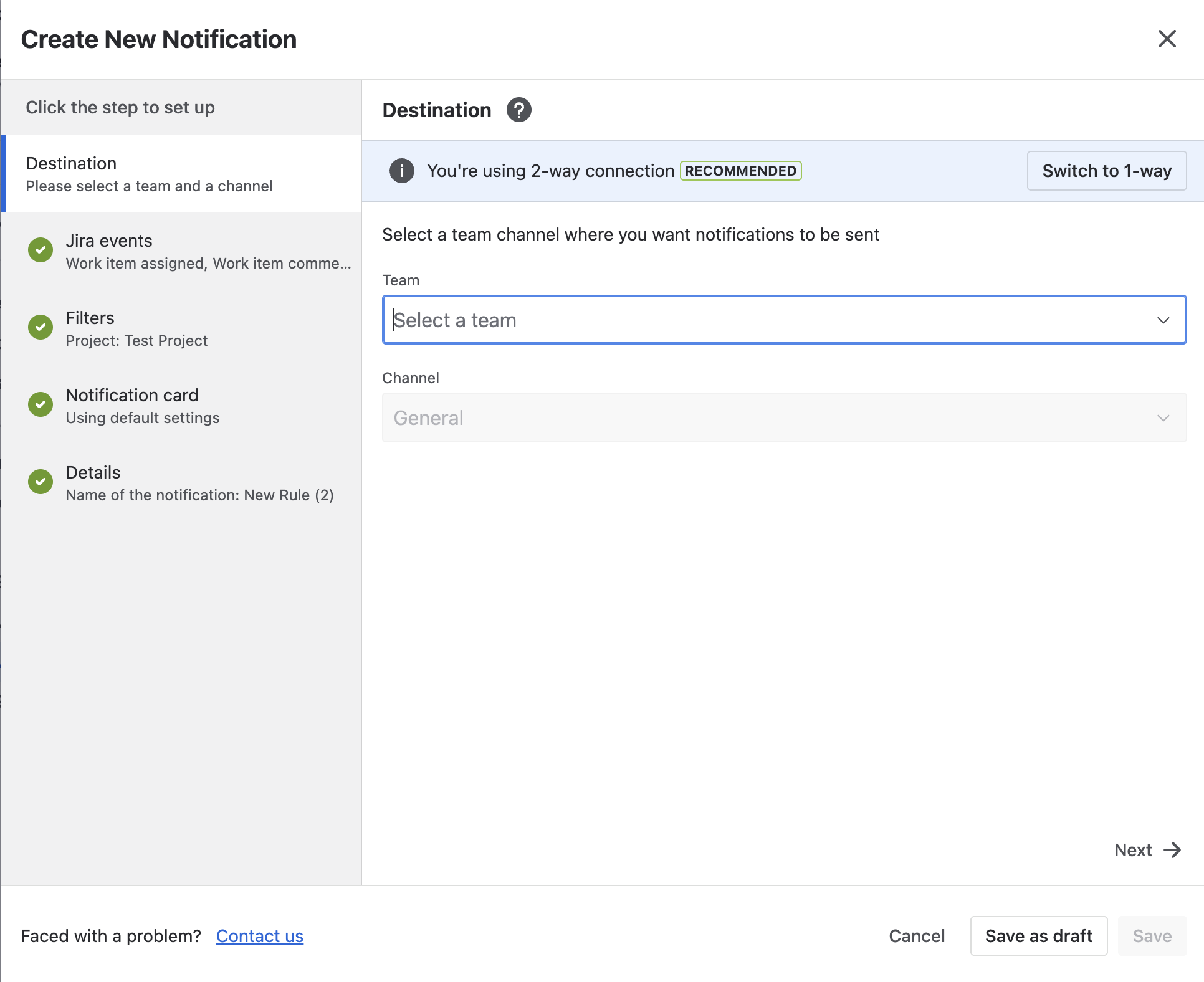
Destination - choose 2-way (bot) or 1-way (webhook) delivery, then pick a Team and Channel (bot) or paste/select a webhook (see Notification Destinations for the full comparison).
-
Jira events - add one or more events (e.g. work item created, transitioned, commented). The transition event lets you narrow to specific target statuses.
-
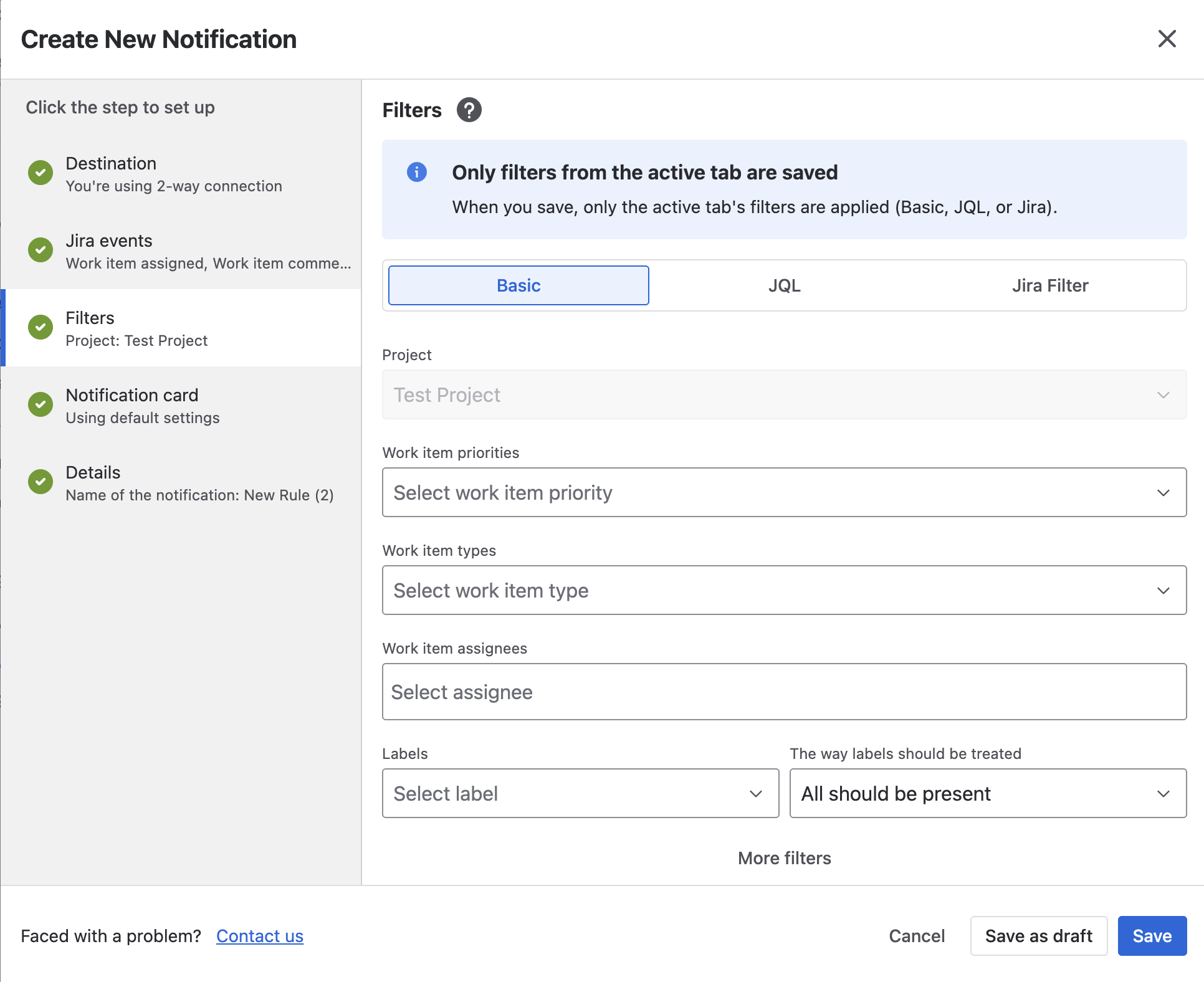
Filters - choose Basic, JQL, or Jira Filter - only the active tab's filters are saved. See Notification Rule Reference for every field.
-
Notification card - preview and adjust what the Teams message looks like.
-
Details - name the rule and save.
Disallow the app for specific spaces
-
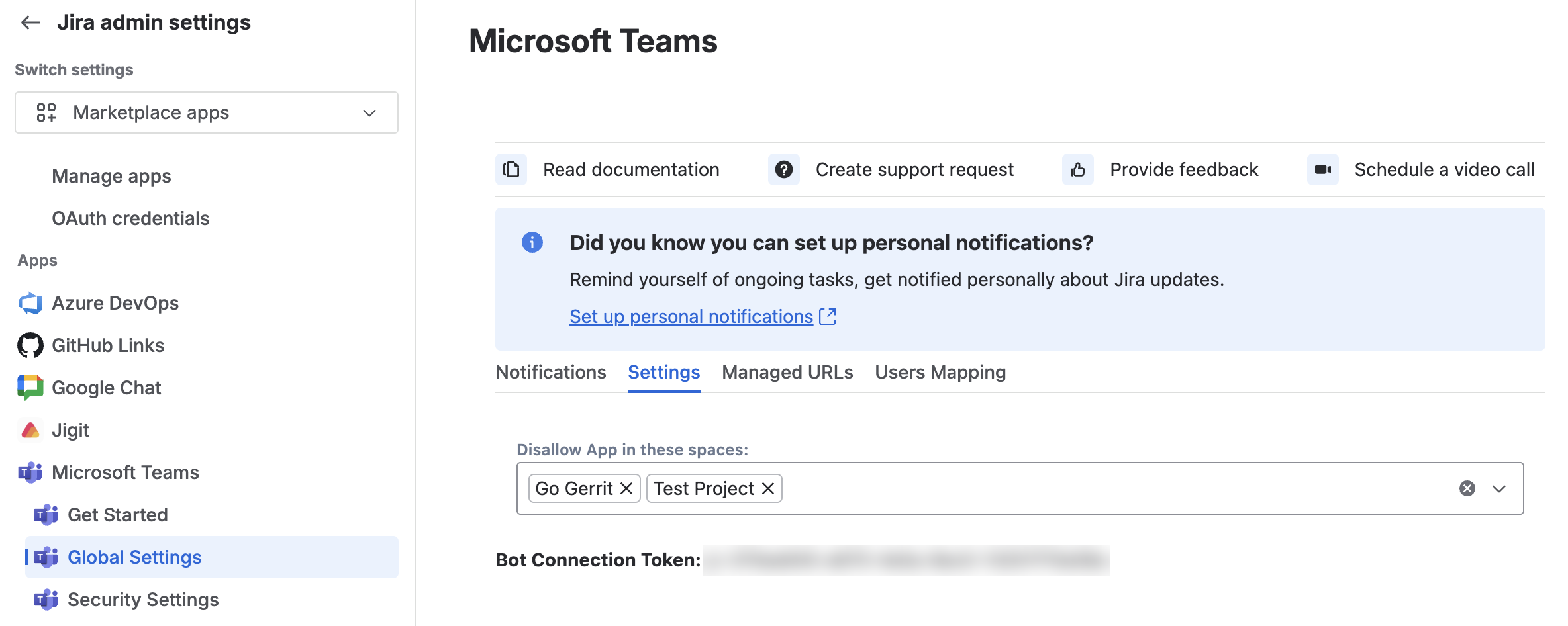
As a Jira admin, go to Global Settings > Settings tab.
-
Under Disallow App in these spaces, select the spaces (projects) where space admins should not be able to configure this app.
What's next
-
Setting Up Personal Notifications - the equivalent for individual users
-
Notification Rule Reference - the full event and filter list
-
Notification Destinations - bot vs webhook, and Managed URLs
Updated: