

Embed a saved Jira filter as a live, filterable table inside a Microsoft Teams channel or chat.
This is set up entirely from the Microsoft Teams side, not from Jira.
Add the tab
-
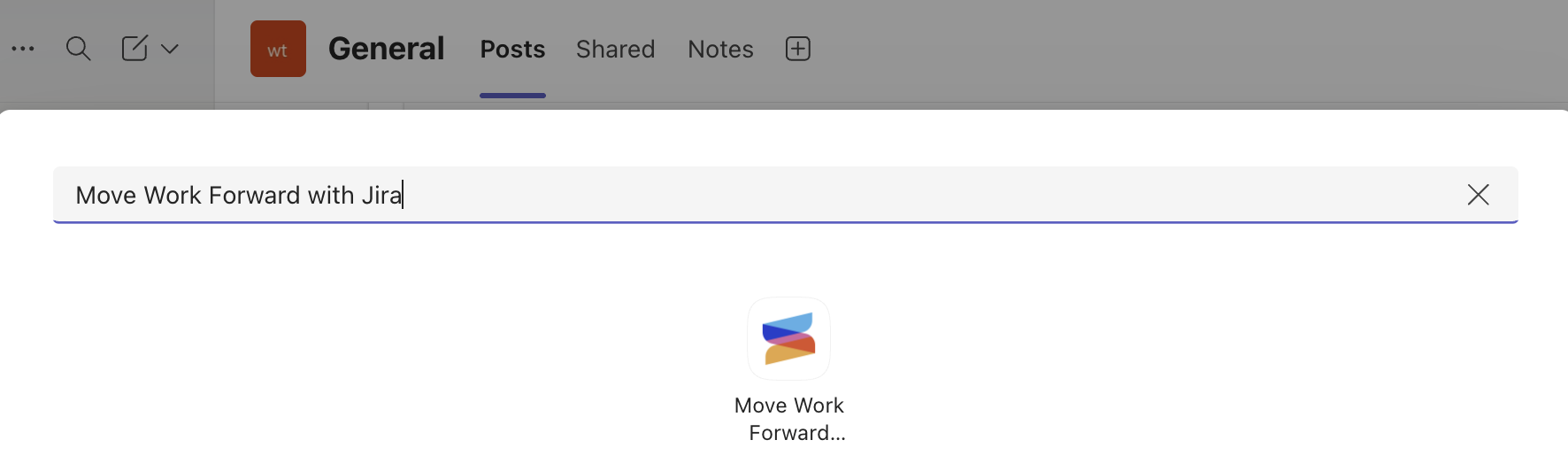
In a Microsoft Teams channel or chat, click + at the top of the tab bar.
-
Search for and select Move Work Forward with Jira.
-
Choose a saved Jira filter to display.
-
Optionally choose which work item fields to show as columns - if you skip this, the default columns are used.
-
Save. The tab renders a live table of matching work items.
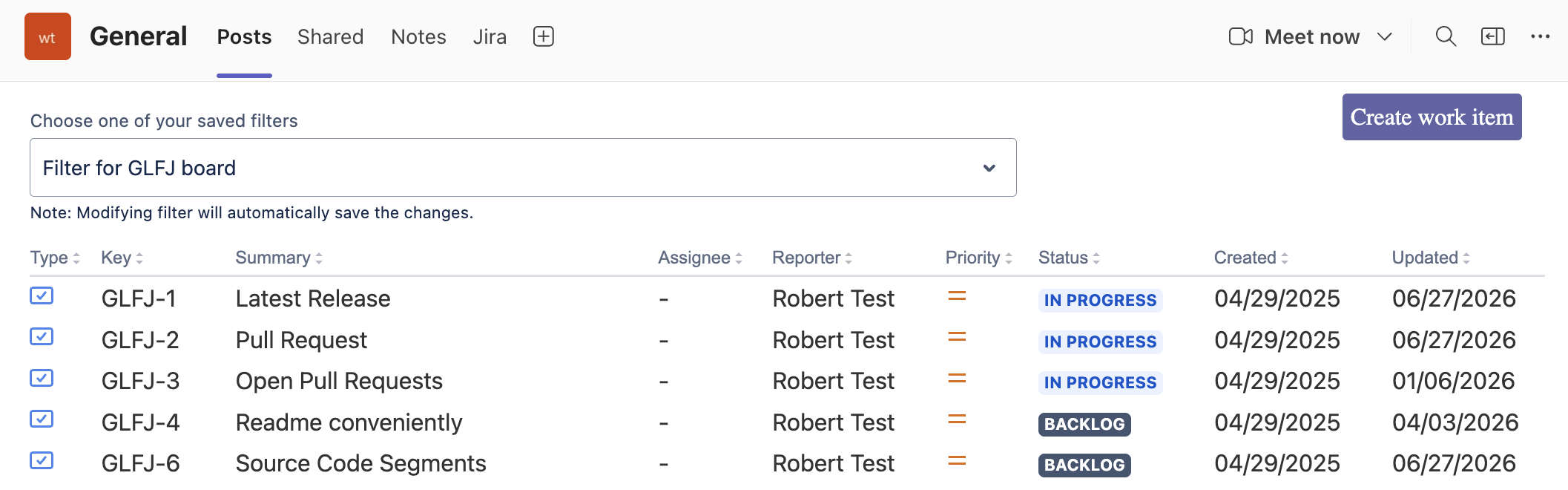
Default columns
Type, Key, Summary, Assignee, Reporter, Priority, Status, Created, Updated.
Work with items from the tab
-
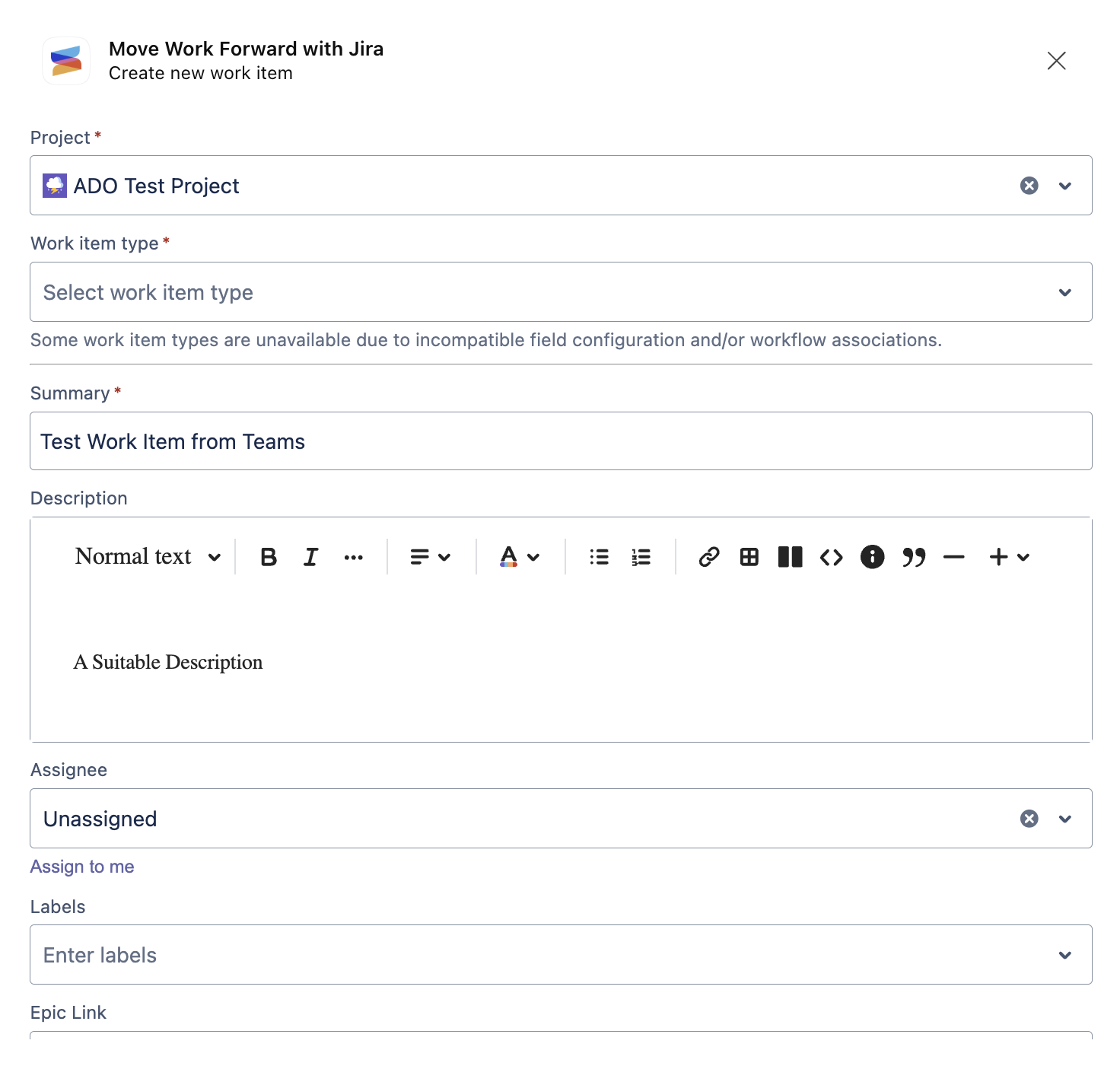
Click Create work item to add a new one without leaving Teams.
-
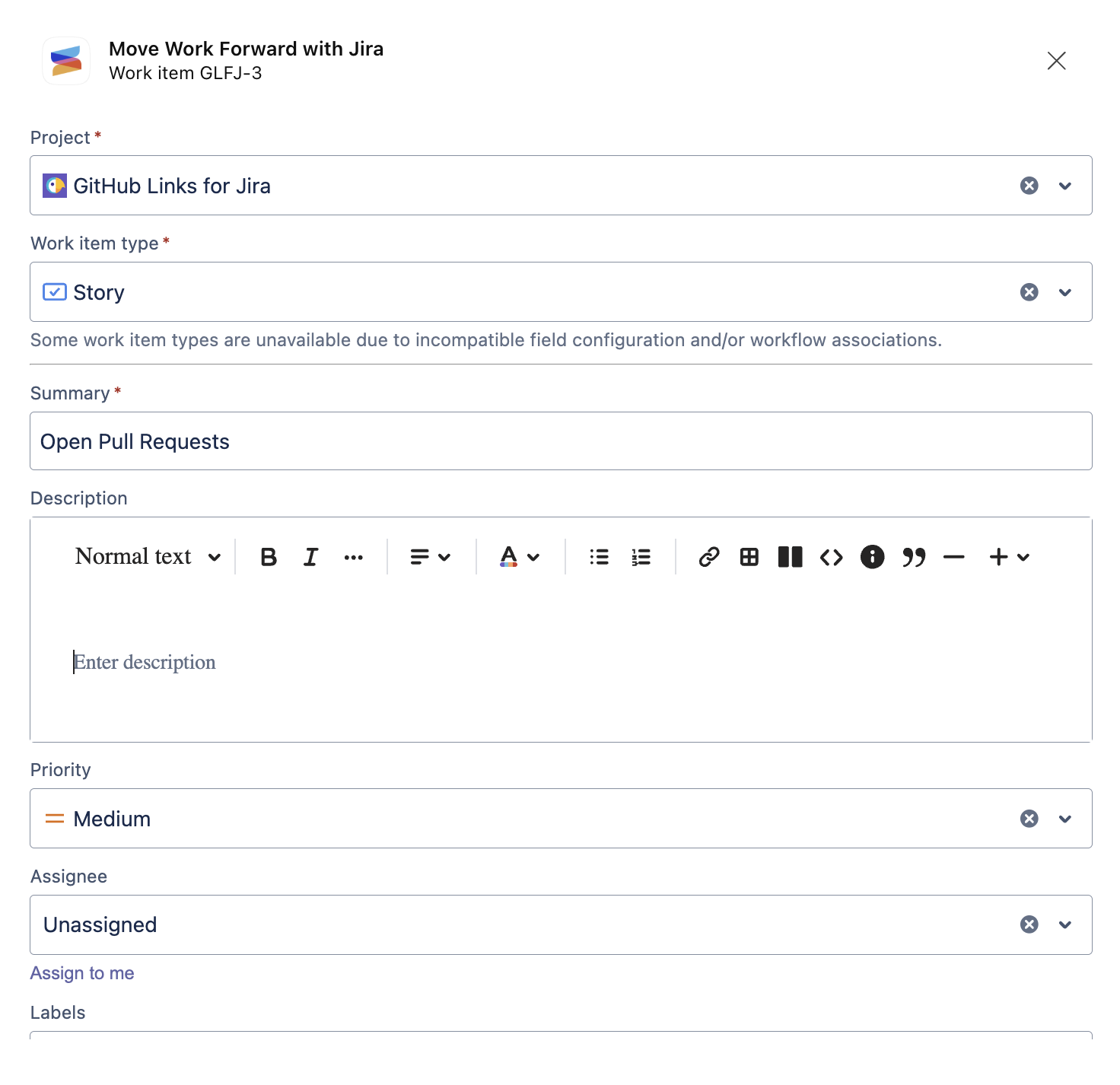
Click any row to open Edit work item.
-
Change the filter or displayed fields at any time from the tab's settings.
What's next
Updated: