

Start getting Jira updates in Microsoft Teams in a few minutes - no admin permissions required, beyond your admin having granted consent once (see your admin if you hit a consent message).
1. Open your personal settings
-
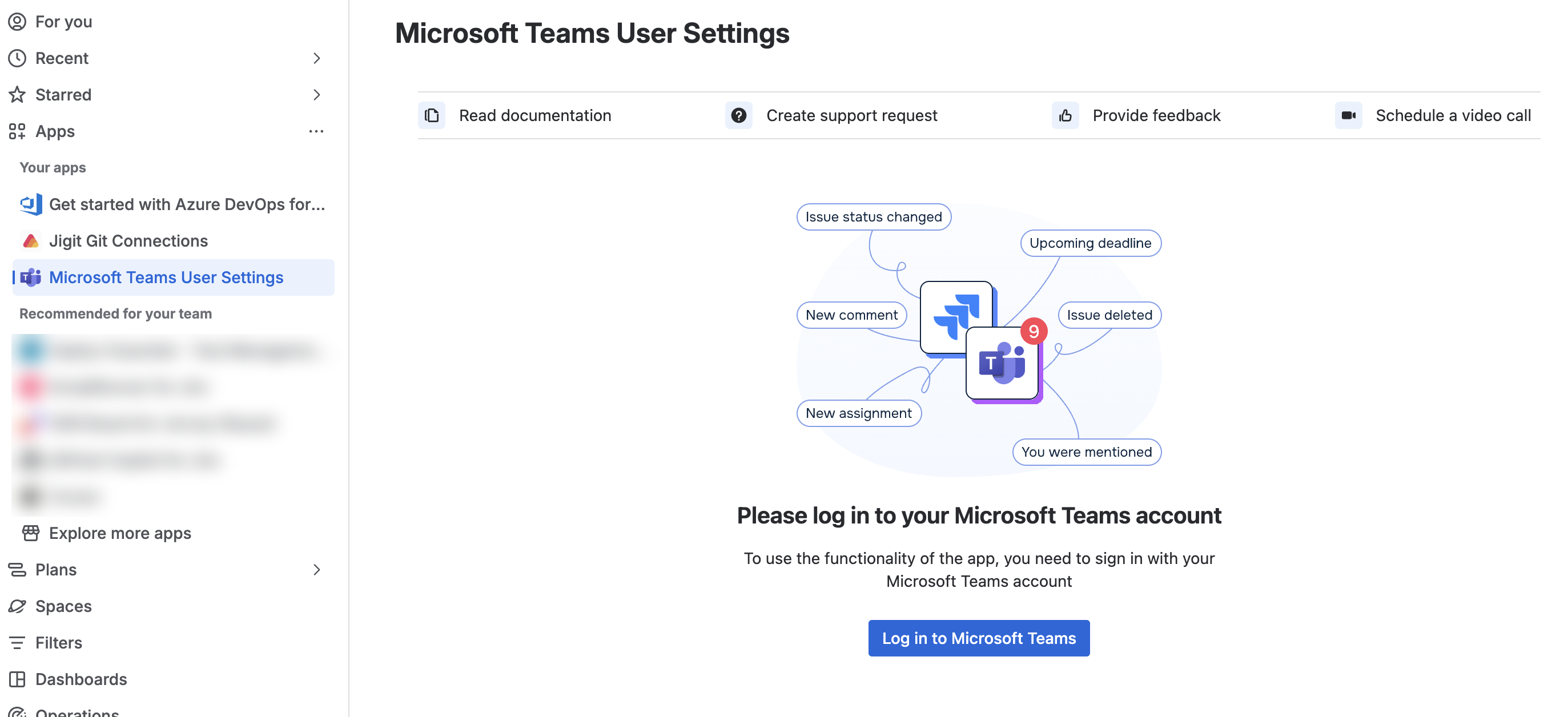
In Jira, expand Apps in the navigation menu and select Microsoft Teams User Settings.
2. Log in to Microsoft Teams
Click Log in to Microsoft Teams and sign in. Full detail on this step, including what to do if you see a warning banner instead, is in Logging In & Linking Your Account.
3. Create your first notification
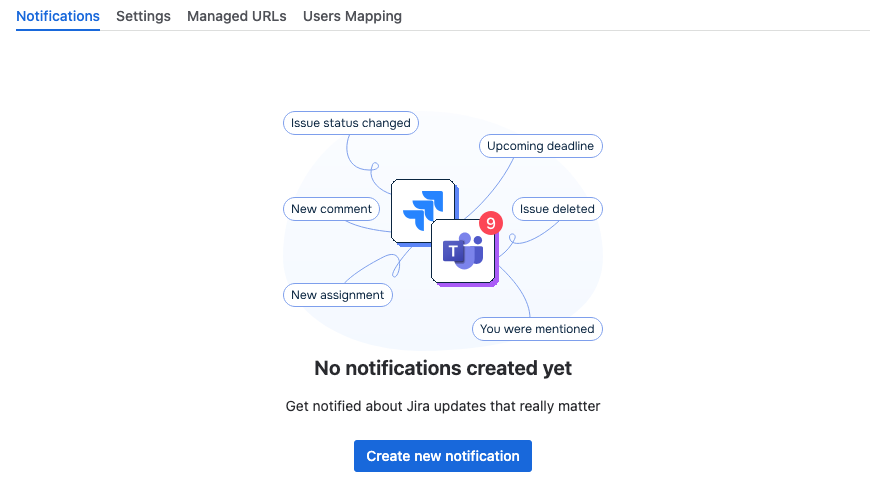
Click Create new notification and follow the wizard - see Setting Up Personal Notifications for the full walkthrough.
4. Set a reminder
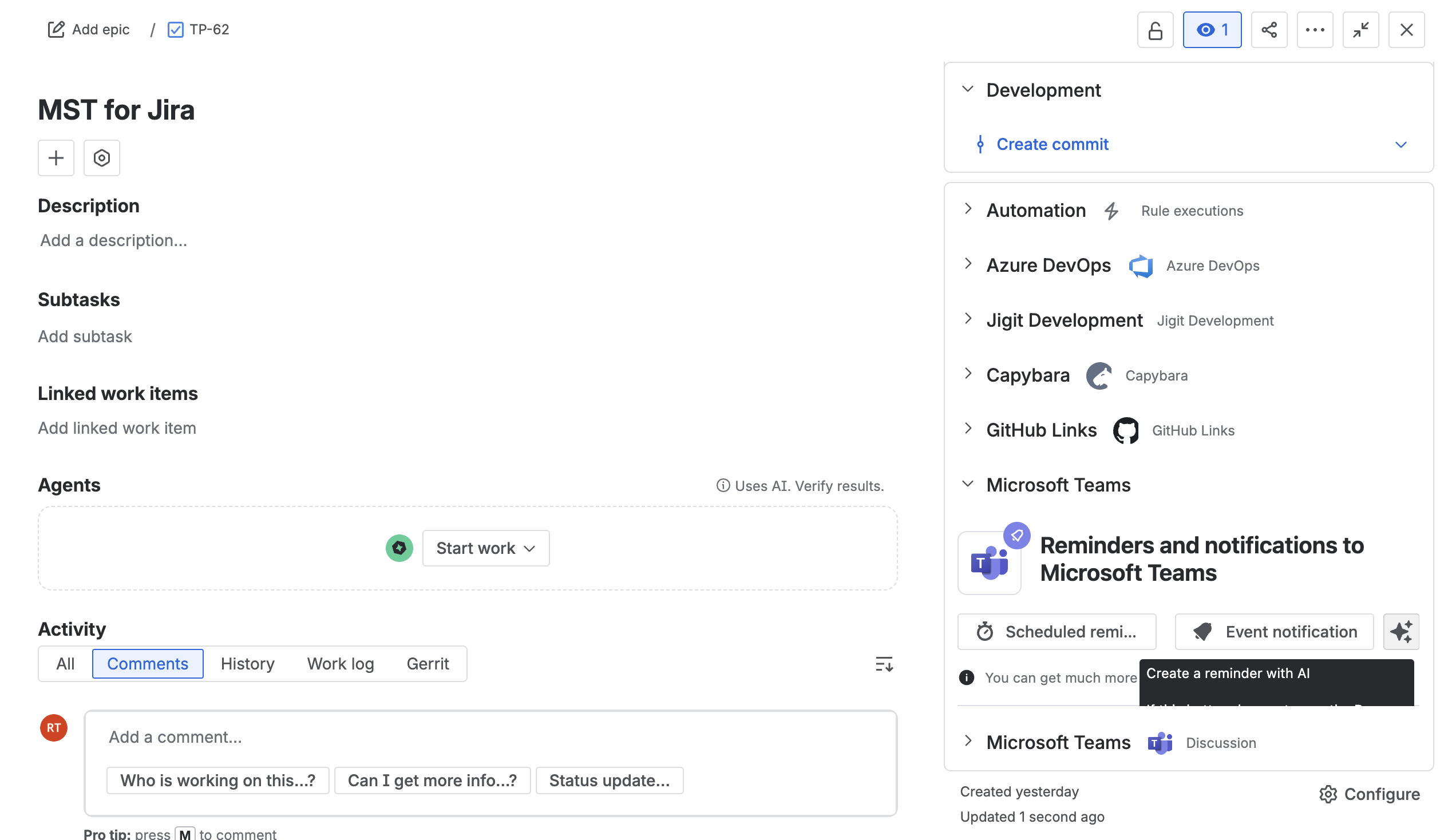
Open any work item, go to the Microsoft Teams panel, and click Scheduled reminder - see Work Item Reminders.
Use cases
See Use Cases for real-world examples of the connector in practice - catching critical bugs the moment they're filed, discussing a work item without leaving the conversation, and more.
What's next
Updated: