Connect your own Jira account to your Microsoft Teams identity so notifications, discussion channels, and reminders can reach you directly.
Log in
-
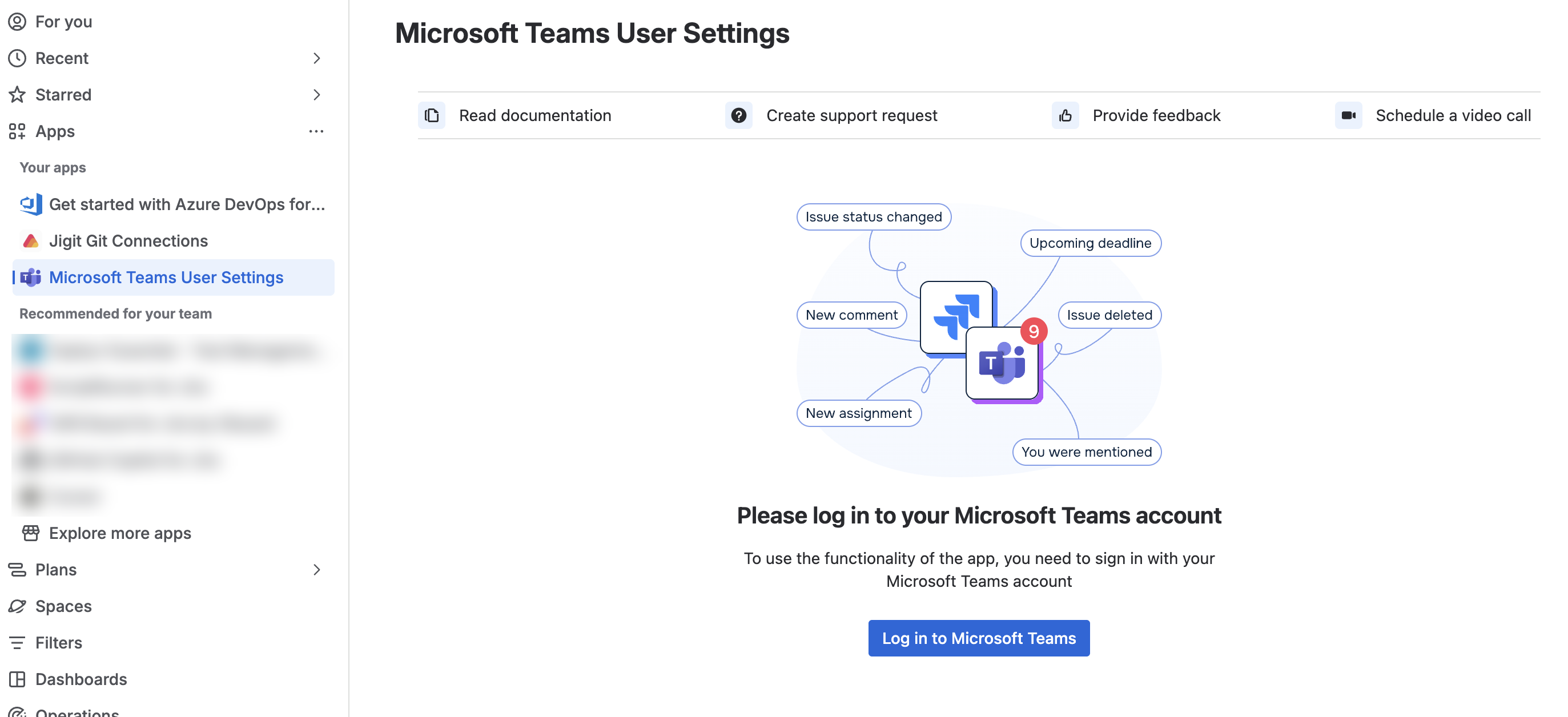
From Personal Configuration, an issue's Microsoft Teams panel, or the discussion channel prompt, click Log in to Microsoft Teams.
-
Sign in via the Microsoft login window that opens.
-
Return to Jira - the page detects you're back and finishes linking your account automatically.
If login doesn't complete
Depending on your account and tenant state, you may see one of these messages instead of a clean login:
|
Message |
What it means / what to do |
|---|---|
|
"Your Microsoft Teams admin has not provided consent yet." |
Your organization hasn't completed the one-time tenant consent. Use the copy-link option to send it to your admin, or point them at Getting Started - Administrators. |
|
"We couldn't install the bot into your Microsoft Teams account." |
Install the "Move Work Forward with Jira" app manually in Microsoft Teams, then try again. |
|
"We couldn't connect your Microsoft Teams account." |
An older install needs reconnecting - open a chat with Move Work Forward with Jira in Teams and type |
|
"Your Teams account is connected to another Jira." |
Your Microsoft identity is already linked elsewhere. Message the Move Work Forward with Jira with |
|
"Your Jira account is already connected to Teams." |
You're actually already linked - click Refresh page. |
Disconnect your account
-
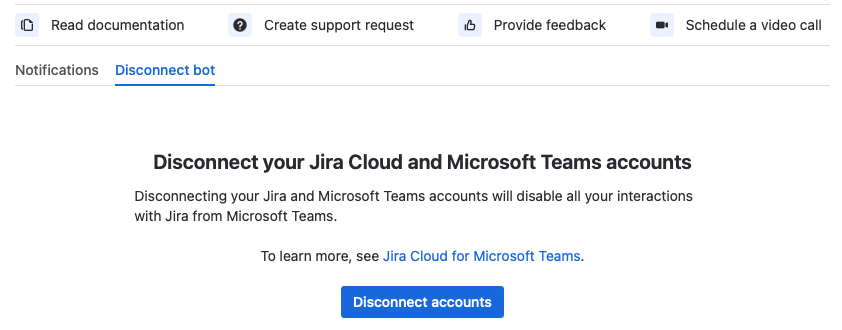
Go to Personal Configuration > Disconnect bot tab.
-
Click Disconnect accounts. This disables all Jira-from-Teams interactions until you log in again.
What's next
Updated: