

Overview
The Scheduled Reminder feature allows users to create reminders linked to a specific Jira work item. Reminders are configured directly within Jira and delivered through Microsoft Teams.
Once a reminder is created:
-
A confirmation notification is sent to Microsoft Teams indicating the reminder has been scheduled successfully.
-
A follow-up notification containing the reminder message is automatically delivered at the configured date and time.
How to Create a Scheduled Reminder
1. Open the Relevant Jira Work Item
Open the Jira issue or work item where the reminder should be configured.
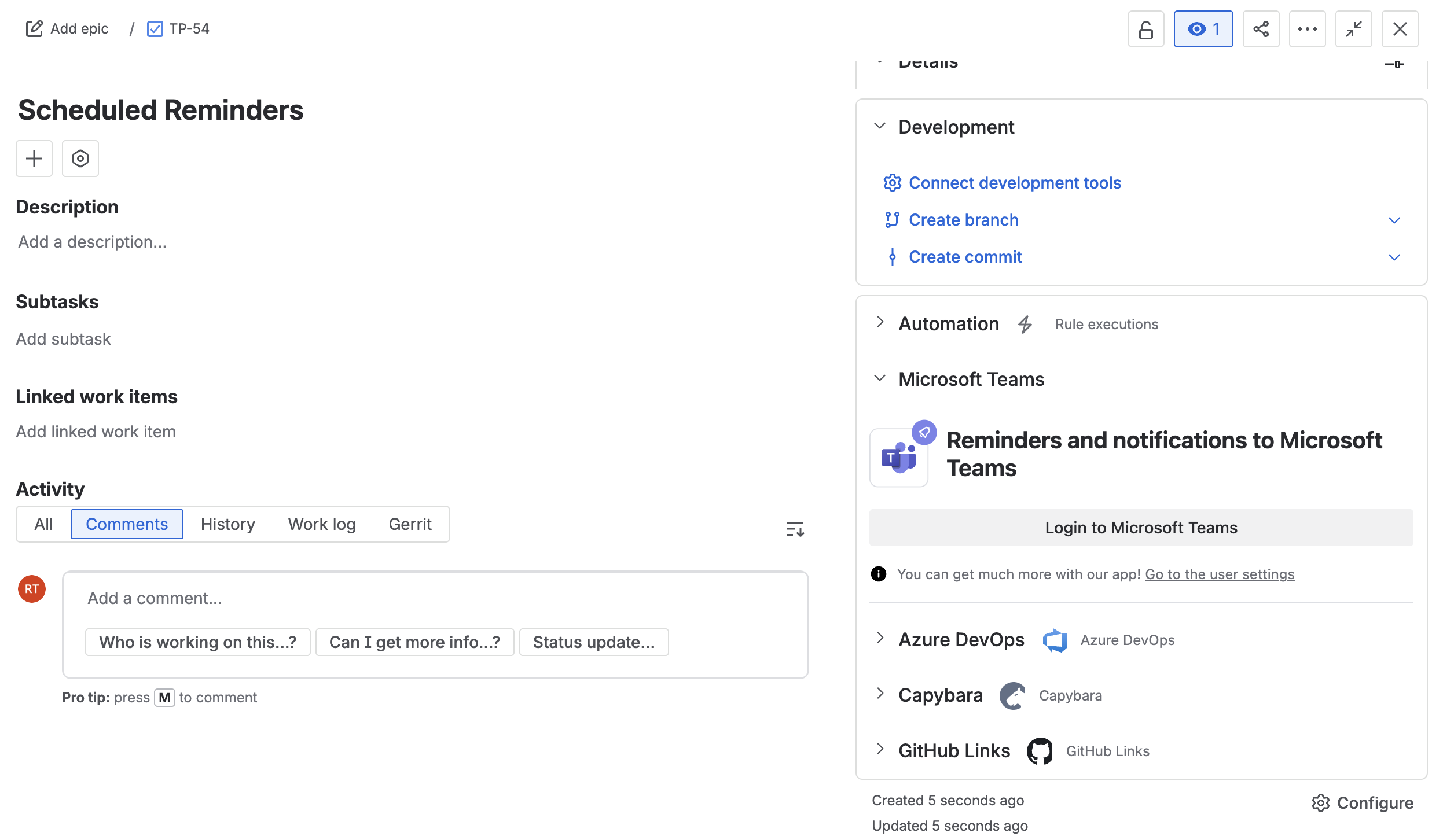
2. Open the Microsoft Teams Section
Navigate to the Microsoft Teams section within the Jira work item.
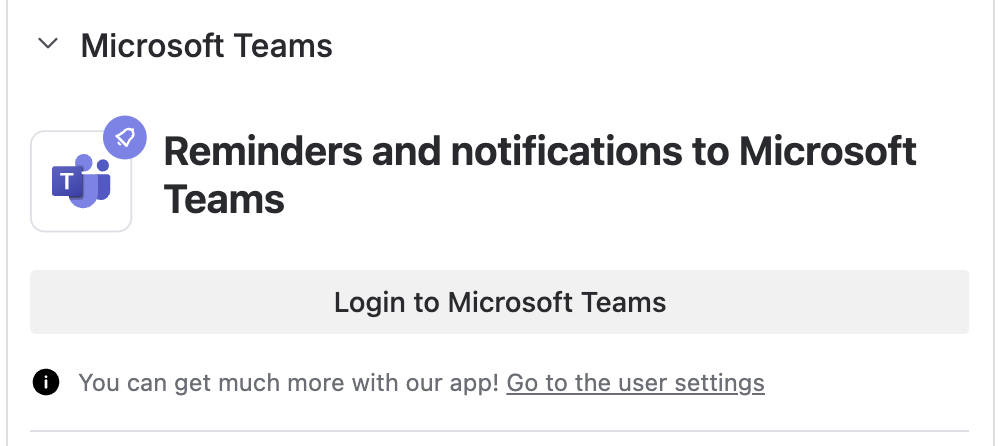
3. Authenticate with Microsoft Teams
Select Login to Microsoft Teams and complete the authentication process if prompted.
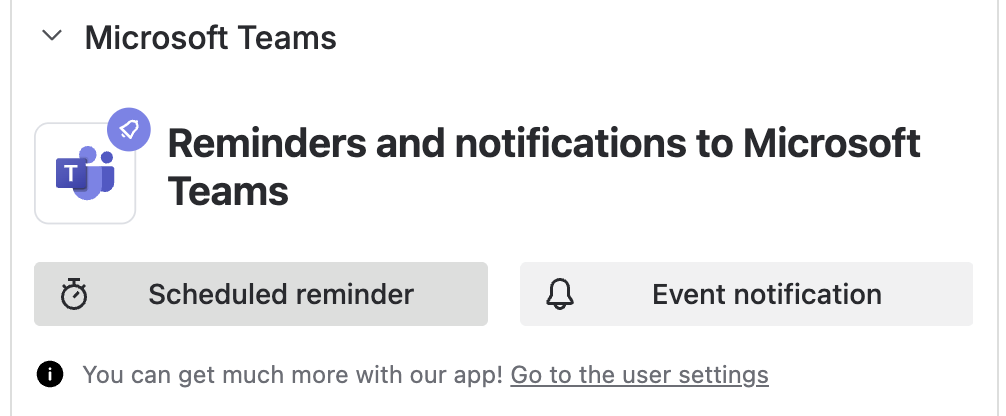
Then select Scheduled Reminder.
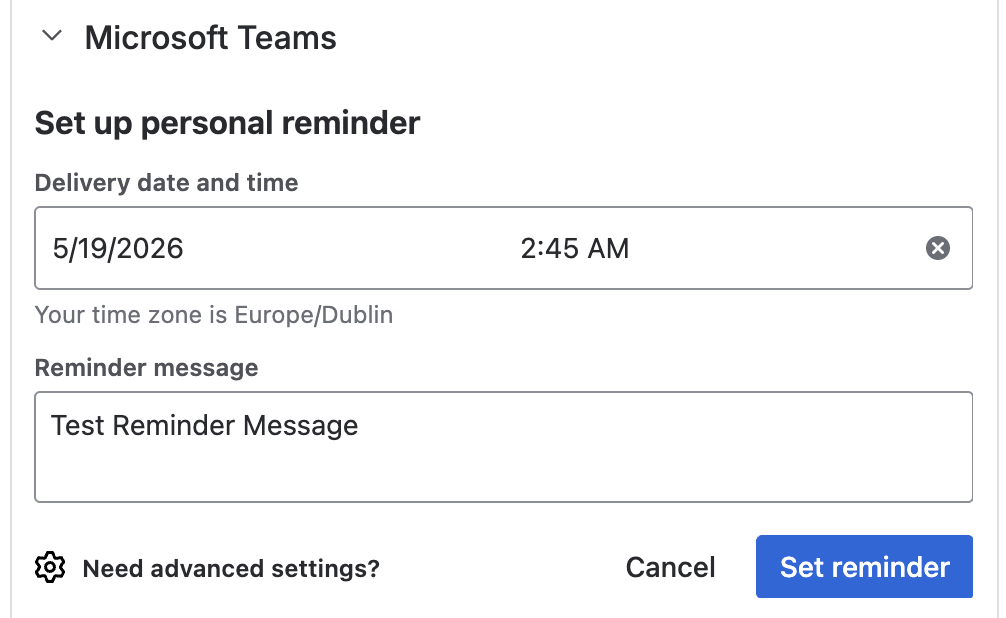
4. Configure the Reminder
Complete the reminder details:
-
Select the desired Delivery date and time
-
Enter the Reminder message
5. Save the Reminder
Select one of the following options:
-
Set Reminder to save and schedule the reminder
-
Cancel to discard changes
Notification Flow
After the reminder is configured:
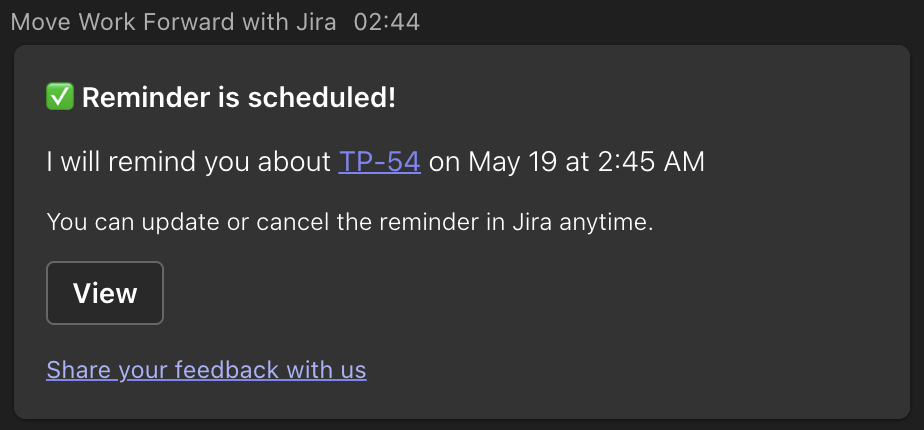
Confirmation Notification
Microsoft Teams receives a confirmation message indicating the reminder has been scheduled successfully.
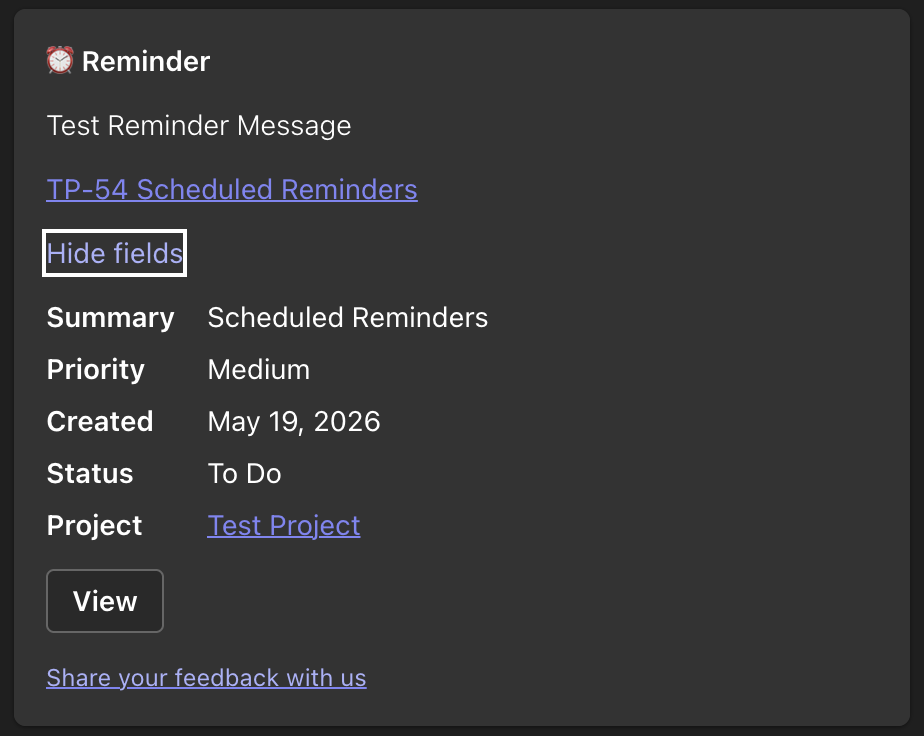
Scheduled Reminder Notification
At the configured date and time, Microsoft Teams sends the scheduled reminder notification.
Common Use Cases
Scheduled reminders can help teams:
-
Follow up on pending tasks
-
Track deadlines and milestones
-
Remind users about approvals or reviews
-
Coordinate deployments or releases
-
Ensure important work items are not missed
Updated: